

Overview
This article outlines common reward configuration patterns used by credit unions and banks in Flow Builder. These scenarios reflect typical event structures and qualification ownership models when the client is managing the qualifications. Use this guide to determine which reward rule setup best aligns with your data flow and reward requirements.Before You Begin: Who Handles Qualification?
In most bank and credit union implementations, the FI performs qualification on their side and sends an “account qualified” event to Extole. If Extole is evaluating qualification logic (10 direct deposits, $1,000 reward balance), additional reward rules are required.Scenario 1: Rewards Sent Immediately upon Account Qualification - No Time Limit
Overview
The bank or CU performs all qualification checks internally and sends an “account qualified” event once the account meets their criteria. The reward is triggered immediately upon receipt of this event. This is the most common implementation.Flow Builder Configuration
-
Add a reward on the “Account Qualified” event.
- Advocate and friend rewards are enabled by default in Extole’s Refer a Member template with this configuration
- Adjust any other reward rules (Annual Reward Value Limit, etc)
When to Use This Setup
- The bank or CU owns qualification logic.
- No pending period or time-bound validation is required in Extole.
Scenario 2: Rewards Sent X Days after Account Opening
Overview
The bank or CU sends an “Account Opened” event, but does not send a qualification event. Extole determines qualification based on a required pending period, such as keeping the account open for 90 days. The reward is delayed until the pending period has elapsed. This is often paired with an event like Account Closed (see Preventing Rewards with Negative Outcomes below).Flow Builder Configuration
- Add a reward on the “Account Opened” event.
- Click into the Reward and + New Reward Rule
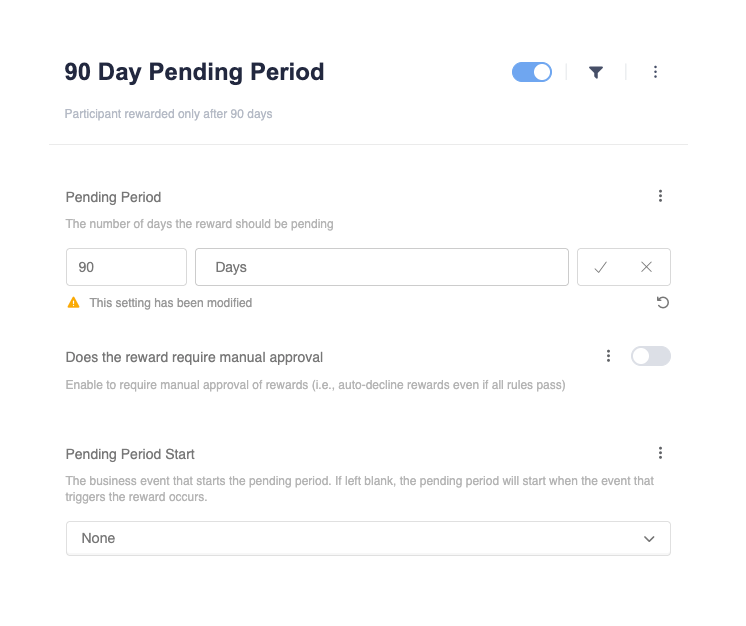
- Choose Pending Period and click Add
-
Under Pending Period, choose the length of time that will delay the reward
- By default it will start the pending period from the event of the reward, which in most cases is Account Opened
- Update the name and description of this rule to call out the time period (ex. “90 Day Pending Period)
- Adjust any other reward rules (Annual Reward Value Limit, etc)
Preventing Rewards for Negative Outcomes
A common use case with this scenario is to also include an event that disqualifies a person from reward. For example, you will earn a reward if you opened an account and did not close the account within 90 days. If the client sends negative lifecycle events such as “Account Closed” , you can combine:- Pending Period , and
- Has Not Taken Action
Flow Builder Configuration
- Add a new business event and rename it to match the input event (example “account_closed”
- Add the reward and pending period as indicated above
-
Click into the Reward and + New Reward Rule
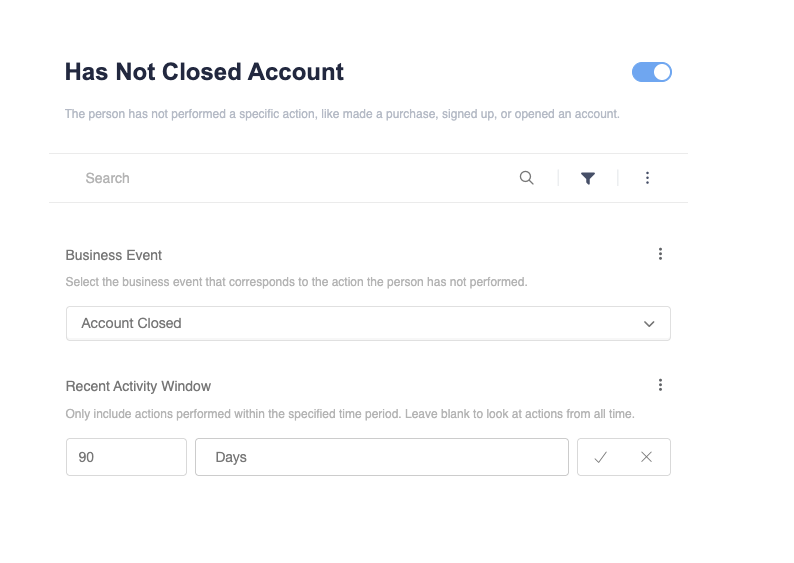
- For friend rewards, choose Has Not Taken Action
- For advocate rewards, choose Other Person Has Not Taken Action
- Update the name and description to describe the rule (ex. Has Not Closed Account)
- Choose the Business Event that disqualifies them for reward (ex. Account Closed) and the Recent Activity Window (matches pending period)
- Adjust any other reward rules (Annual Reward Value Limit, etc)
When to Use This Setup
- The bank or CU does not send a qualification event.
- A holding period is required before issuing rewards.
- A negative event is sent to Extole that should disqualify the participant from reward
Scenario 3: Rewards Sent Immediately upon Account Qualification - Specific Time Limit
Overview
This is a similar set up as Scenario 1, however, qualification must occur within a defined time frame. For example, the account must be qualified within 90 days of account opening. Once the qualification event is received and validated within the time window, the reward is sent immediately. If the Account Qualified event is sent more than 90 days after account opening, the reward will not be sent.Flow Builder Configuration
-
Add a reward on the “Account Qualified” event.
- Advocate and friend rewards are enabled by default on Account Qualified in Extole’s Refer a Member template
- Click into the Reward and + New Reward Rule
-
For friend rewards, choose Has Taken Action and for advocate rewards, choose Other Person Has Taken Action
- Update the name and description to describe the rule (ex. Has Opened Account in Last 90 Days)
- Choose the Business Event that qualifies them for reward (ex. Account Opened) and the Recent Activity Window (period of time since the account was opened)
- Adjust any other reward rules (Annual Reward Value Limit, etc)
When to Use This Setup
- The bank or CU sends a qualification event.
- Qualification must occur within a defined time window.
- Rewards should be issued immediately after qualification, but not if it’s passed the defined window
Sending Different Rewards Based on Account Type
In some programs, the reward varies based on account type, such as checking versus mortgage. The preferred method is to create multiple business events each with their own associated reward. The three primary configurations needed are creating events for each product type opened, adjusting the Input Event trigger rule to use Account Opened, and adding a trigger rule to only trigger if it’s a specific product type that is opened.Flow Builder Configuration
-
Add a new business event and rename it to match the event that is happening
- “Mortgage Account Opened”
- “Checking Account Opened”
-
Under the Data section, click + New Data and choose Business Event Data
- Rename the data to match the column / parameter name exactly (ex. Product Type)
-
Under the Trigger Rules section, click into the “Triggered By..” rule
- By default this will match the name of the business event, but in most cases both events are being triggered by the same account opened event.
- Find the Trigger Event Names value and click the three dots
-
Under “Values ” delete the default value that is there (ex. mortgage_account_opened), and add account_opened
- This means that the event will be triggered by the account opened input event
- Save and apply changes
-
Go back to the business event and under Trigger Rules , click + New Rule
- Add Event Data Comparison and rename the rule to align with the product type
- Event Parameter is the name of that column in the file we are looking for (ex. product_type) and the value is the exact match it will look for (ex. Mortgage)
- Add any associated rewards or other qualifying events that should be triggered
- Follow these steps for as many different products as you’d like.