Overview
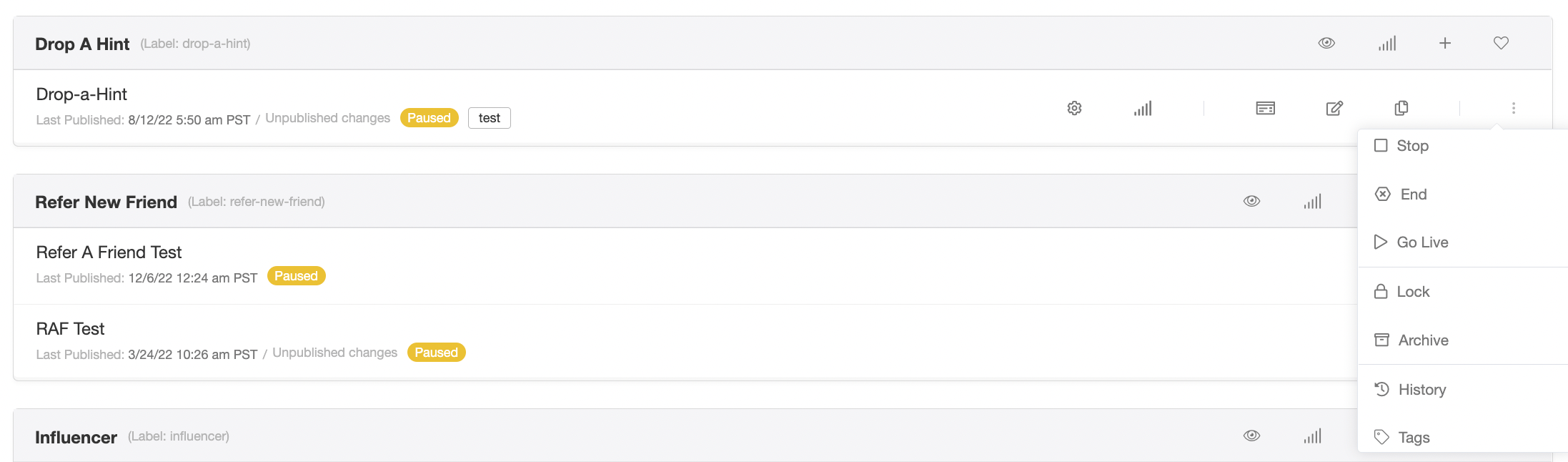
The Programs page of your My Extole account loads your programs and campaigns lightning-fast, and lets you get right to work on editing your campaign with just the click of a button.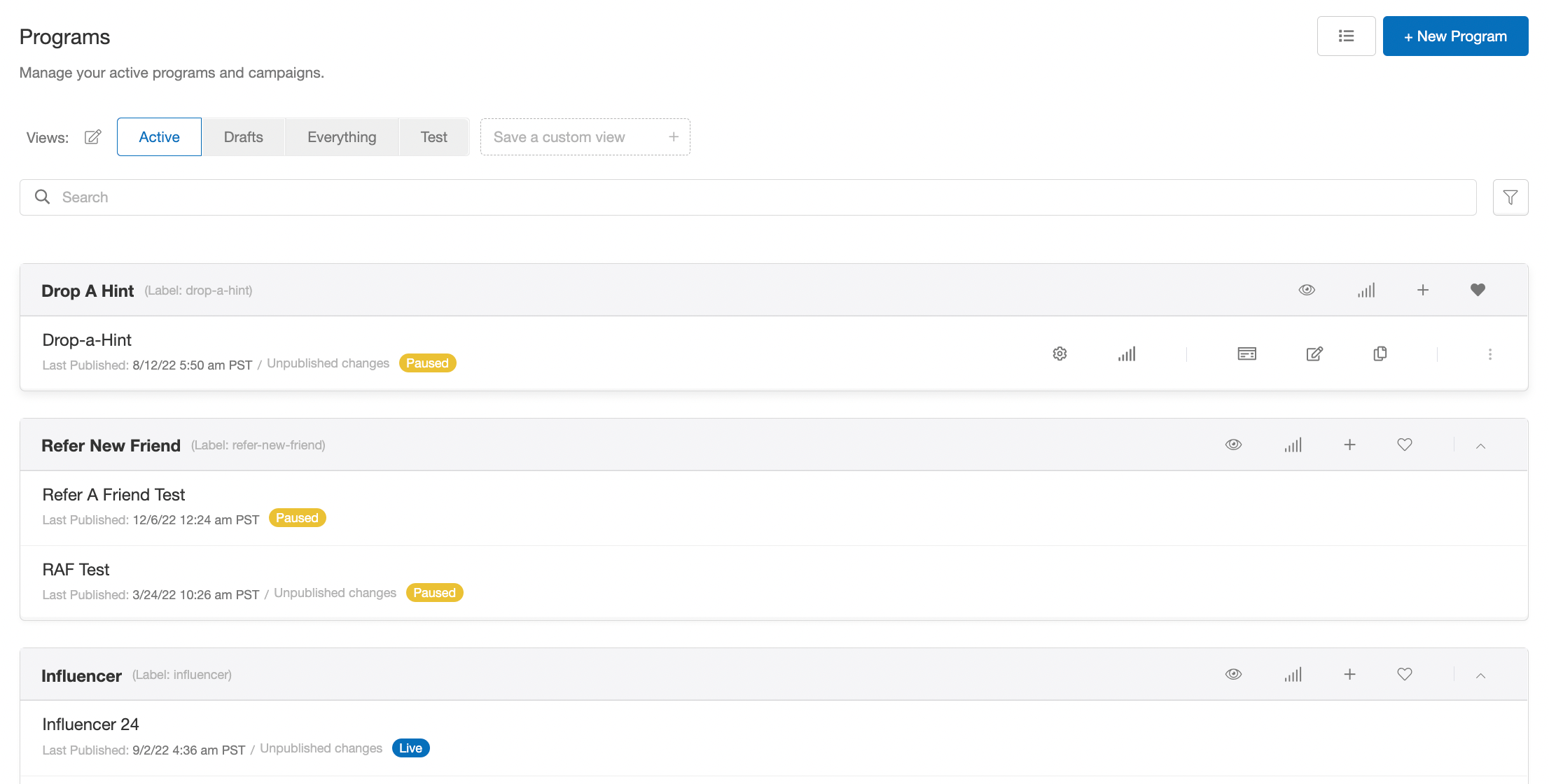
Top-level Navigation
At the top of the page, you can quickly create a new program by clicking the “New Program” button. You can also select any of the preset Views (i.e., Active, Drafts, Everything) or create a custom view to filter what programs and campaigns appear on the page. The search bar allows you to look for specific programs or campaigns based on their name or tags.
Creating Custom Views
To create a custom view, click on the filter icon to the right of the search bar. A window will slide out from the right side of browser with a number of filters for you to configure. As you select your filter options, they will automatically apply. Once you have set all of the options to your liking, you can close the window, type a name for your view into the “Save a custom view” box, and click the + to save it.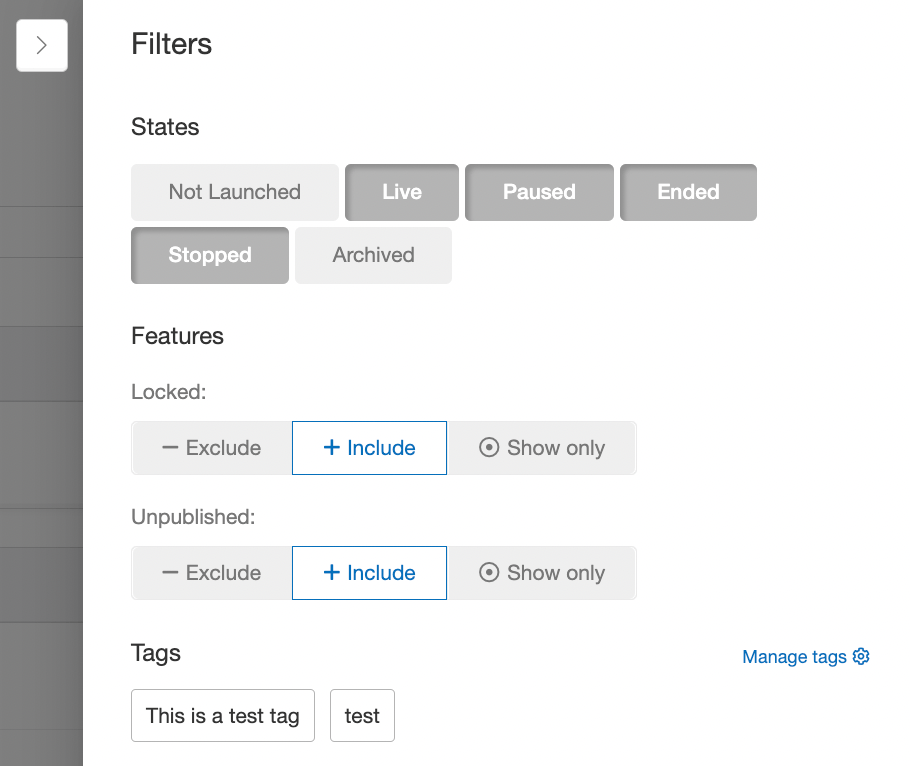
Managing Tags
Also in the slide-out window toward the bottom is the option to manage tags. Here you can add or delete tags and change your visibility and editing options. Tagging is useful for when you want to associate similar programs or campaigns with a shared keyword to make searching for them easier. Note that tags are specific to programs and campaigns, so any tags you save are visible to other users in your account.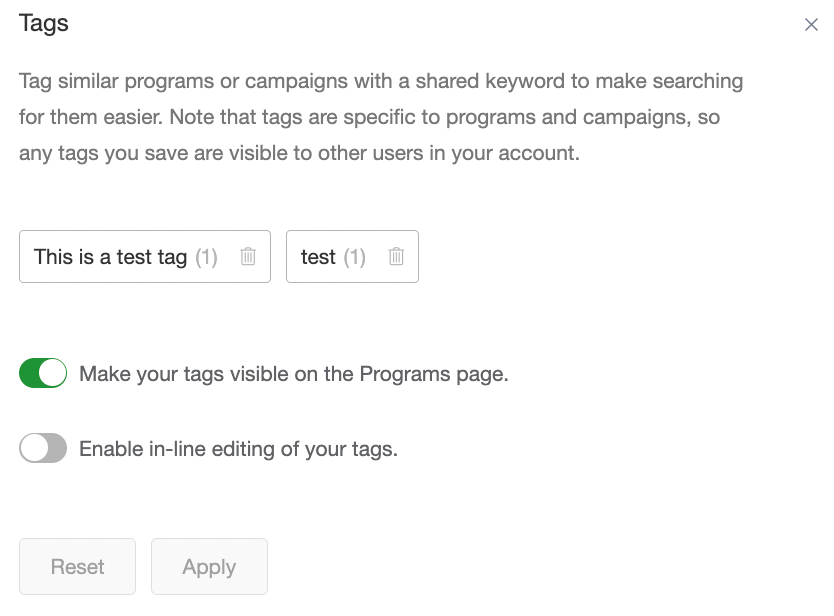
Program-level navigation

Campaign-level Navigation