
Editing your Campaign
Navigate to your campaign by clicking the Edit Creatives button. Navigate to the Advocate tab and you’ll see the Share Experience and Microsite. If you have a newer Flow Campaign, these edits can be made either under the Assets tab or within the Flow Builder by clicking the Microsite and Share Experience under the Promotion Clicked event.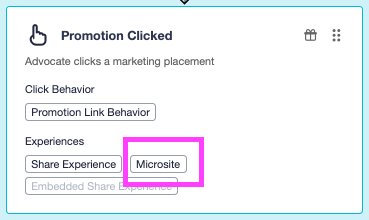
Items Edited in the Microsite Creative
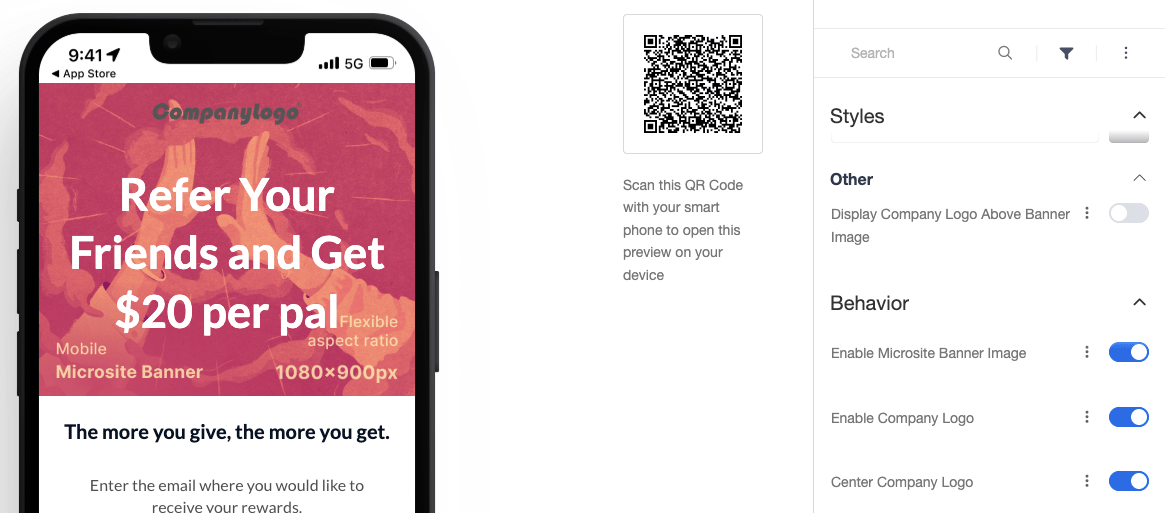
Here is a screenshot of the Microsite along with a breakdown of where each portion can be updated: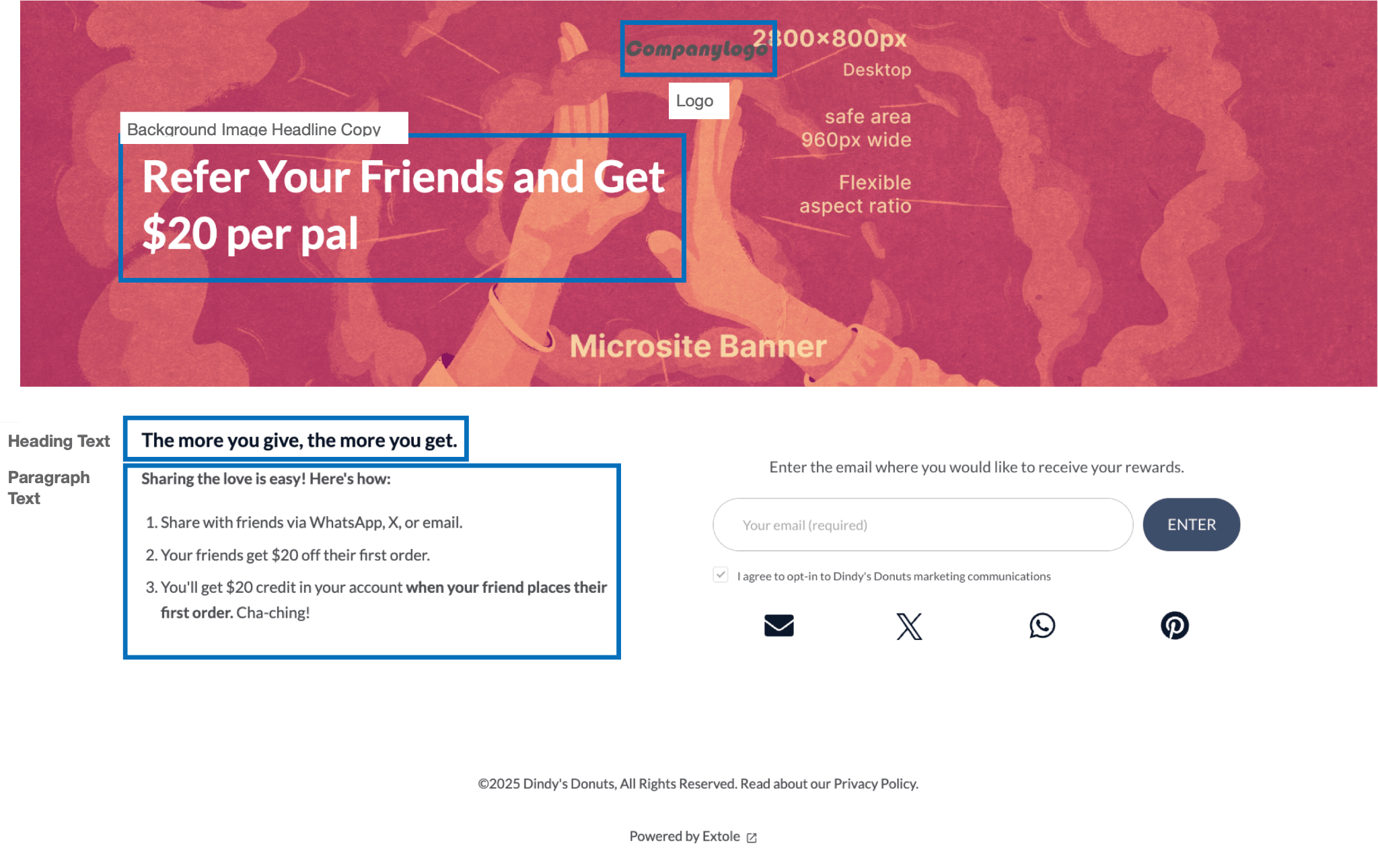
Tip: Utilize the search bar within the drawer to search for the copy you are trying to edit.
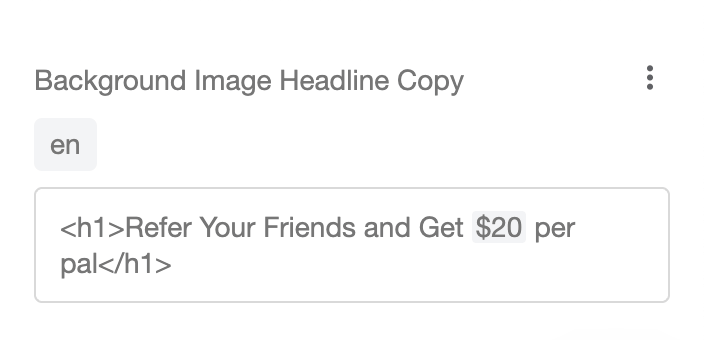
Background Image Headline Copy:
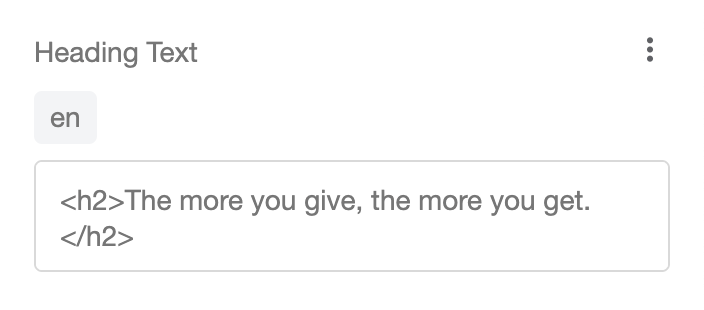
Heading Text
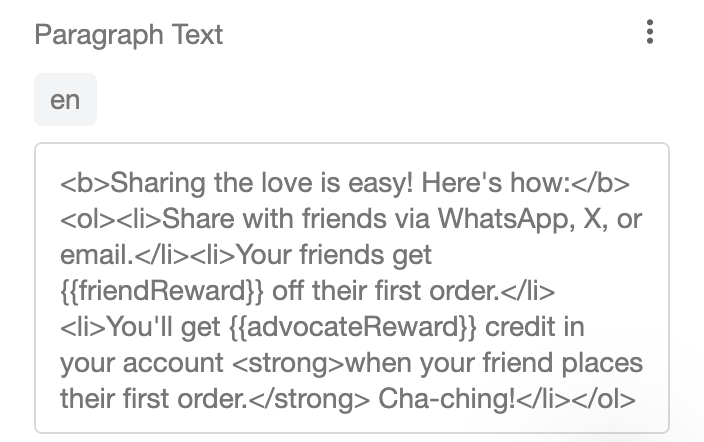
Paragraph Text
Enable Company Logo, Center Company Logo and Display Company Logo Above Banner Image
Items Edited in the Share Experience Creative
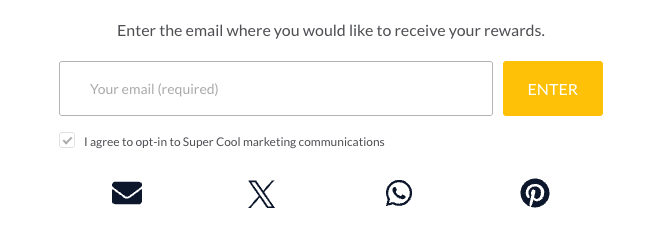
This is the section on the microsite that is pulled from the share experience creatives:
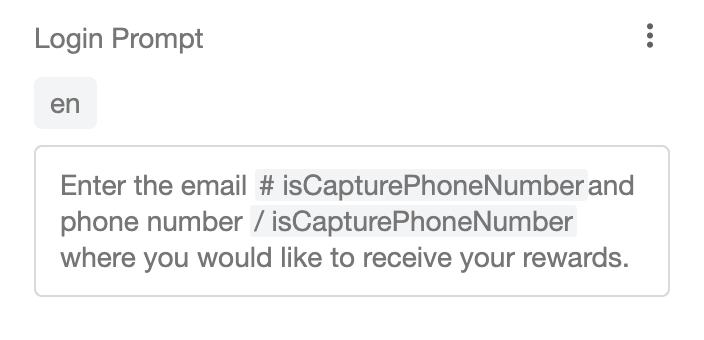
Login Prompt:
Enter Button Text and Color:
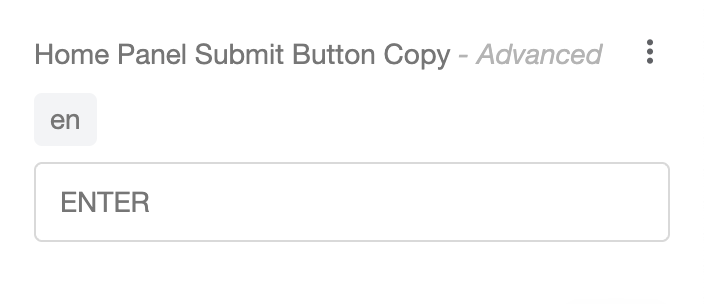
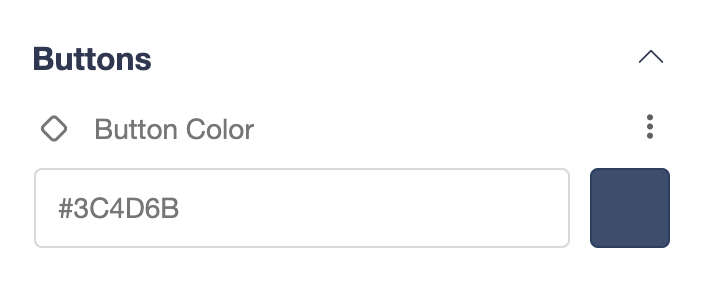
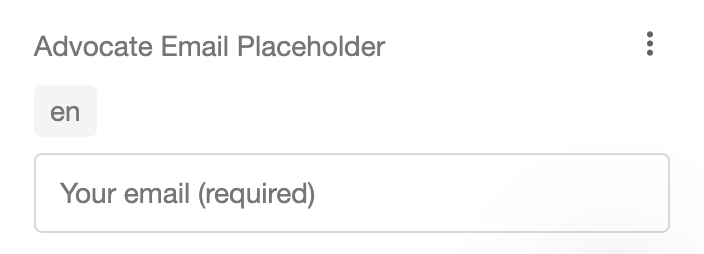
Email Placeholder:
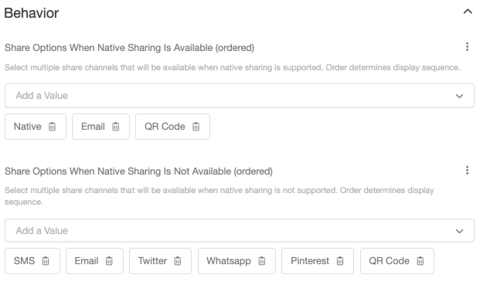
Available Sharing Channels / Options:
If you are on an older version of My.Extole, your share options may look like this:
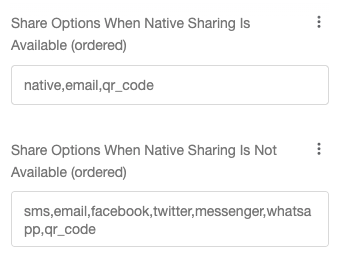
Native sharing is the built-in share menu on your phone that pops up when you tap a Share button, letting you quickly send something via text, Slack, email, or any other app you use most.
Editing HTML in Extole
The Extole platform supports HTML design elements in the copy variables on any of our assets. HTML Helper Guide coming soon, or you can reach out to your CSM or support@extole.com for help.