Overview
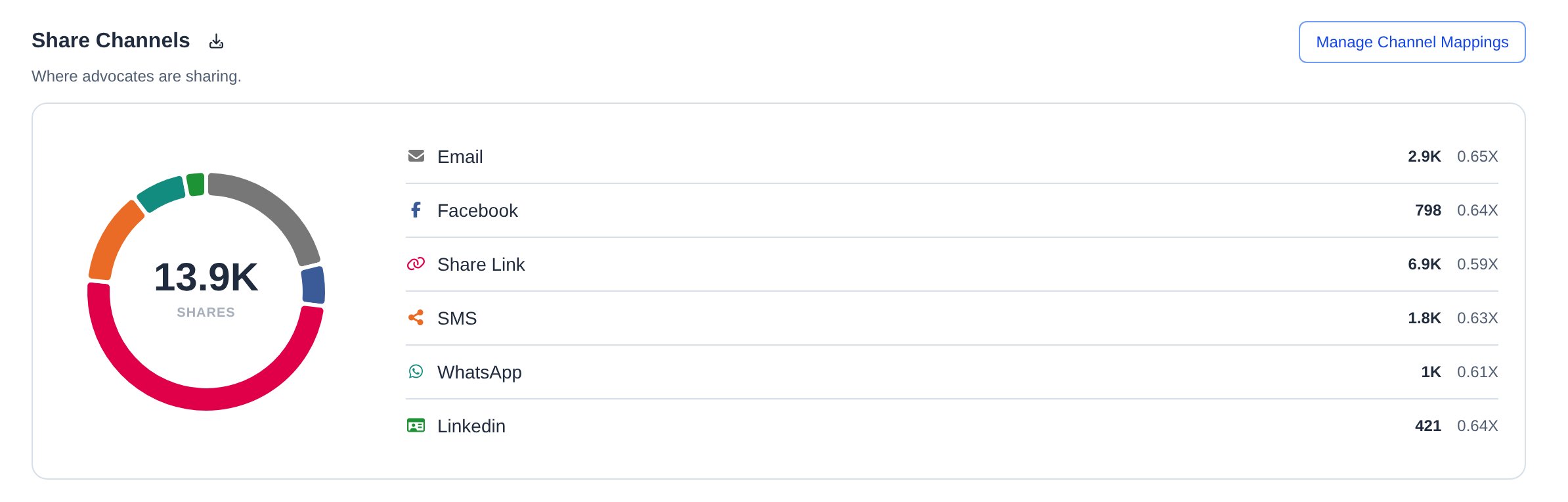
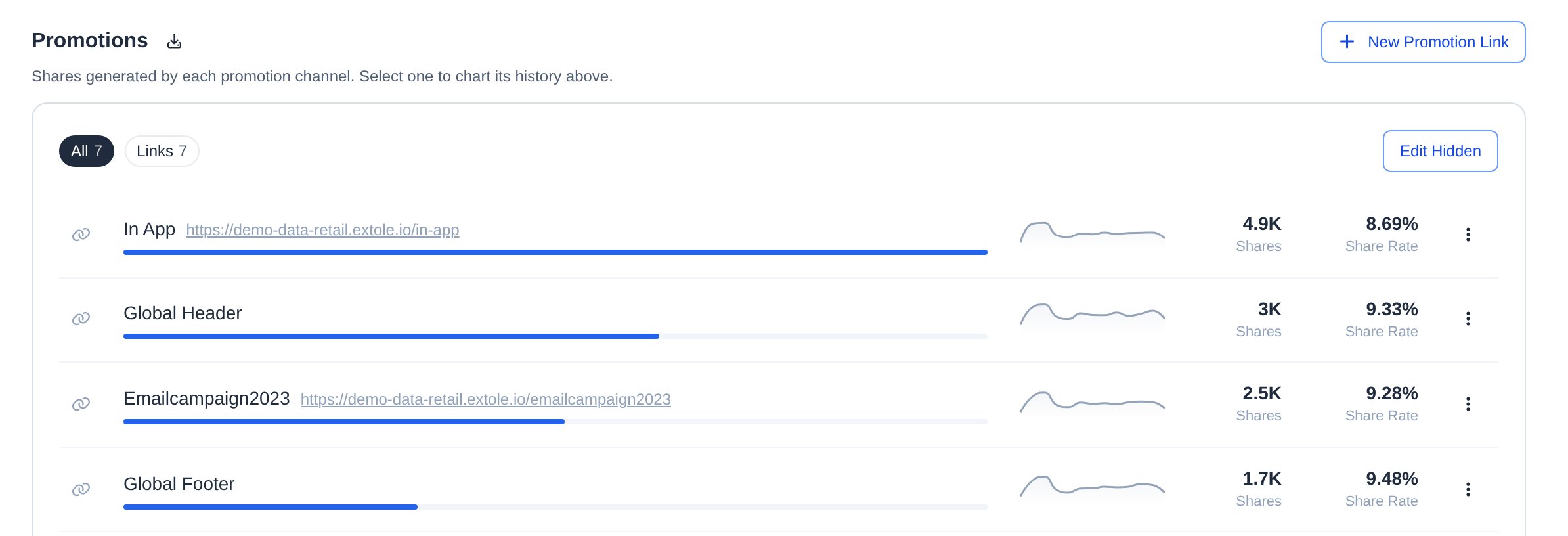
Your Program and Campaign Dashboards show how your referral program is performing. The key metrics sit in a row at the top of the page, and the chart below them shows the trend behind whichever metric you select. Under the chart, the Campaigns, Promotions, and Share Channels sections break performance down by campaign, by promotion, and by where advocates share. Since you can send any number of events into your Extole programs and see those same events displayed within the tool, the examples pictured in this article may look different than yours. The screenshots use sample data from a demo account, not a real program.Additional Resources
Program and Campaign Performance
Metrics at the Top
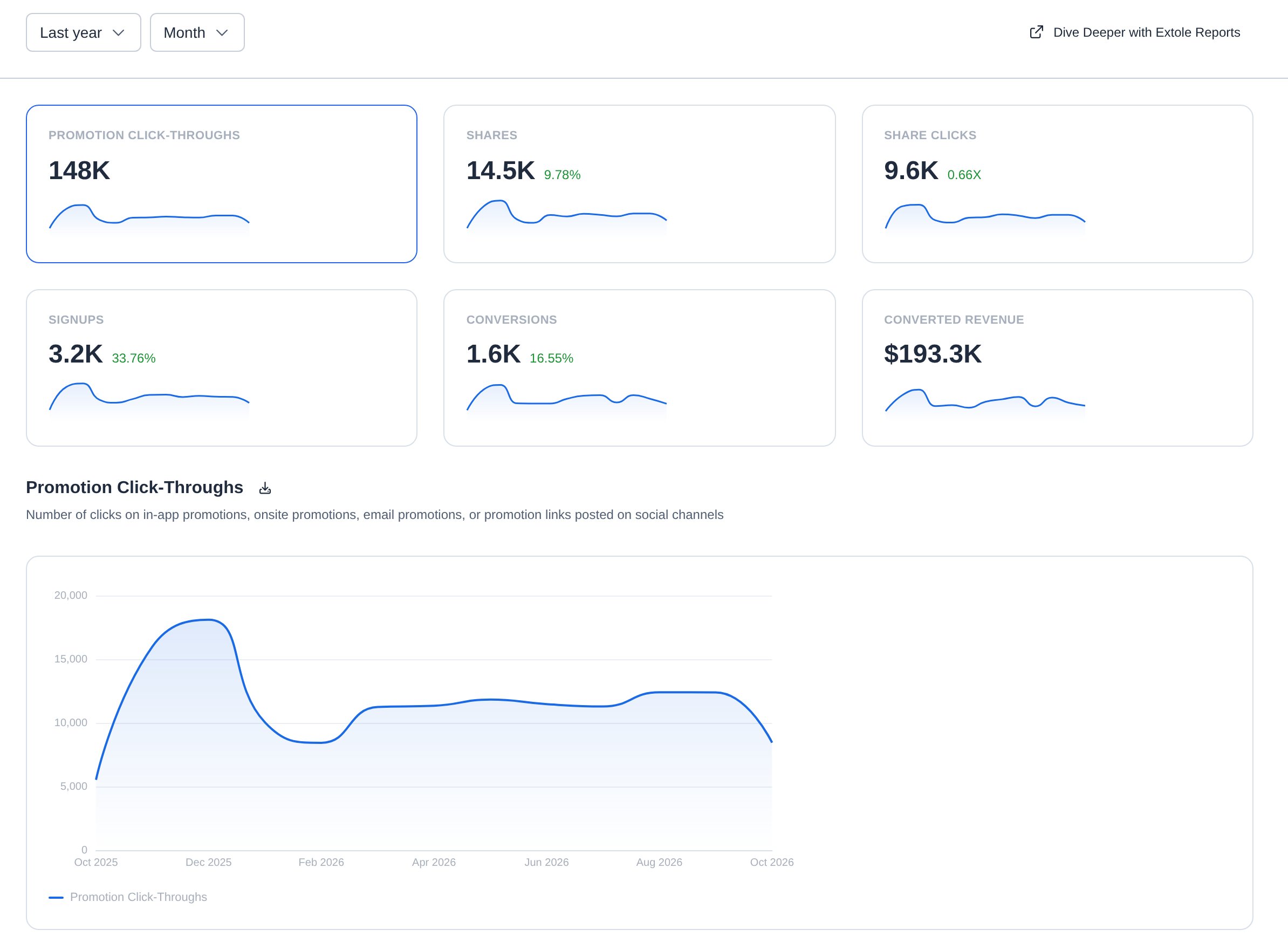
Each metric in your program has its own card at the top of the dashboard. When a program has more metrics than fit on one row, the cards continue onto a second row. A card shows the metric’s total for the date range you picked, a small trend line, and, for most metrics, the rate that goes with it. Hover over a rate to see how it’s calculated. Use the menus in the top left to change the date range and whether the trend is plotted by day, week, month, or quarter.The Trend for Each Metric
Click any metric card to see its trend over time. The chart below the cards switches to that metric, and its title and description change to match. In the example above, Promotion Click-Throughs is selected, so the chart shows promotion click-throughs month by month. When the selected metric has a rate, a # / % switch appears to the right of the chart title. Choose # to chart the count, or % to chart the rate. The dashboard remembers your choice the next time you open it.High Quality and All Events
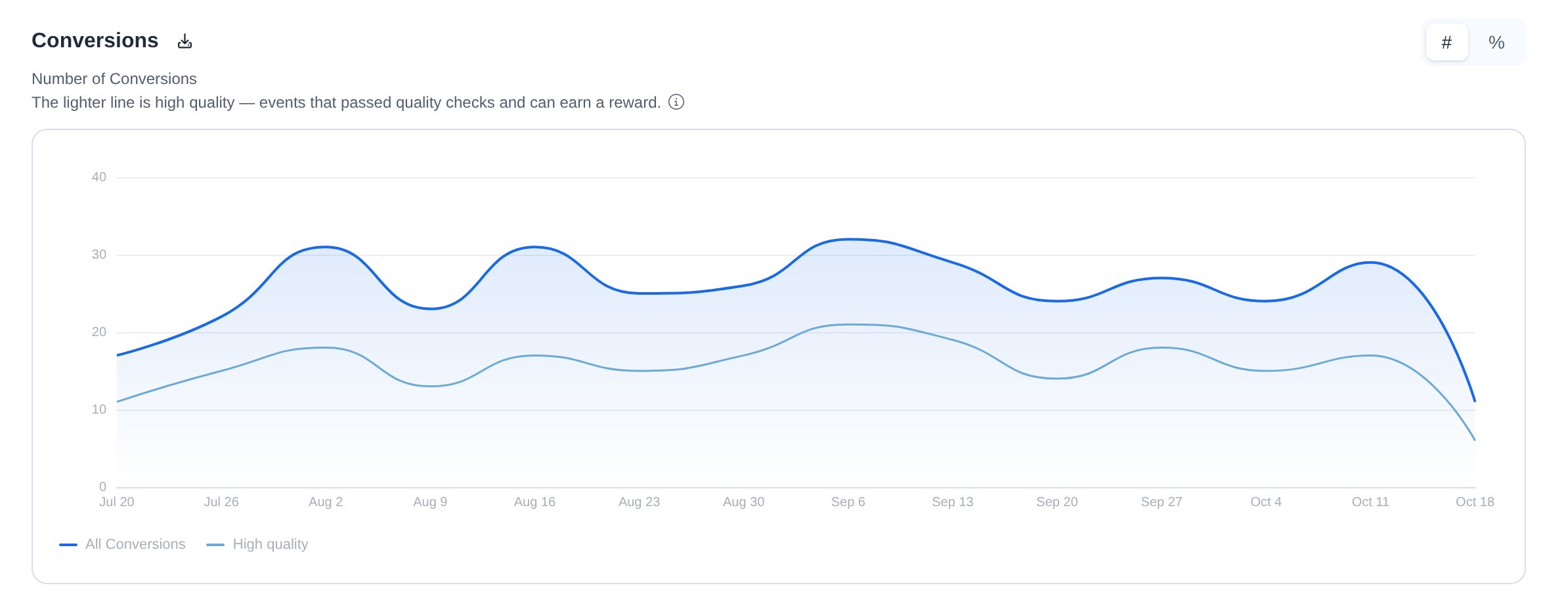
- All: Every event counted for that metric, shown as the darker line.
- High quality: Events that passed quality checks and can earn a reward, shown as the lighter line.
Counts
The specific events that appear at the top of your dashboard are customizable and dependent on your program configuration. Below is a list of the typical retail Refer A Friend metrics and where they might differ for your programs and campaigns:- Promotion Click-Throughs: Number of clicks on in-app promotions, onsite promotions, email promotions, or promotion links posted on social channels
- Shares: Number of explicit shares from the share experience plus number of times an advocate has copied their share link from the share experience
- Share clicks: Number of clicks on share links
-
Outcome 1: Signups: Number of signups
- For non-retail clients, this step will be something like account openings, quote submissions, application submissions, etc.
-
Outcome 2: Conversions: Number of friend conversions
- For non-retail clients, this step will be something like account fundings, policy purchases, subscription purchases, etc.
-
Outcome 3: Shipments: Number of purchases shipped
- For non-retail clients, this step will be something like accounts approved
-
Returned: Number of purchases returned
- For retail clients, this may instead be number of orders canceled
- For non-retail clients, this step will be something like accounts invalidated
Rates
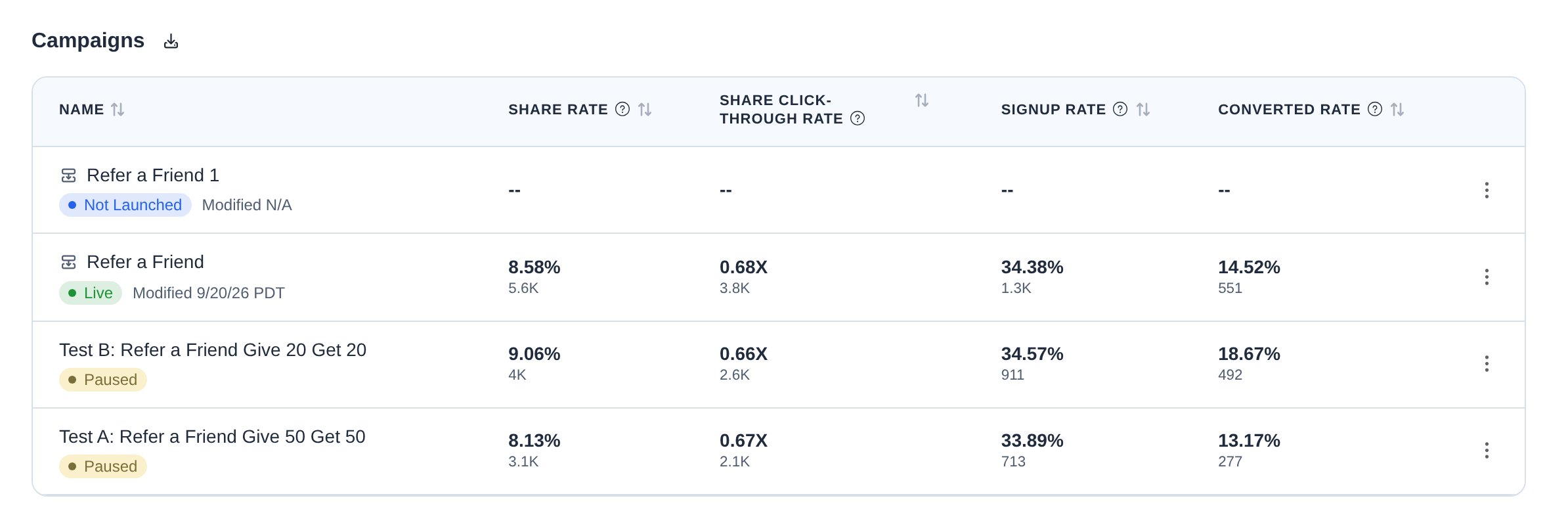
- Share Rate: (Shares/Promotion Click-Throughs) *100. Share Rate is the ratio of shares to clicks on promotions.
- Share Click-Through Rate: Share clicks/Shares, shown as a multiple, for example 0.41X. Share Click-Through Rate is the ratio of clicks on share links to shares.
-
Outcome 1 Rate: Signup Rate: (Signups/Share clicks) *100. Signup Rate is the ratio of signups to clicks on share links.
- For non-retail clients, this rate will be something like account opening rate, quote submission rate, application submission rate, etc.
-
Outcome 2 Rate: Conversion Rate: (Conversions/Share clicks)* 100. Conversion Rate is the ratio of conversions to clicks on share links.
- For non-retail clients, this rate will be something like account funding rate, policy purchase rate, subscription purchase rate, etc.
- Your rate may differ — for example, it may be (Outcome 2/Outcome 1) 100 instead of (Outcome 2/Share clicks) 100
Promotions
Share Channels