
Steps
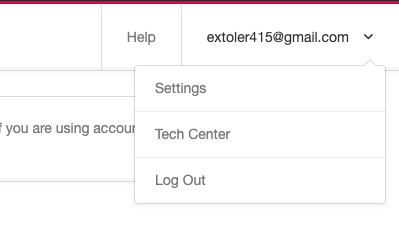
- Click the drop-down menu located on the top right corner of your browser window. From the drop-down, select *Settings. *
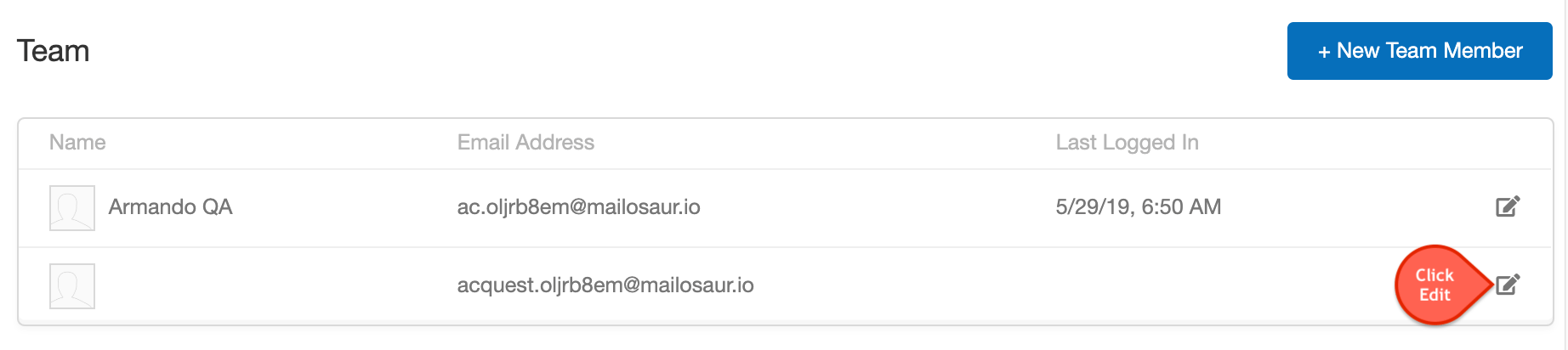
- In the Team section, click the Edit button denoted by the pencil icon.
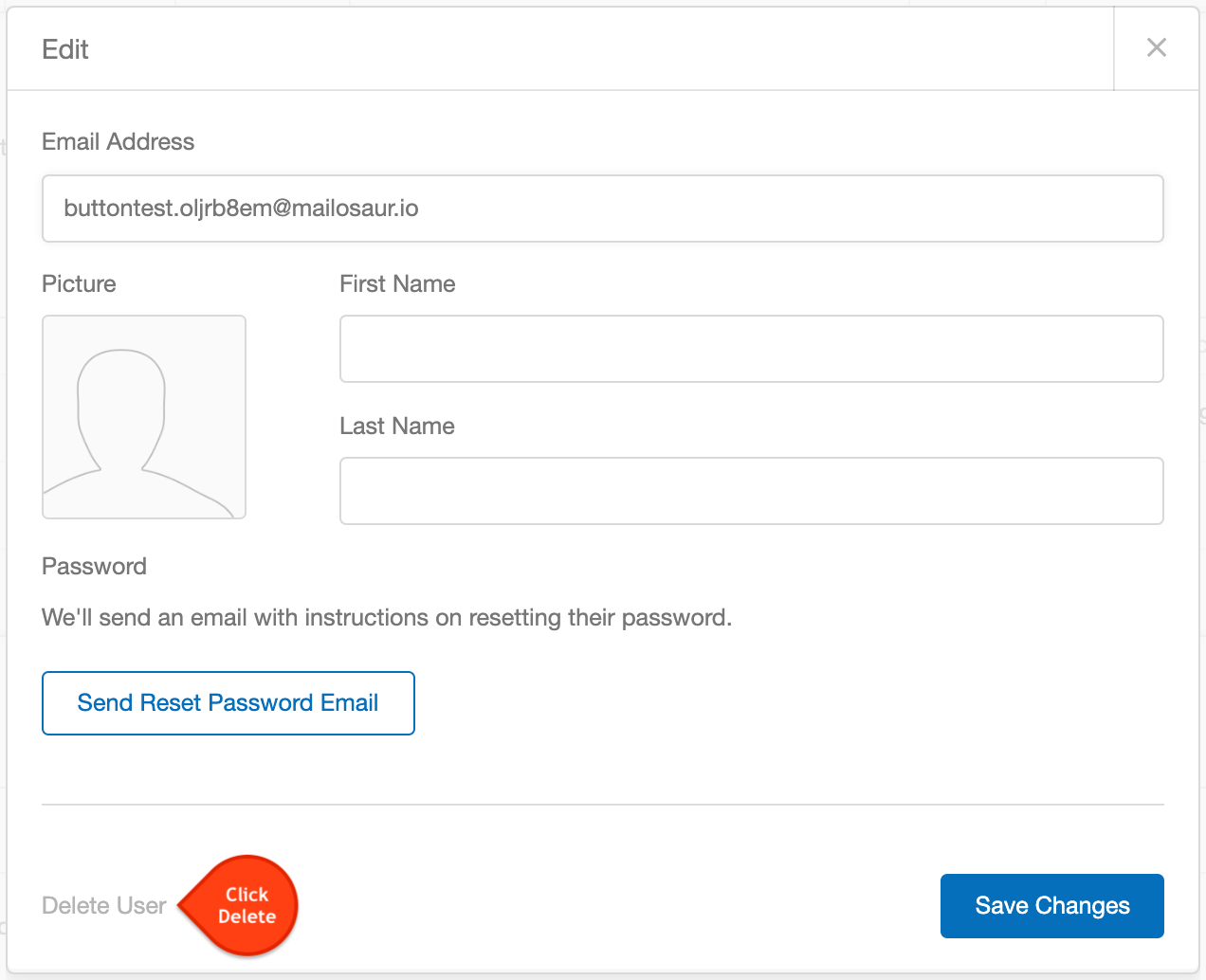
- This will bring up theedit user modal. Click the *Delete User * link located on the lower left part of the pop-up window.
- The link will change to a prompt asking “Are you sure?” followed by the options Yes or No. Click Yes to remove the user.