Overview
Reward expiration gives a reward a use-by date. Use it to:- Limit how long unredeemed rewards stay outstanding, so points and credits don’t build up indefinitely.
- Encourage participants to come back and redeem while their reward is still available.
- Match the terms you already give participants, such as “points expire one year after you earn them” or a coupon’s end date.
Expiration you set on a reward in Flow Builder is used instead of expiration set on the reward supplier, or on the Reward Bank Collectible Reward.
Changing reward expiration related settings does not update rewards that have already been earned.
To change the date on an issued reward, use View Reward.
When to Use Reward Expiration
Expiration changes the reward’s state in Extole. It works best for rewards whose value Extole holds, such as Reward Bank collectibles, and for rewards your own system holds, such as account credit, where Extole can tell your system when the reward expires. It does not cancel anything in a gift card partner’s system.Reward Bank Collectibles
The Reward Bank lets participants collect rewards as a balance over time and redeem them when they choose, in a Redemption Center, for options such as gift cards or coupons. Set Expires After or Expiration Date on the Collectible Reward, so every collectible it issues follows the same rule. Expires After suits a policy such as “points last one year from when they’re earned.” Set expiration on the reward in Flow Builder only when one campaign needs a different rule. Extole checks for rewards past their expiration date about once an hour. When a collectible expires:- It no longer appears in the participant’s Redemption Center, and its value is removed from their balance. The participant doesn’t see it marked as expired. It is no longer listed.
- It can’t be redeemed.
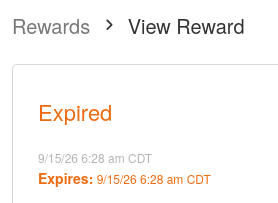
- View Reward in User Support shows its state as Expired, so your support team can explain where it went.
Coupons
When your coupons carry an expiration date, or the coupon reward supplier has a Default Expiration Date, Extole uses that date as the reward’s expiration when it issues the code. The date then shows on View Reward and the reward moves to Expired after it. Set Reward Expiration on the supplier, or expiration on the reward in Flow Builder, only to replace the coupon’s date. Either one is used instead of the coupon’s date. Expiring the reward in Extole does not deactivate the code in your commerce platform. Set the code’s own expiration there.Account Credit and Other Custom Rewards
Account credit is held in your own system, so when the reward expires in Extole, your system needs to remove the credit too. Extole can tell your system when that happens: a campaign step fires when the reward moves to Expired and sends an API call to your system through an outbound webhook. Your system receives the call and removes the credit. To set it up:- Create an outbound webhook in Tech Center > Outbound Webhooks, pointing at the URL in your system that removes the credit. See Webhooks.
- Ask your Extole team to add a step to the campaign that fires when the reward expires and sends that webhook.
Gift Cards
Tango gift cards can be marked Expired in Extole, but Extole does not cancel the card at Tango, so the participant can still use it. Tremendous and BHN rewards don’t support expiration. For gift cards, rely on the card’s own terms rather than reward expiration. The exception is a gift card offered as a redemption option in the Reward Bank. There, set expiration on the collectible the participant earns, not on the gift card.Configure an Expiration on a Reward Directly
Set expiration on the reward itself, and every reward it issues follows the same rule. Where you set it depends on the kind of reward.Reward Suppliers
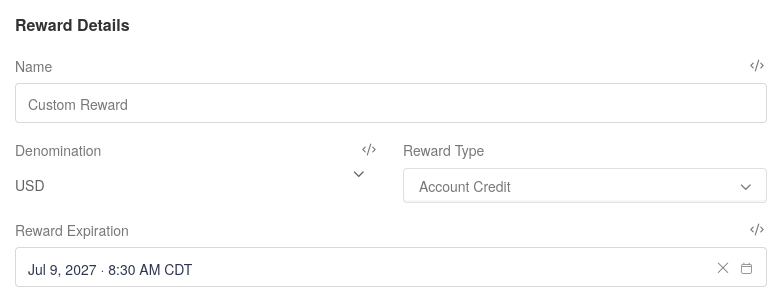
Use this when the supplier is not part of a component. Any standalone supplier in Rewards can have a Reward Expiration.- Navigate to Rewards.
- Open the reward supplier.
- Under Reward Details, set Reward Expiration with the date picker.
- Save the supplier.
Reward Bank Collectible Rewards
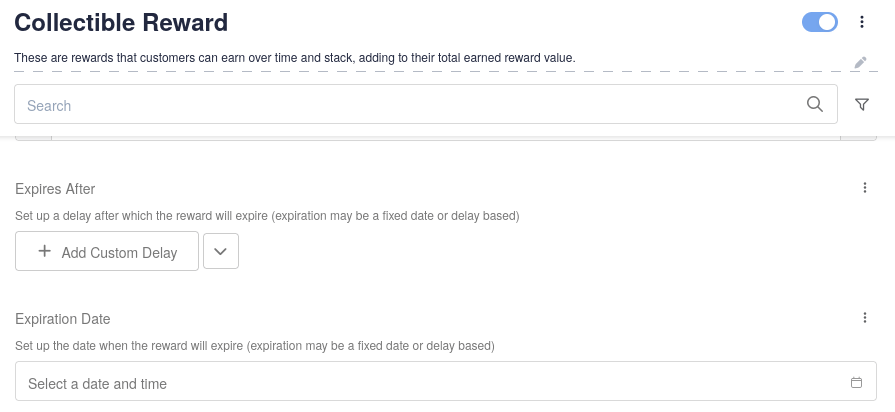
Collectible Rewards use Expires After and Expiration Date instead of Reward Expiration.- Navigate to Rewards.
- Open the Collectible Reward.
- Set Expires After (click Add Custom Delay) or Expiration Date. Use one of these settings, not both.
- Save the Collectible Reward.
Configure Expiration on a Reward in Flow Builder
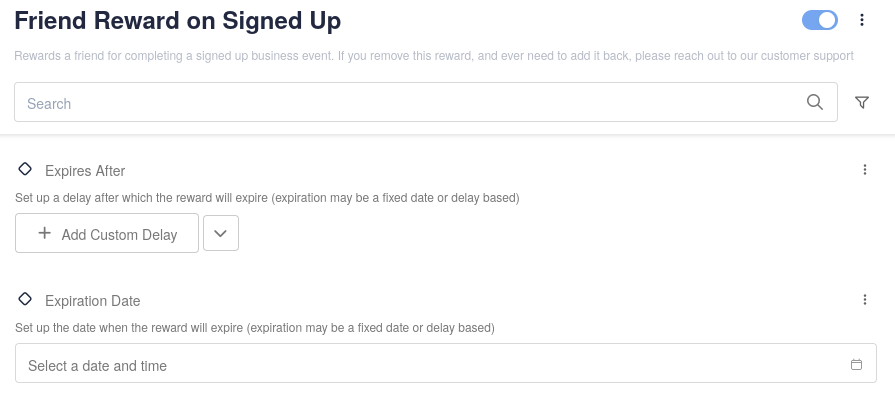
Use this when the same reward needs a different expiration in one campaign than it has everywhere else. For example, your points normally last a year, but points earned in a short promotion should last 30 days. Expiration set here supersedes the expiration set on the reward directly.- Go to the Programs page and click Manage Flow for the campaign, or from the Campaign Editor select the Flow tab.
- Click the reward to open its settings.
- Set Expires After (click Add Custom Delay) or Expiration Date. Use one of these settings, not both.
- Click Apply.
- Publish the campaign.
View and Manage Expiration on a Reward Manually
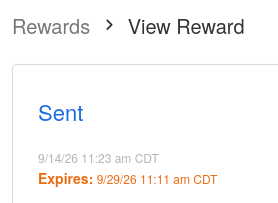
Open an issued reward to see whether it expires, change that date, or expire it now. A change here applies to that one reward only.- Click User Support in the sidebar and search for the person.
- Open the person’s profile and scroll to Rewards.
- Click the reward to open View Reward.
Set or Change the Expiration Date
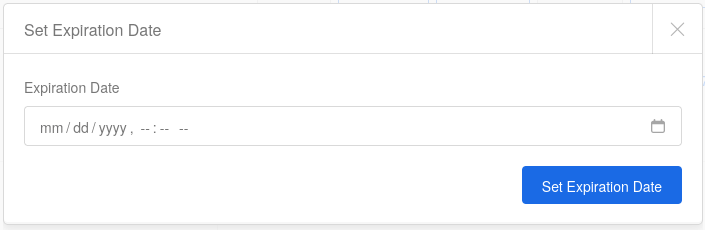
- On View Reward, click Set Expiration Date.
- Choose the Expiration Date.
- Click Set Expiration Date.
Clear the Expiration Date
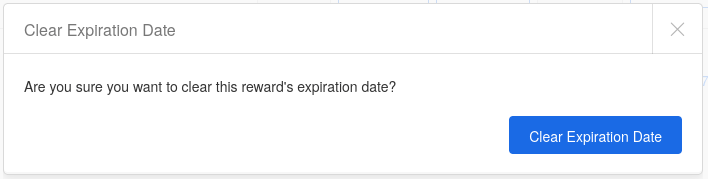
- On View Reward, click Clear Expiration Date.
- Confirm by clicking Clear Expiration Date.
Mark a Reward as Expired
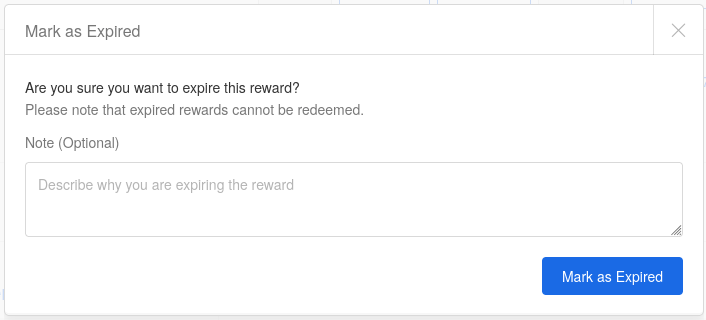
- On View Reward, click Mark as Expired.
- Optionally enter a note describing why you are expiring the reward.
- Click Mark as Expired.