
Overview
Your advocates and friends can add a reward as a pass in their mobile wallets. They do this from their earned reward emails. Turn on Mobile Wallet Button and set your Mobile Wallet Button Text in the Overview tab. Advocates can also keep their share link in their mobile wallet as a QR code. See Share Link Passes below. Every pass is signed with Extole’s own Apple Wallet certificate, so you don’t need an Apple developer account or a certificate of your own.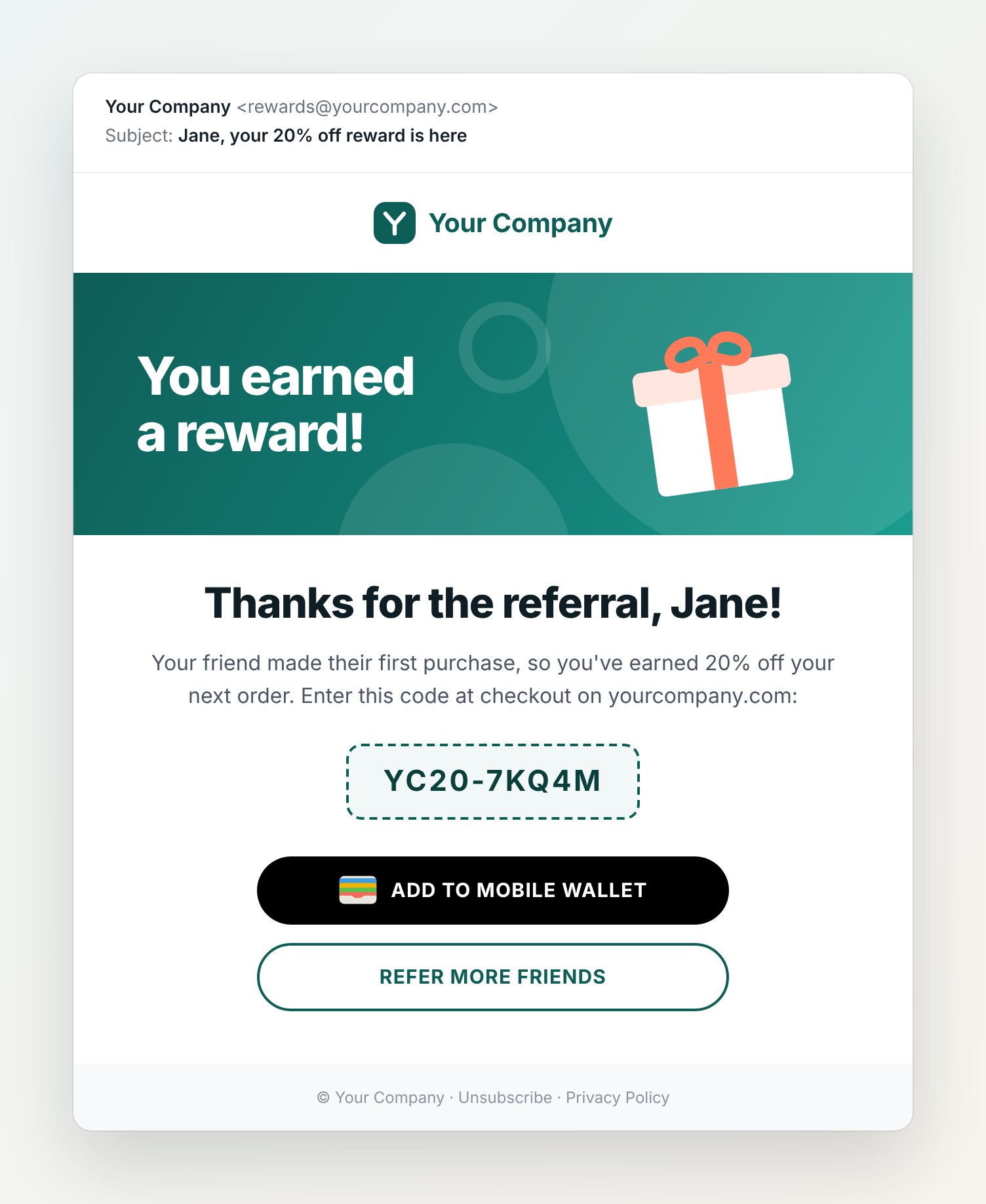
Example earned reward email for a sample brand, with the Add to Mobile Wallet button under the coupon code.
- An iOS native mobile wallet pass, compatible with iOS devices
- An iOS-issued mobile wallet pass, compatible with Android devices using the WalletPasses app
- A desktop landing page prompting users to open their pass on their mobile device by scanning a QR code
Share Link Passes
An advocate can save their share link to Apple Wallet as a pass. The pass shows the share link as a QR code, so the advocate can open their wallet and let a friend scan it in person. Share link passes work the same way as reward passes:- On desktop, the wallet page opens in a new tab and shows a QR code. The advocate scans it with their phone’s camera, and their phone prompts them to add the pass to their wallet.
- On mobile, the wallet page opens and prompts the advocate to add the pass to their wallet directly.
- On Android, the pass is the same iOS-issued pass, opened with the WalletPasses app.
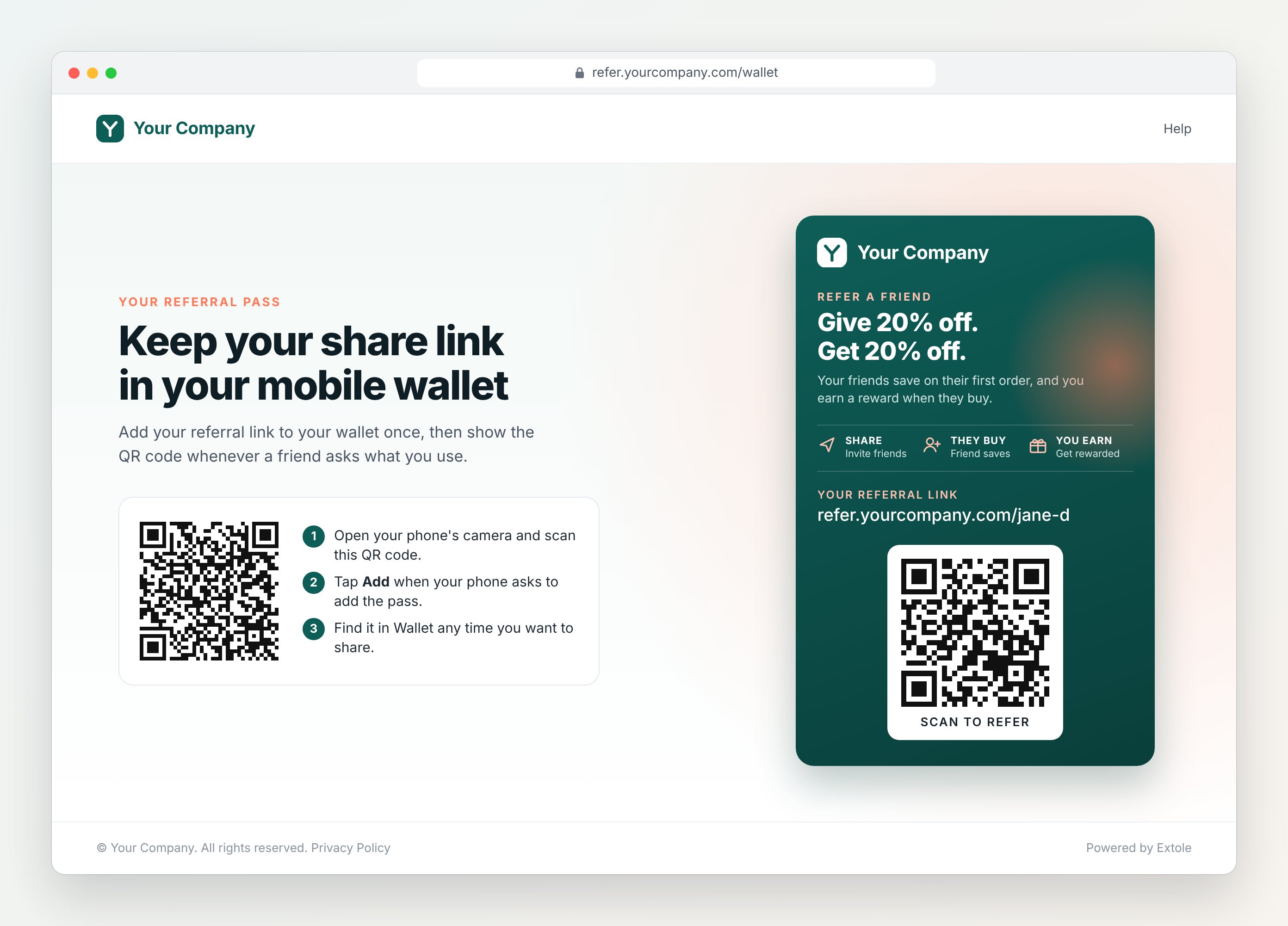
Example wallet page on desktop, for a sample brand. The advocate scans the QR code with their phone to add the pass.
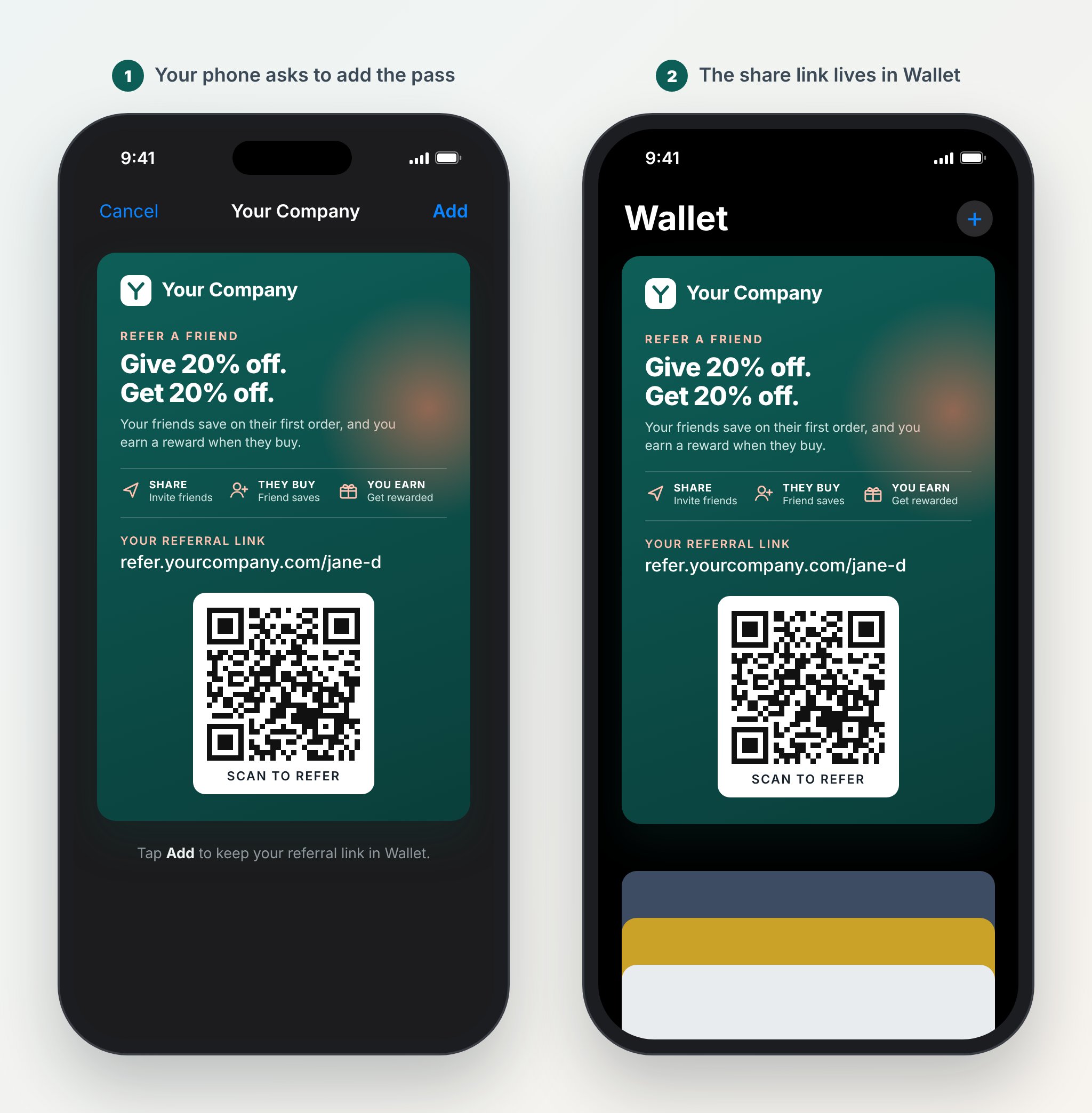
Example share link pass for a sample brand: the phone asks to add the pass, then the pass sits in Apple Wallet with the share link as a QR code.
Overview Variables
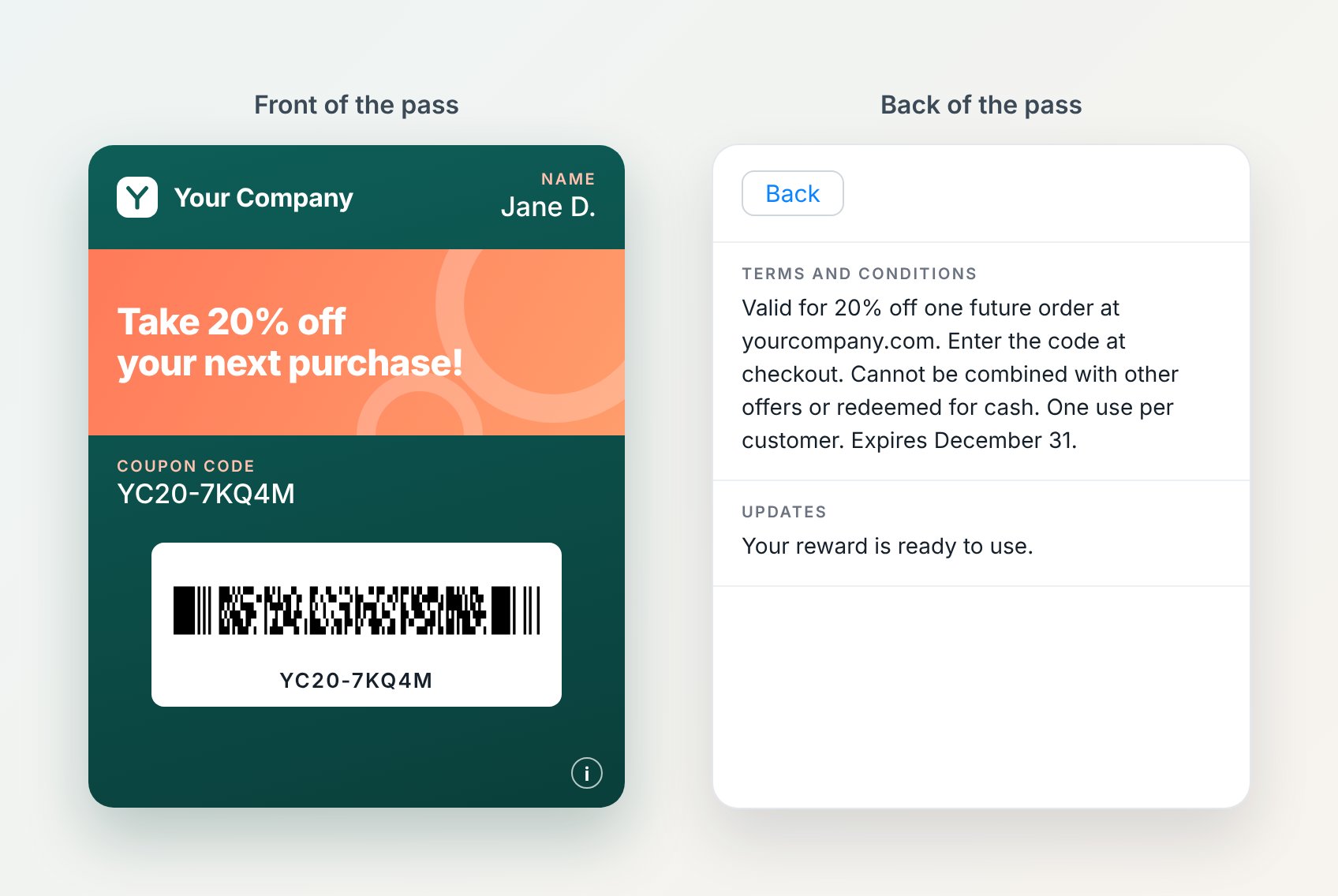
Example reward pass for a sample brand. The front shows the pass logo, pass strip, name and coupon code. The back shows the terms and the updates.
Reward.pkpass
Desktop Landing Page
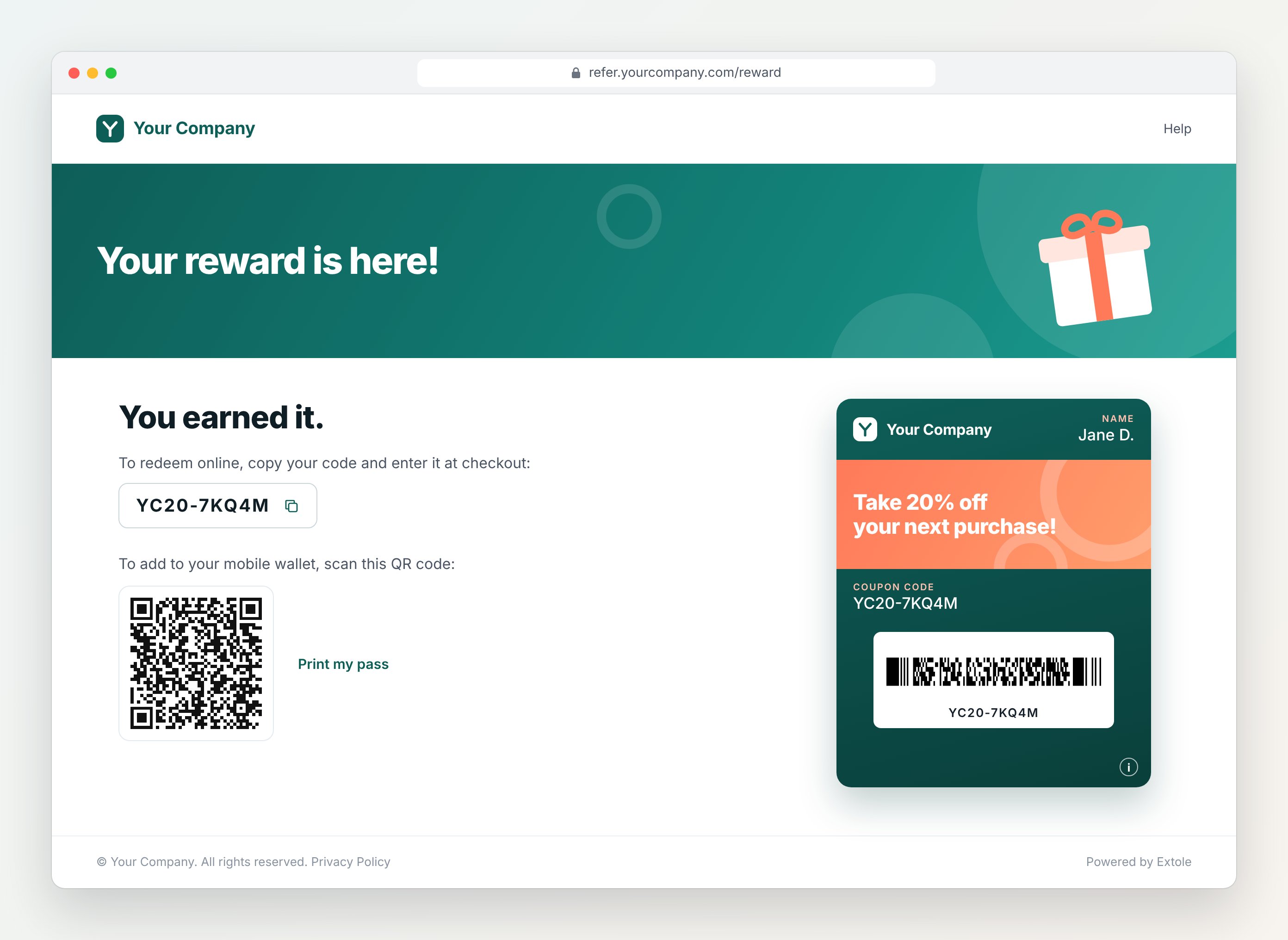
Example desktop landing page for a reward pass, for a sample brand.