Flagging a Program Domain Site as a Test Site
When you set up a program domain, you are setting up a way to manage information about your website and program that is independent of any individual campaign you might be running. If you use a development or staging environment, you will want to ensure that Extole content can be served on the site but that events from the site will not be counted in your analytics. To flag a site as a test site, navigate to your Tech Center in My.Extole. If you are editing an existing program domain, click the edit icon next to it in the table. If you are creating a program domain for the first time, click the “+ New Domain” button.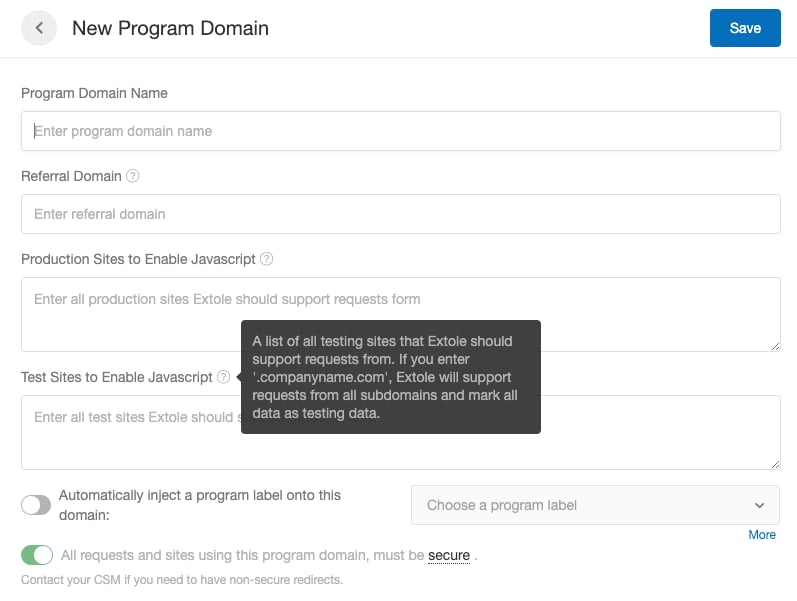
Flagging a Site as a Test Site via My.Extole
To flag all events from a specific site as test events, navigate to your Tech Center, scroll to the section titled “Test Data Rules”, and click on the “New Rule” button.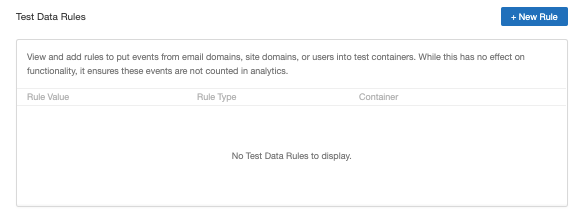
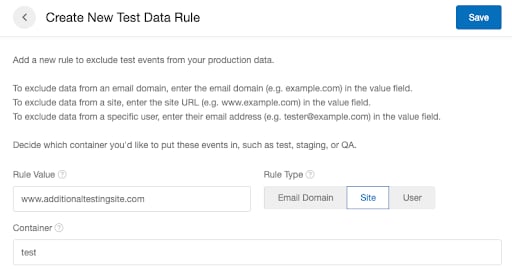
Flagging an Extole User as a Tester via My.Extole
To flag an Extole user’s events as test events, navigate to your Settings page in My.Extole. In the Team section, find the team member whose events you wish to put in a test container and click on the edit icon. Scroll down to the Test Container section and toggle on the switch.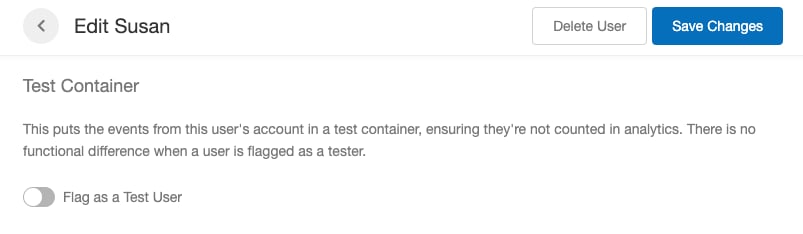
Flagging a Non-Extole User as a Tester via My.Extole
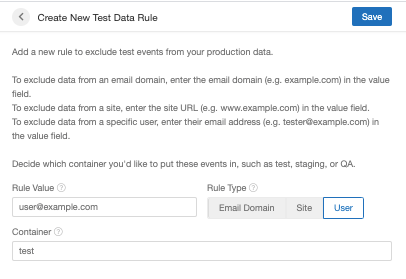
To flag a non-Extole user’s events as test events, navigate to your Tech Center, scroll to the section titled “Test Data Rules”, and click on the “New Rule” button. Under “Rule Value”, enter the email address of the non-Extole user whose events you wish to exclude from your dashboard analytics (e.g. user@example.com). Under “Rule Type”, select “User”, and under “Container”, indicate which container you’d like the events to be counted in. If you want the metrics counted in a test container, name this “production-test” and press Save.
Flagging all Events from a Specific Email Domain as Test Events via My.Extole
To flag all events from users using a specific email domain as test events, navigate to your Tech Center, scroll to the section titled “Test Data Rules”, and click on the “New Rule” button. Under “Rule Value”, enter the email domain you wish to exclude from your dashboard analytics (e.g. example.com). Under “Rule Type”, select “Email Domain”, and under “Container”, indicate which container you’d like the events to be counted in. If you want the metrics counted in a test container, name this “production-test” and press Save.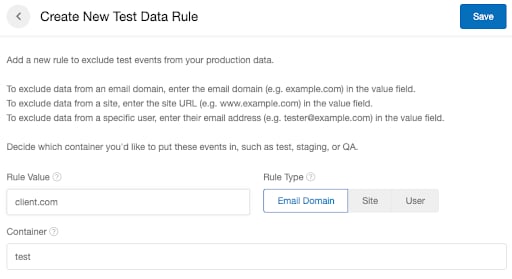
Flagging a User as a Tester Using an Extension
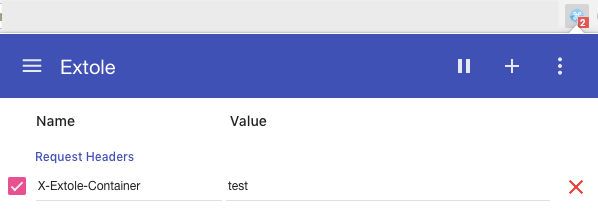
There is another way to make your test events invisible in the dashboard analytics, though it is more difficult. The way to do so is by adding an extension to your browser. If you’re using Chrome, we recommend an extension called ModHeader available here. The screenshots below are for the ModHeader extension. For Firefox, the Modify Headers extension works well. After installing the extension, you will want to configure it to be enabled in incognito/private browsing mode. This is because you often use an incognito window to test receiving friend click coupons to avoid being flagged as a self-referral. For Chrome, you do this by:- In your URL bar, typing: chrome://extensions
- Clicking “DETAILS” for the ModHeader extension
- Turning on “Allow in Incognito”

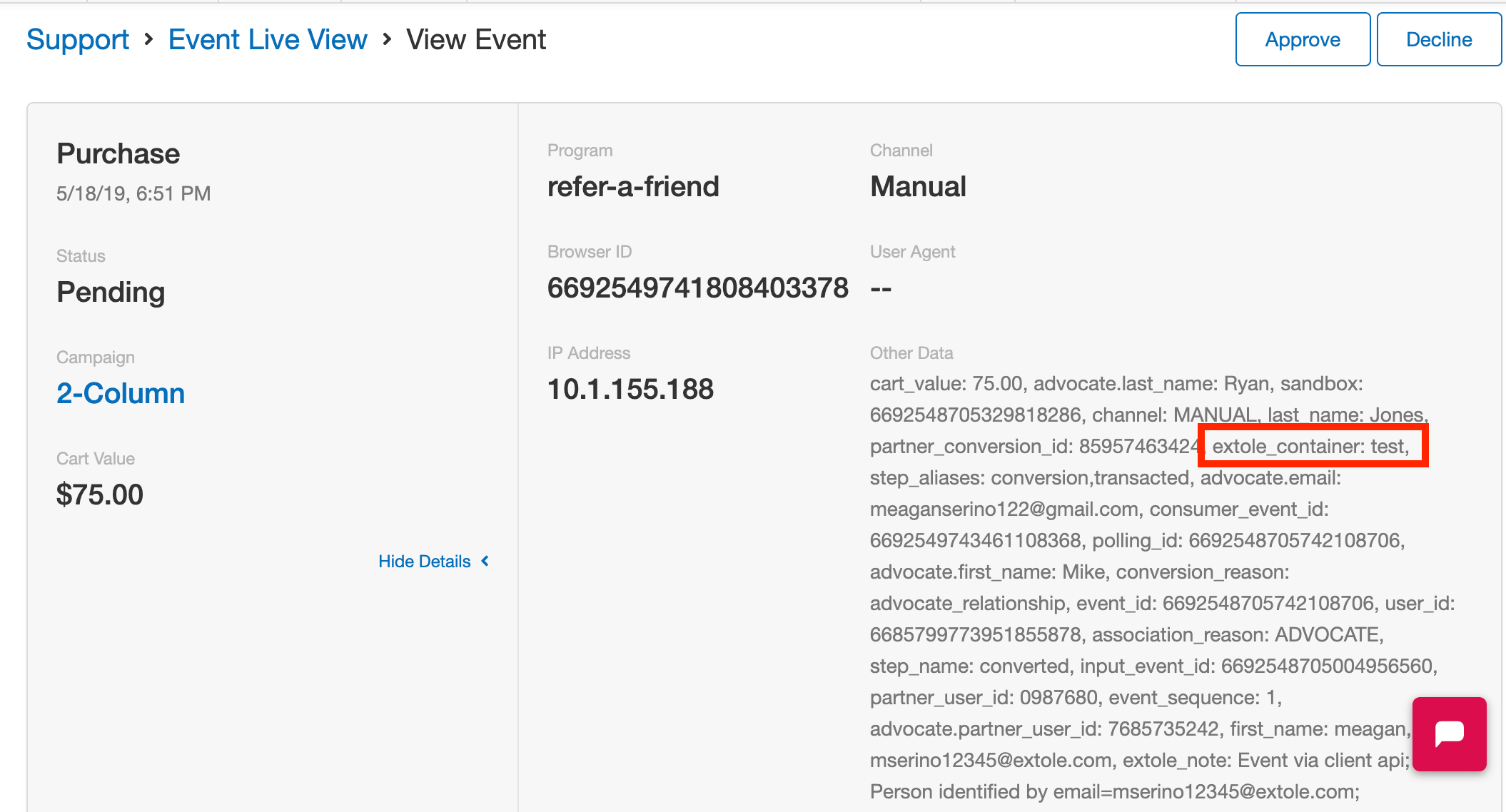
Viewing Test Data
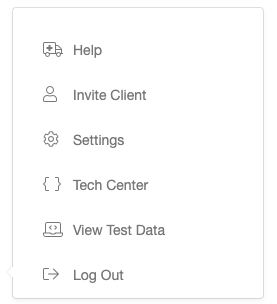
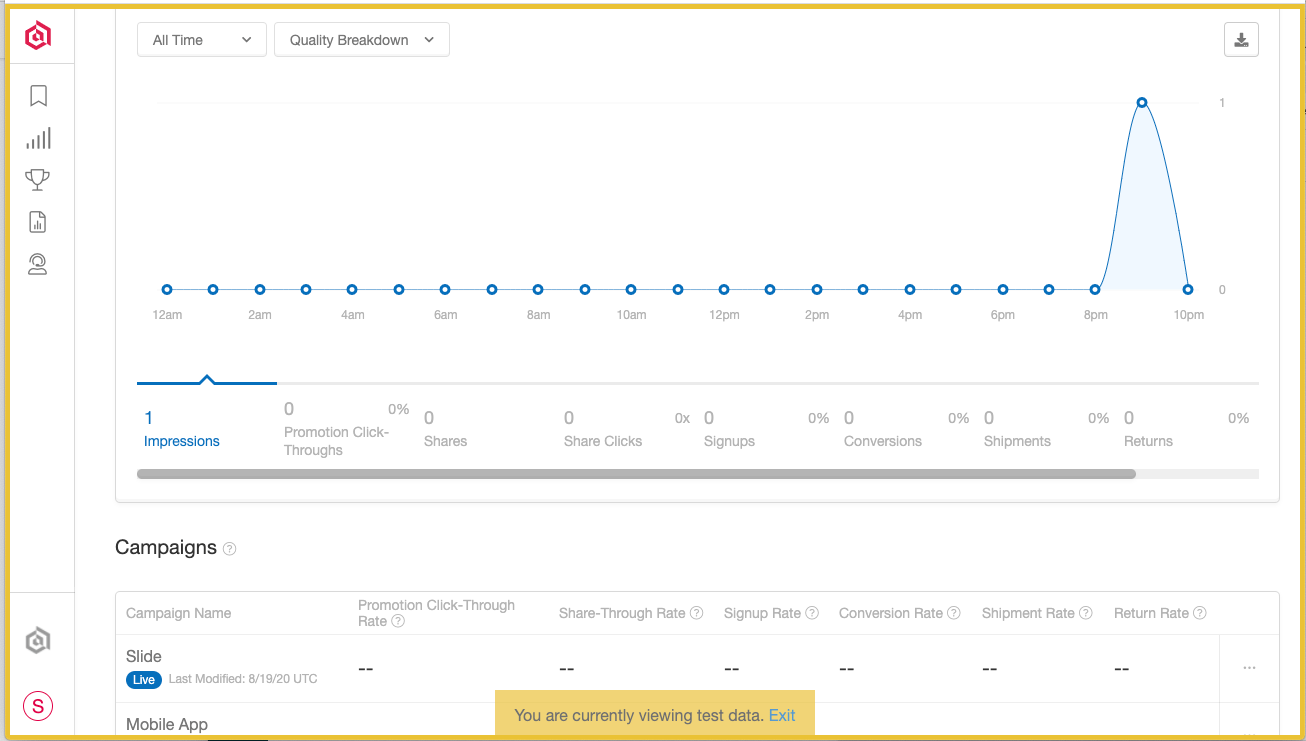
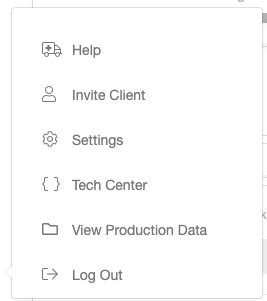
To view test data on your Program or Campaign Dashboard, click on your initial in the bottom left and select “View Test Data”: