Overview
In an effort to decrease the number of scheduled reports running overall, our system will pause reports automatically when they have not been viewed or downloaded for a certain period of time. You can also choose to pause reports manually if you are no longer using them. If our system, your CSM, our Support Team, or another user on your account pauses one or more of your reports, you will be notified and can review and unpause them. The notification will appear when you visit the Reports page in your My Extole account.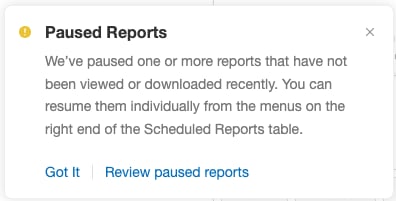
View Paused Reports
Clicking on the “Review paused reports” link in the Paused Reports notification will show you all of the reports that have been paused. You can also go to the Reports > Schedules page and use the filter menu to see only reports that have been paused. You will be able to see who paused the reports (our system or another user) as well as when the reports were paused and any notes that may have been added by the person who paused them.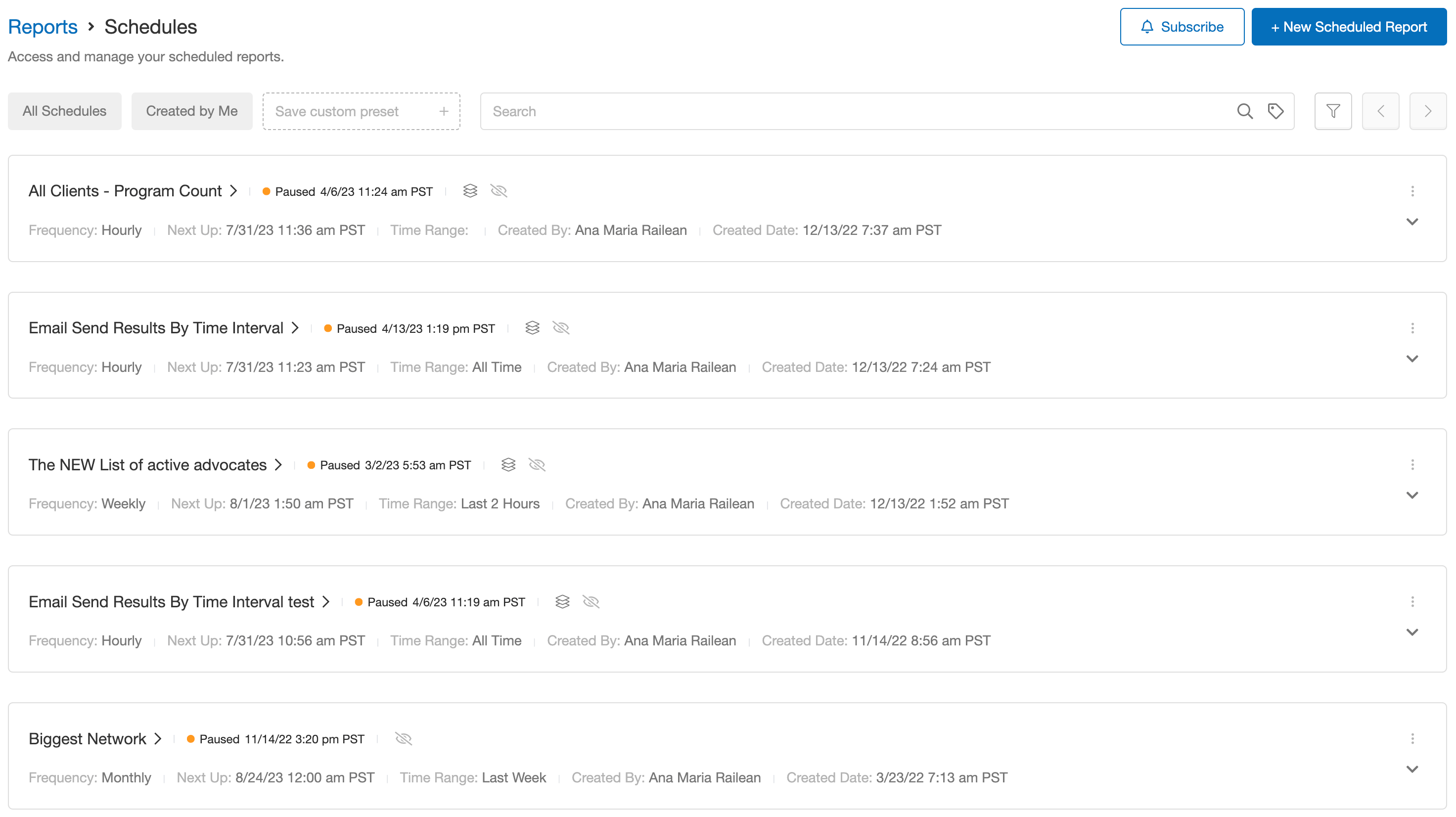
Frequently Asked Questions
How do I unpause a report?
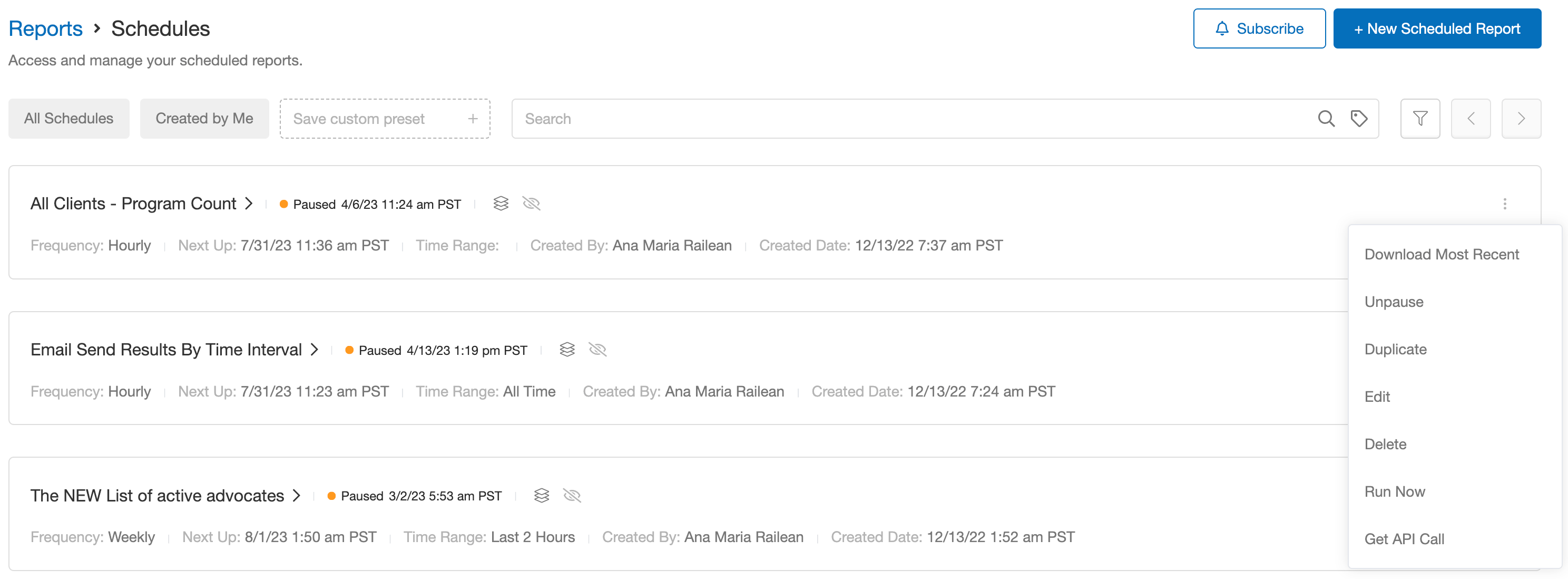
If can see the Paused Reports notification in the bottom left of your screen, hit the option to “Review paused reports”. This will show you all of the reports that have been paused. From here, find the report you’d like to unpause and open the dot menu on the far right (see below). Select Unpause from the dropdown options.