
Overview
When your Ambassador program uses manual approval, applicants submit through the Application Experience and wait in a pending list until your team reviews them. Approve them from the Ambassadors tab (recommended below). As a secondary option, you can create one-off or batch approval events: go to User Support > Create Event for a single approval, or Tech Center > File Transfer for multiple. Approving an event on a person’s profile (Approvals) reviews that event and does not admit them as an ambassador. This path applies when your campaign has a pending ambassadors audience (the default for the Ambassador with Manual Approval Flow Builder starter). For when to choose that starter, see Ambassador.Approve Pending Ambassadors
- Open your Ambassador program in My Extole, or open the specific ambassador campaign.
- Select the Ambassadors tab.
- If the table title is Ambassadors and you see Show Pending, click Show Pending.
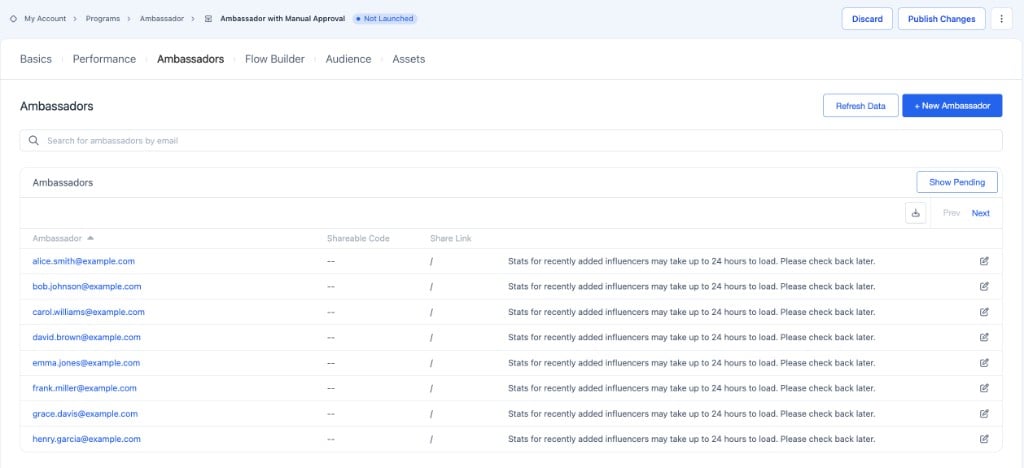
On the approved Ambassadors list, click Show Pending to open applications waiting for review.
- Confirm the table title is Ambassadors Pending Approval. Use Search for ambassadors by email if you need a specific applicant.
- Select the checkbox next to each applicant you want to review.
- Click Approve Selected to admit them, or Decline Selected to reject the application.
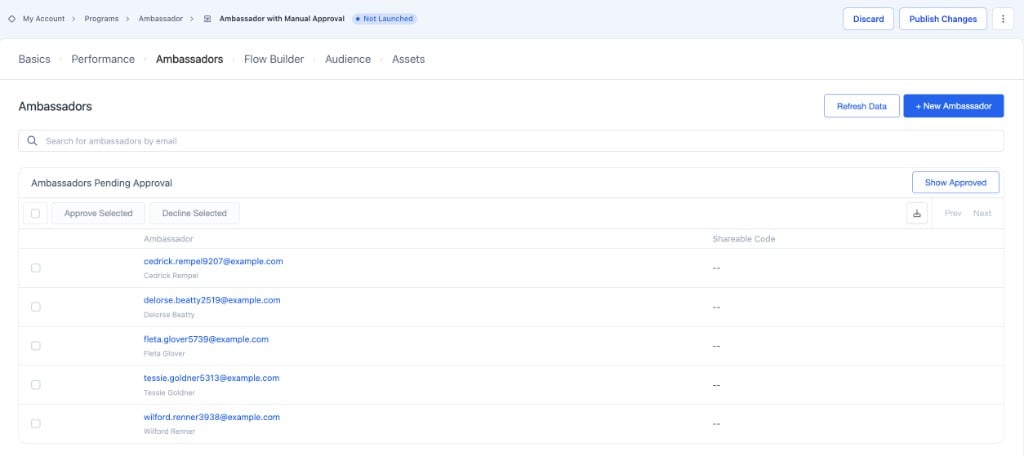
Ambassadors Pending Approval lists applicants waiting for a decision. Approve Selected and Decline Selected stay disabled until you select at least one row.
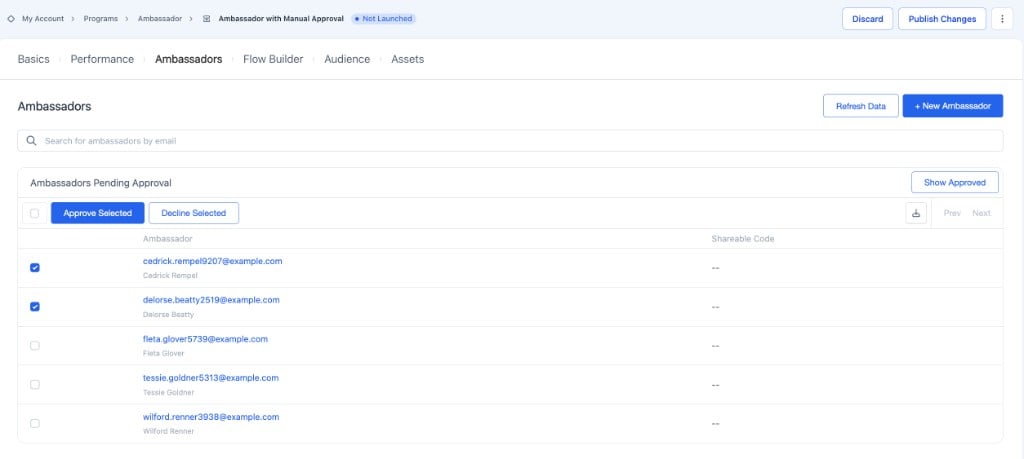
Select one or more applicants, then click Approve Selected.
If You Do Not See Show Pending
Show Pending appears only when the campaign has a pending ambassadors audience configured. Campaigns that use Ambassador with No Application or Ambassador with Auto Approval do not show a pending-approval queue on this tab. If applicants are waiting and you still do not see Show Pending or Ambassadors Pending Approval, confirm you opened the correct ambassador campaign (use the campaign dropdown next to Ambassadors when the program has more than one), then contact your Extole team.Secondary Option: Create Approval Events
If you prefer not to use the Ambassadors tab, you can approve (or decline) applicants by submitting an Application Reviewed event withapplication_status set to approved or declined. Use
Create Event for one person, or upload an event file for many.
Once that event is accepted, the applicant moves out of the pending list (when approved) and receives
the Application Approval or Application Declined email your campaign is configured to send.
Approve One Applicant with Create Event
- In My Extole, open User Support > Create Event.
- Select the Program (your Ambassador or Influencer program) and the live Campaign that received the application.
- For Event, select Application Reviewed (or the review event name your campaign shows in that dropdown). If the event does not appear, it is not enabled for that campaign — contact your Extole team.
- Enter the applicant’s Email.
-
Under Additional Event Data, add:
- Submit the event.
Approve Many Applicants with a File Upload
-
Build a CSV with one row per applicant. Include at least:
Example:
- In My Extole, open Tech Center > Batch Jobs (File Transfer).
- Click + New Batch Job.
- Give the job a Name, upload your CSV, and set Batch Jobs Type to Event.
-
Leave Override event names in the source file off when each row already has
event_name, or set Event Name toapplication_reviewedand turn override on if every row should use that name. -
Create the job and wait for it to finish. Open the job detail and confirm Event Names shows
application_reviewed, notunknown.