
Overview
Extole supports regular file uploads to receive events that may have happened offline or are otherwise unable to be tracked through tags or API. How the file is delivered decides which setup you use:- A recurring inbound feed: install File Integration. The Event File job that ships with it matches CSV filenames; set Watch Directory on File Name Matches, or add Lands In Directory, if you also need to constrain the folder.
- A one-off upload: use General File Uploads in the Tech Center.
- The SFTP server the feed uses: Extole SFTP Server.
Example Events for Different Programs
| ONLINE RETAIL | PAID SUBSCRIPTION | BANKING |
|---|---|---|
purchased
shipped
canceled
returned | registeredsubscribedpaidcanceled | application_startedappliedopenedfundedtransactedclosed |
File Naming Conventions
For a File Integration job, name the file so it matches that job’s Filename Match Pattern (the default is any.csv). If you set Watch Directory on File Name Matches, or added Lands In Directory, upload to that watched SFTP folder (Lands In Directory watches /incoming when the folder is empty), not necessarily /events.
The legacy SFTP drop for event files that are not run through File Integration is: clientname@sftp.extole.io:/events.
For details on using SFTP and the Extole SFTP Server, see Extole SFTP Server.
You can also access the interface in My Extole to view file processing in the Tech Center. This interface will allow you to upload, download, and view files and subscribe to failure alerts.
Event File Records
| Column Name | Required | Description |
|---|---|---|
event_name | Yes | The type of event to create such as:purchasedshippedopenedcanceled |
email | Yes | The email of the person who did the event (e.g. the email of the person who made the purchase, opened the account, etc.). |
first_name | No | The first name of the person who did the event. |
last_name | No | The last name of the person who did the event. |
coupon_code | No | The unique one-time use coupon code used in the event (e.g. in the purchase). This coupon code must have been issued as part of the Extole incentive. |
event_time | No | The date and time of the event as ISO_8601 format. Generally this isYYYY-MM-DDThh:mm:ssZ (e.g. 2013-08-11T14:33:18-0700). If not provided, Extole will use the processing time of the event file as the event time. |
partner_event_id(renameable) | No | This is your unique identifier for the event. This could be an order number, confirmation number, or other unique identifier. Passing this is strongly recommended to make sure duplicate transactions are never created. |
partner_user_id(renameable) | No | This is your unique identifier for the person who did the event. This is useful for ensuring that the event is tied to the proper user. |
cart_value | No | Revenue value of the transaction before coupons are applied, used for reporting. |
container | No | The container where the events should appear. Use production if you want the events to appear in your analytics, or test, which causes Extole to not summarize the data in the program and campaign summary analytics |
Advocate RecognitionYou should provide all transactions to Extole and the transactions will be run through the Extole advocate recognition process to find referrals based on coupon code, friend email address, partner user ID, partner conversion ID.
Configurable and Renameable FieldsThere are no “standard events” with Extole, only your specified business events. In other words, it’s possible to send any event to Extole.All of the names of data elements for events can be renamed and additional data fields can be passed to be used for targeting, personalization, quality, and reward rules.
Input File Example
Filename:/events/events_20130619000000.csv
Account Opened
Account Qualified
Purchases
Creating Advocate-Friend Relationships
An event file can create the relationship between an advocate and a friend. Add a column that identifies the advocate to each row. Extole treats the person who did the event as the friend and links that friend to the advocate. Upload the file as an Event batch job, as described in Manually Uploading Events to Extole.Columns
Use one advocate column per row:
advocate.email, advocate.partner_user_id, or advocate.person_id.
- If no profile matches
advocate.emailoradvocate.partner_user_id, Extole creates a new advocate profile with that value. - If no profile matches
advocate.person_id, Extole doesn’t create the relationship.
Choosing the Event Name
The event name decides whether anything other than the relationship happens.- An event name no campaign listens for: Extole saves the relationship and runs no campaign step, so no reward is earned and no email is sent. Use a name you create for the upload, such as
relationship_upload. - An event name a live campaign listens for: Extole saves the relationship, and the event also runs that campaign’s steps for the friend when their triggers match. Those steps can earn rewards, send emails, or call webhooks, as the campaign defines them.
Relationship File Example
Relationships
Credit Union Earned Rewards File Example
Credit unions will receive an earned rewards file from Extole via SFTP to verify members who should earn rewards. Once reviewed, credit unions can then send Extole a fulfilled file via SFTP so that we can transition the members’ rewards to fulfilled.- creditunion@sftp.extole.com:/dropbox
- rewards-report-YYYY-MM-DDTHHMMSS.csv
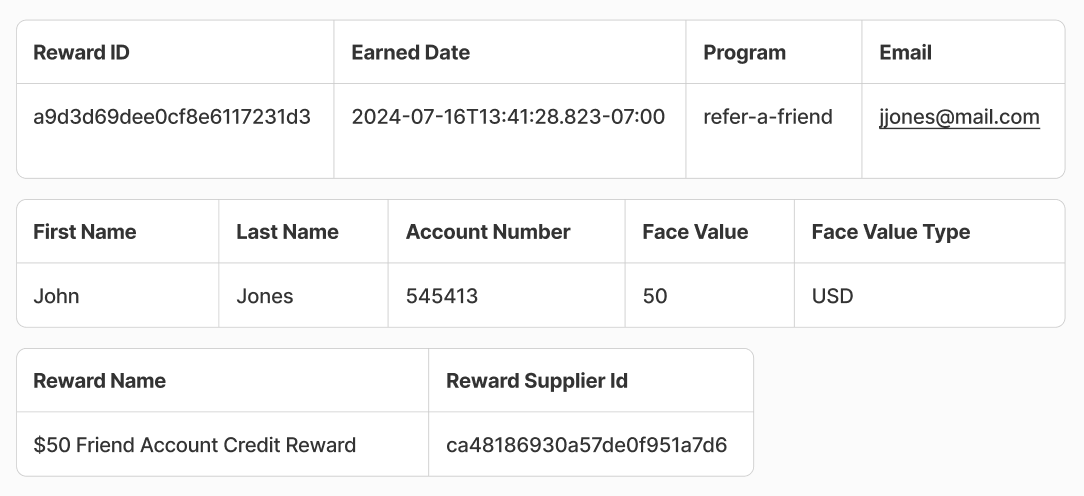
Earned Rewards