
Overview
If your business registers online but completes conversion events outside of your company’s website, then it may make sense for you to use file-based conversions to send Extole purchase events. Within the Tech Center of your My Extole account, you can easily upload files of events. These events become conversion events in Extole and go through all the standard event approval methods and incentive configurations.Accessing Extole’s SFTP server
Add a Server
Navigate to the Tech Center and click the ”+ New Server” button. Make sure you have selected “Extole Server” in the top left. You will see a number of fields to fill out to describe the server.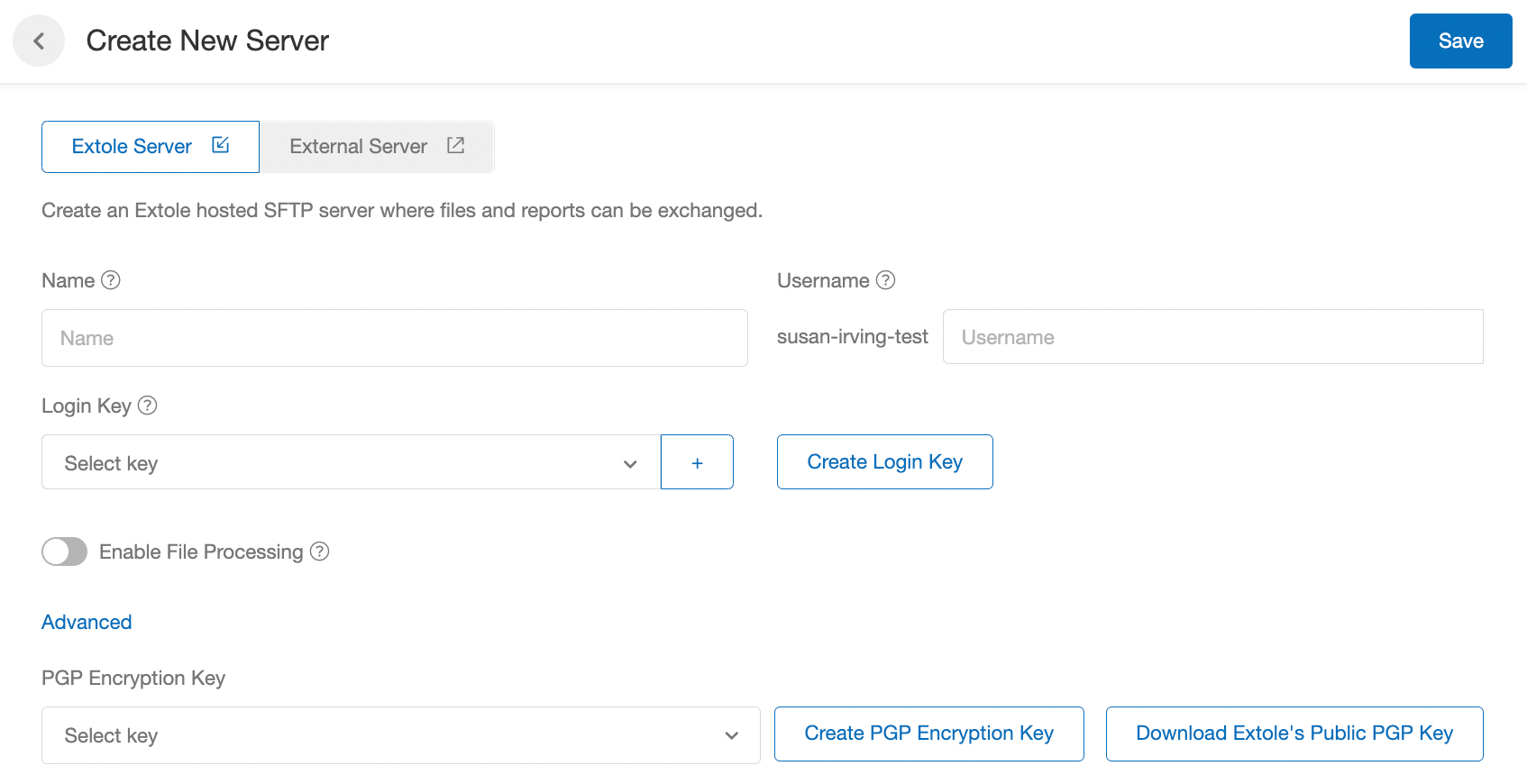
susan-irving-test in the above example). While all usernames must begin with your client name, you can optionally add suffixes to distinguish the purpose of the account using the text box (e.g., susan-irving-test-events, susan-irving-test-reports, etc.).
Add a Login Key
A login key is an SSH key pair. It’s how you sign in to Extole’s SFTP server, which doesn’t use passwords. The pair has two halves:- Public key: the half you give Extole. You paste it into My Extole, and the SFTP server uses it to recognize you. It’s safe to share.
- Private key: the half you keep. Your SFTP client uses it to prove who you are each time it connects. Never send it to Extole or anyone else, and store it where only you, or the system that uploads your files, can read it.
ssh-keygen, or let My Extole generate one in your browser. Use ssh-keygen when the private key will live on a server that uploads files automatically, or when your IT team manages your keys.
Create a Key Pair with ssh-keygen
ssh-keygen is built in to macOS, Linux, and Windows 10 and 11.
- Open Terminal on macOS or Linux, or PowerShell on Windows.
-
Run the following command, replacing the email address with your own:
-t rsa -b 4096creates a 4096-bit RSA key,-Cadds a comment to the public key so you can tell keys apart, and-fnames the files. - When prompted for a passphrase, enter one to protect the private key, or press Enter twice to leave it empty. Your SFTP client asks for the passphrase each time it connects, so a job that uploads files automatically usually uses a key without one.
-
The command creates two files in the current folder, which is your home folder in a new terminal window:
extole_sftp: your private key. Keep it.extole_sftp.pub: your public key. You add this one to My Extole.
-
Display the public key so you can copy it. On macOS or Linux, run
cat extole_sftp.pub. In PowerShell, runGet-Content extole_sftp.pub.
- Starts with
ssh-rsa. - Is on a single line, with no line breaks. Copy it straight from the terminal, because some editors and email clients wrap long lines.
- Ends with the comment you set with
-C. An email address is conventional, but the comment is optional.
.pub file instead.
Add the Key to Your Server
- In My Extole, navigate to Tech Center > SFTP Servers and click + New Extole Server. To add a key to a server you already have, click the edit icon on that server instead.
-
Next to Login Key, click Create Login Key. The Create New SSH Key panel opens.
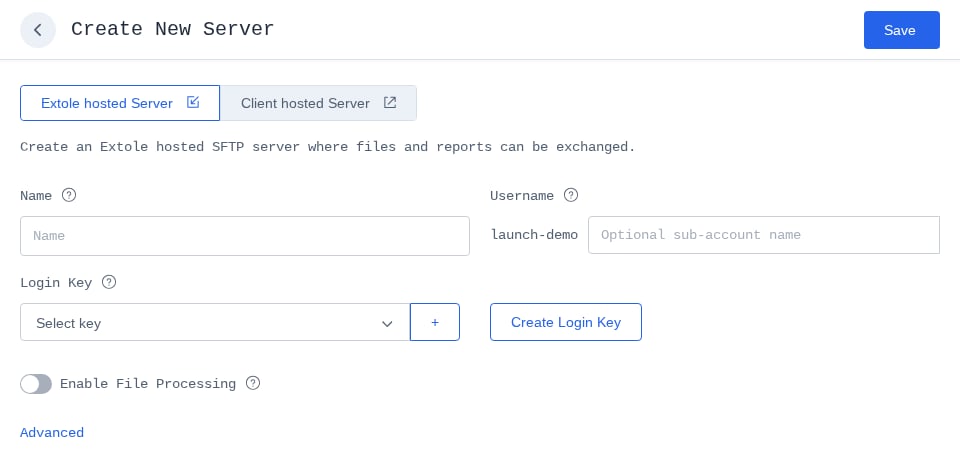
The Create New Server page, with Create Login Key next to the Login Key list.
-
Fill out the panel:
- Key Name: How the key appears in My Extole. Name it after the person or system that holds the private key, such as
Jane Doe laptoporNightly upload job. - Algorithm: Always RSA. You can’t change it.
- Key: Leave Use Existing Key selected and paste your whole public key line. Never paste the private key here.
- Description: Optional. Up to 2,048 characters.
- Partner Key ID: Optional, under Advanced. Your own identifier for the key. You can leave it blank.
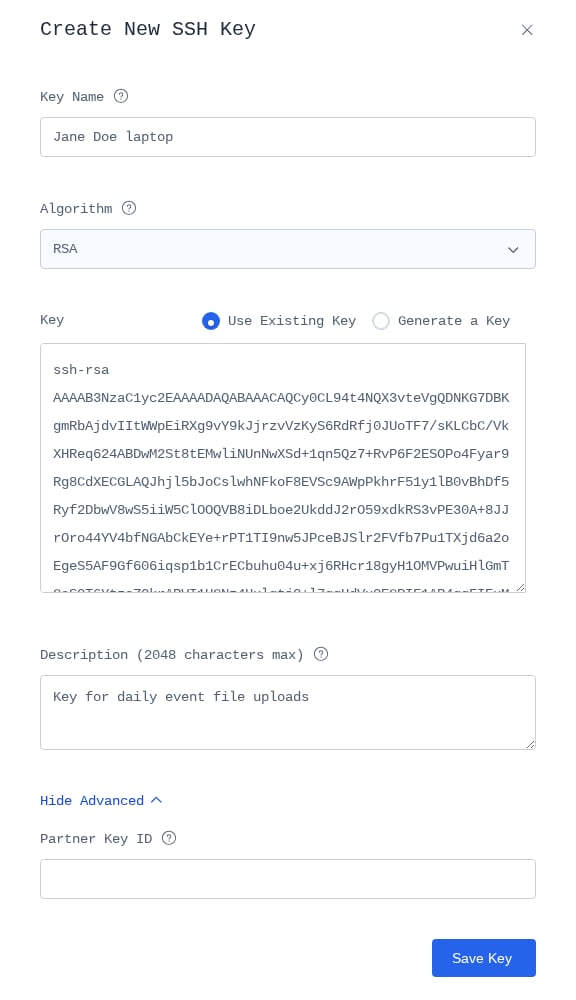
The Create New SSH Key panel with a public key pasted into Key.
- Key Name: How the key appears in My Extole. Name it after the person or system that holds the private key, such as
- Click Save Key. The panel closes, and your new key is selected in the Login Key list.
- To let more than one person or system sign in to the same server, click + next to the Login Key list to add the selected key, then create or select the next key.
-
Fill out the rest of the server and click Save. Extole checks the key format when you save the server. If the key isn’t an RSA public key on one line, you’ll see an error saying the key must start with
ssh-rsaand be base64 encoded.
Let My Extole Generate the Key Instead
In step 3 above, select Generate a Key instead of Use Existing Key:- In Email or Comment, enter your email address or another label for the key, and click Generate. Your browser creates a 2048-bit RSA key pair and shows both halves.
- Fill out Key Name and the other fields as above.
- Click Download and Save Key. My Extole saves the public key, and your browser downloads the private key as a file whose name ends in
-extole-ssh-key. - Move that file somewhere safe. It’s the private key your SFTP client uses to connect.
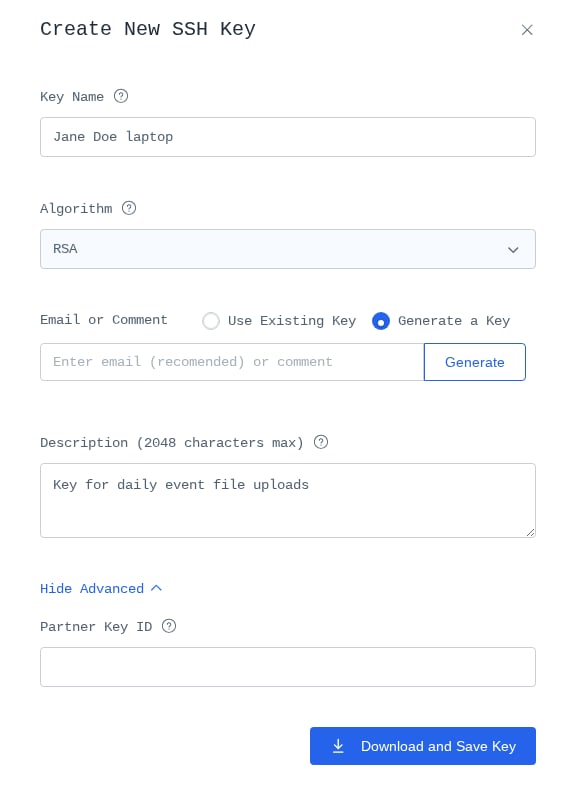
Generate a Key selected. Click Generate, then Download and Save Key.
Use PGP Encryption with Extole (Optional)
Upload Your PGP Key
From the Create New Server page, click the “Create PGP Encryption Key” button and fill out all required fields.- Key Name: How we’ll refer to the key in your My Extole account.
- Email: Your email address.
- Key: The key itself. View more information on PGP key formatting.
- Description: An optional description for the key.
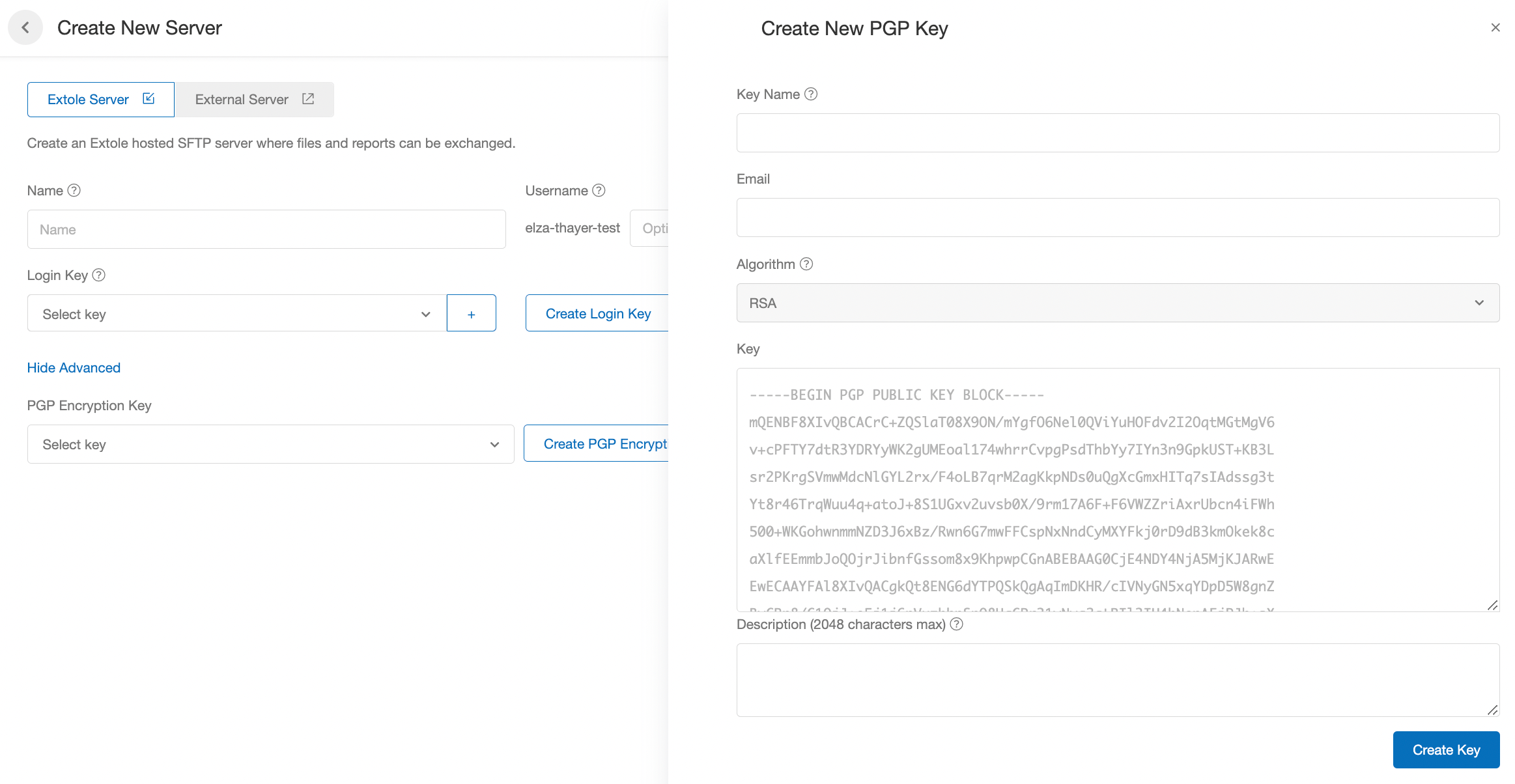
Download Extole’s PGP Key
You must also download Extole’s public PGP encryption key, which you can do from the Create New Server page in the Tech Center.
Configure and Test Your SFTP Client
Using your own SFTP program, follow its instructions to configure your private key. Extole recommends FileZilla, as it is free and works on multiple operating systems. Learn how to configure FileZilla with your private key.Uploading to Extole’s SFTP server
File Conventions
The following conventions are used by almost all files at Extole to ensure file transfer consistency:- Name the file based on the event name (ex: reviews-20201015.csv) or add an “event_name” column to your file and Extole will create events in your campaign based on the file name or value.
- NOTE: Previous SFTP directories are not affected by this feature. The priority goes as follows: “event_name” specified in a row, file name, then “unspecified” if neither are defined.
- The event name used in the file name will be used when posting to the api.extole.io/v5/events endpoint if no event is specified in the file.
- Each file type goes into its own directory on the Extole SFTP system.
- All files are encoded as UTF-8.
- Files may contain Unix (\n) or Dos (\r\n).
- All batch files contain a column header row.
- Column order is never important, as Extole determines the order based on the header row.
- Extra columns in the file that Extole does not recognize are ignored.
- Extole stores 90 days worth of file history, and older files are deleted.
- Extole follows standard CSV quoting conventions:
- A comma can be included by quoting the values: First Name, “Last Name, Jr.”, Gift Message
- A quote can be included by escaping the quote: First Name, Last Name, “Thanks for the “help”
File Permissions
If you are uploading any CSV file through SFTP, make sure the permissions of the file are configured so “everyone” can either read or write. In this case, we want to make sure Extole can read the file.- Check the permissions by right-clicking the file and clicking “Get Info.”
- Scroll all the way down to where it says “Sharing & Permissions.”
- You will see your local machine’s name with the permissions of “Read & Write,” under which you can select “everyone.”
- Make sure “everyone” has the Privilege set to either “Read Only” or “Read & Write.”
Processed Files
After Extole processes files, it moves them into an “archive” folder on the SFTP server to indicate it has been processed.Frequently Asked Questions
How do I connect to Extole SFTP servers using WS_FTP?
To connect to Extole SFTP servers using WS_FTP, you need to upload both a private AND public key. The public key needs to be in a .pub format. In this case, Extole needs to provide both keys in the correct format.How do I configure FileZilla with my private key?
Once you’ve downloaded and installed FileZilla for your operating system, complete the following steps.- In FileZilla’s Menu, go to File → Site Manager to get to the Site Manager page.
- Click the New Site button on the lower left, then fill out the fields under the General Tab as follows:
- Host: sftp.extole.io
- Protocol: SFTP - SSH File Transfer Protocol
- Logon Type: Key File
- User: Found in the SFTP section of the Settings page of your My Extole account.
- Key file: click the Browse button and select your private key file, such as
extole_sftpor the-extole-ssh-keyfile My Extole downloaded. See Add a Login Key.
- Click the Connect button to establish your connection.