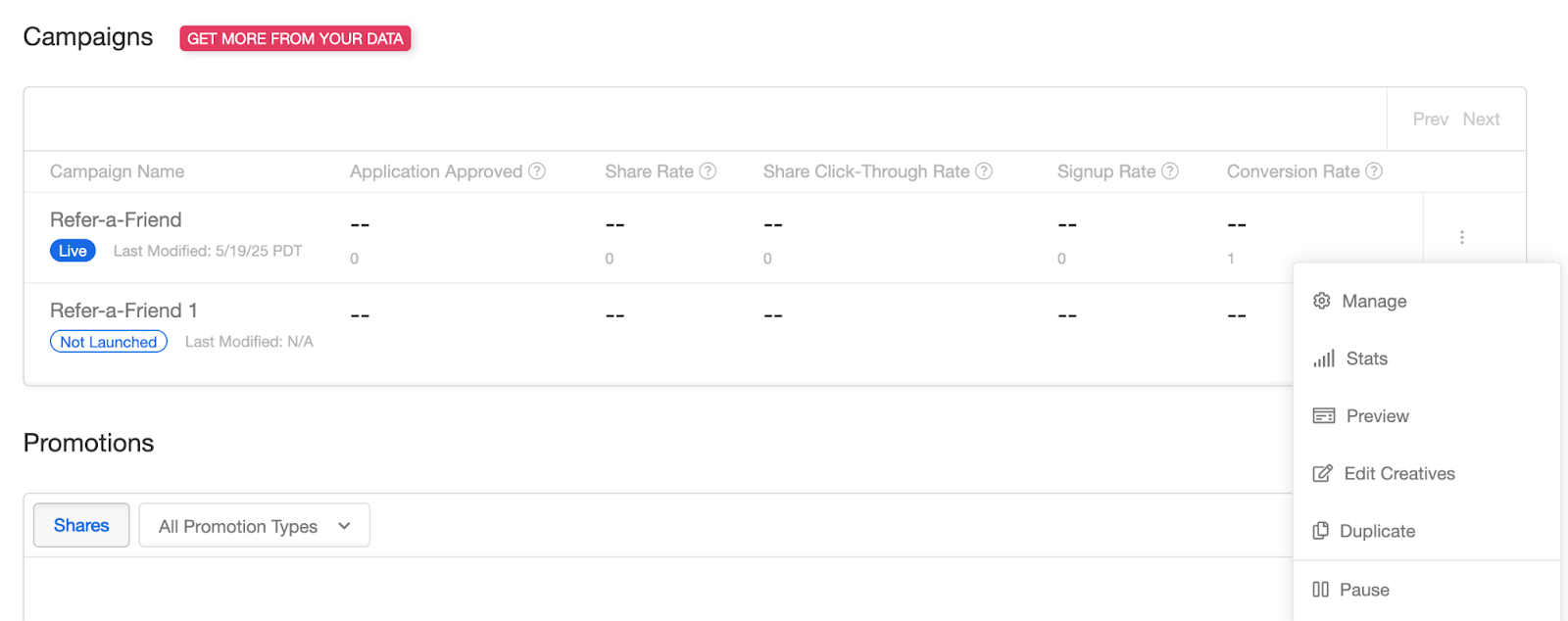
When optimizing your referral program, it’s important to measure how changes to your campaign affect key metrics on your dashboard. To accurately test and compare results, we recommend creating a new campaign whenever you want to try new copy or creative.
Your team can make any necessary updates within the Campaign Editor. Need help with the editor? Check out Using Extole’s Campaign Editor. After making your changes, click Apply.
Apply and Publish Changes are two different steps, and your customers only see the second one.
Apply saves your edits as a new draft version of the campaign. It is what the Campaign Editor preview shows you, and it changes nothing that your customers see.
Publish Changes makes that draft the version Extole serves. Until you publish, Extole keeps serving the last version you published — and if you have never published this campaign, it serves nothing from it at all.
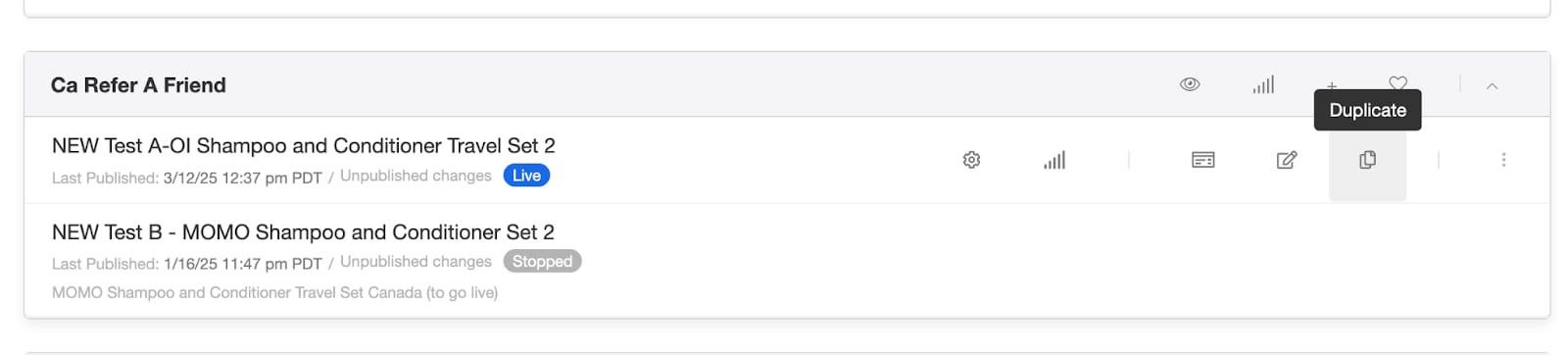
On the Programs page, a campaign with edits you have applied but not published shows Unpublished changes next to its state, and a campaign that has never been published shows no Last Published date.
Applying changes to a Not Launched campaign — a new campaign, or a duplicate you are preparing to swap in — does not get it ready to launch. Publish it as well. Make a habit of publishing every time you finish working on a Not Launched campaign.
A campaign that has never been published cannot go live, even on a schedule. Extole works a campaign’s state out from its dates every time it reads it, and the check for whether the campaign has ever been published runs first. A start date on a never-published campaign is saved and displayed, but it never takes effect, and nothing tells you it did not work.If the campaign does have an earlier published version, the schedule goes live with that older version — not with the changes you applied afterward.
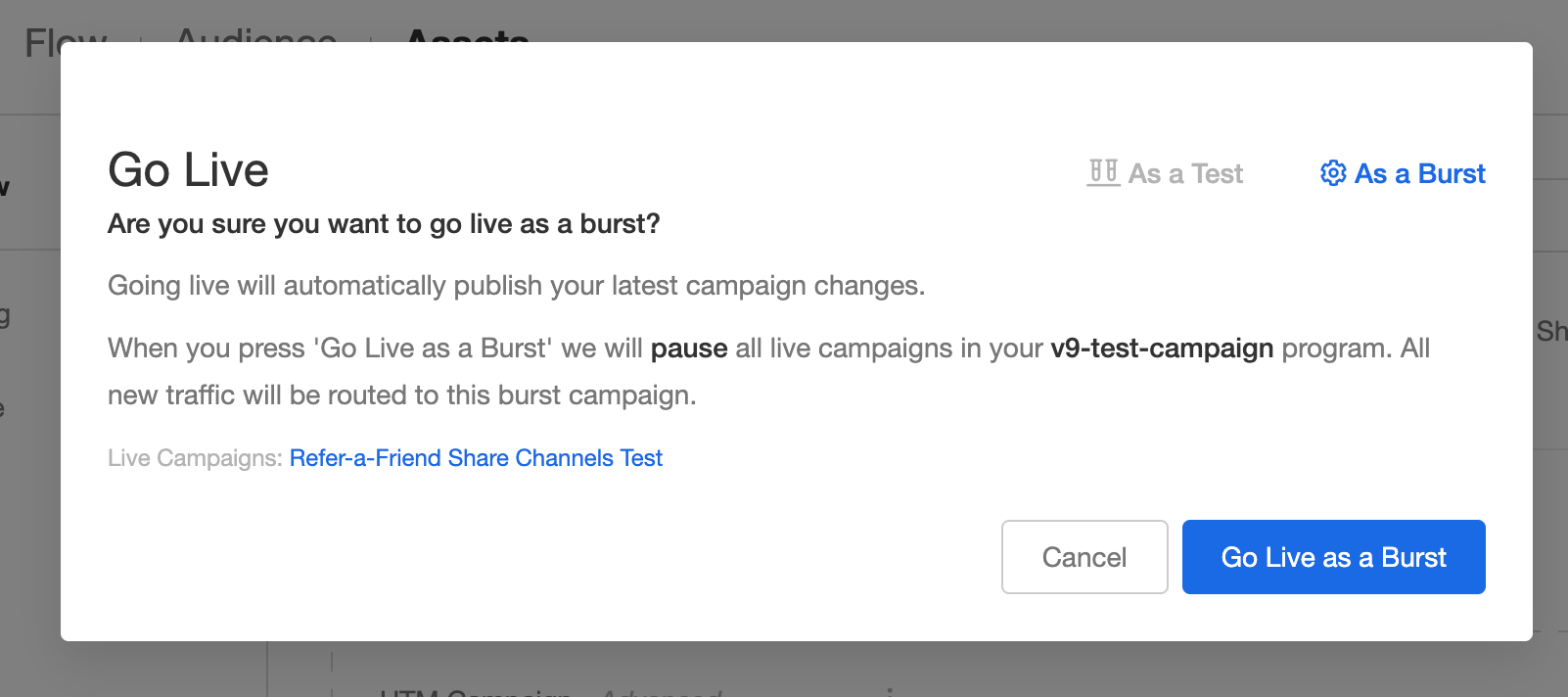
Go Live asks you about unpublished changes; a schedule does not. When you choose Go Live on a campaign that has a draft, Extole offers you Publish Changes and Go Live, or Go Live with Last Published Version, which discards the draft. A scheduled go-live gives you neither prompt, so publish before the scheduled time arrives, then confirm afterward that the campaign shows LIVE.