
Overview
If you’re running an international program, we strongly encourage you to support as many native languages as possible. Doing so ensures that your customers can easily connect with your brand and advocate on your behalf. This article offers step-by-step instructions for adding languages to any Extole program. Curious about getting data for international programs? Check out our article onReports Based on Locale and Country.How to Add New Languages
- Find the campaign to which you’d like to add a language and open its History.
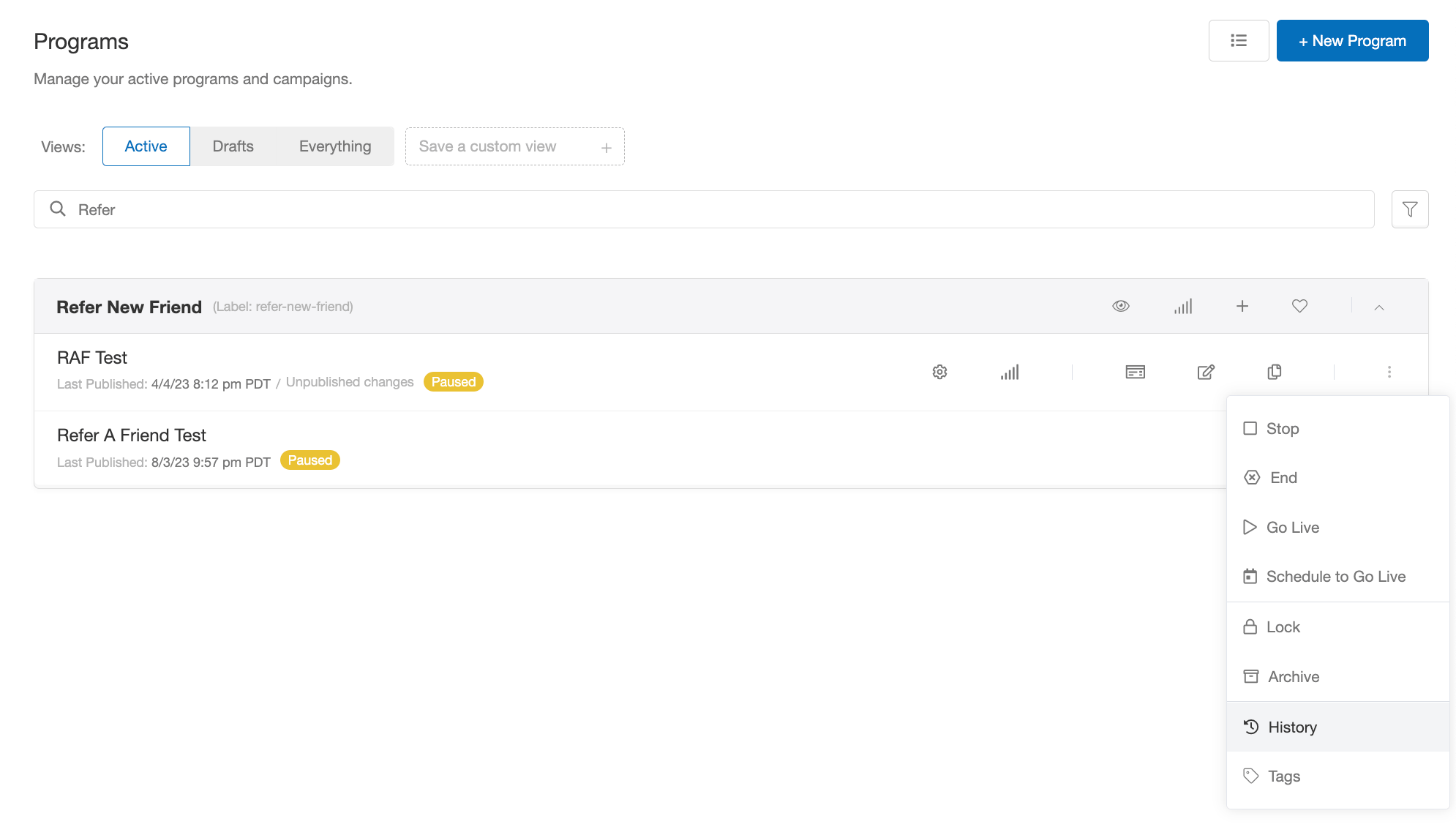
- Once on the History page, select the option to Download Translation Copy from the right-hand menu of the latest published version.
- This file has one column for each language supported by your campaign.
- Simply add another column and provide translated copy for each of the rows.
- Make sure to maintain any special formatting, like ###{{ dynamic values }} and any HTML or CSS.
- Once you’ve finished adding your new language to the file, open the Campaign Editor for your campaign and select Upload Translation Copy from the menu in the top-right corner of the page.
- Upon a successful upload, we will automatically apply your changes to all copy and you’ll see a new dropdown for selecting the language at the top of the editor.
- At this point, the new language isn’t enabled, but you can preview how the copy looks in each creative template. You’ll also be able to make changes to the copy for each template in the righthand sidebar of the Editor.
- When you’re ready to enable your new language, open the campaign’s Basics tab and add the language abbreviation to Variants. Save your changes.
- Once the campaign is published, Extole will begin detecting browser settings to determine which language to display.
- Since you likely allow customers to change the language on your site, we recommend passing the locale from your website in your Extole tags so that your program experiences match the selected language regardless of the initially detected browser locale.
- You can do this by updating the data element of your marketing tags. Simply include locale and pass in your site’s dynamic value for that locale.
- If you’re using Google Tag Manager, update the data element of your tags by passing in the locale and the variable that holds the locale from the data layer.
- Learn more in our Advanced Tagging article.
- Now when you switch languages on your site and pass locale to Extole, your program experience will display in the same language.
What Enabling a Language Changes
A campaign only serves the languages listed in its Variants setting. Visitors who match a language that isn’t listed — by browser setting or by the locale you pass in — see your campaign’s default language instead. Their experience is complete; it’s just in the default language. Adding a language to Variants reverses that for every visitor it matches. From the moment you publish, those visitors read the copy stored for that language, including any rows you didn’t translate. Untranslated rows aren’t blank: they hold the starter copy the campaign template shipped with, which can name a different offer, a different reward amount, or a different program type than the one you’re running.How to Turn Off a Language
You can stop serving a language without deleting any of its copy. A campaign only serves the languages listed in its Variants setting, so taking one off that list makes every landing page, share experience, and email in that language unreachable, while the translated copy stays on the campaign.- Open the campaign and go to the Basics tab.
- Under Variants, remove the language you want to turn off.
- Publish the campaign.
locale value passed in a zone tag or a URL behaves the same way: a locale that is not in the variant list falls back to the default language rather than forcing the language you removed.
While a language is off the variant list, the Campaign Editor stops showing its copy. Nothing is deleted — add the language back to Variants and every translated value is there again.
locale — turning the language off does not remove that link. It keeps rendering, and now sends people to a page in your default language. Edit the creative to take the link out.
Images in Translated Campaigns
Translation copy covers the text in your campaign. An image setting shows the same image in every language, and the Campaign Editor does not offer a per-language image. To show a different image for one of your languages, contact your CSM.The Upload Succeeded but the Copy Didn’t Change
A translation file is tied to the campaign it was downloaded from, and Extole accepts a file that doesn’t match without reporting an error. If your upload finished successfully and the old copy is still showing, check these three things.- The file came from the campaign you’re updating. The first column of the file,
absolute_name, begins with the campaign’s name. Extole matches every row against that campaign; rows naming a different campaign are skipped, and the upload still reports success. If you run a separate campaign per market, download a fresh translation file from the campaign you’re editing and put your translations into that file rather than reusing another campaign’s. - Each language column heading matches the locale exactly. The heading is the locale code as it appears in the file you downloaded —
fr_CA, notfrcaorfr-CA. A heading Extole doesn’t recognize is saved as a new language that nothing selects, so no experience changes. If two columns share a heading, only the right-most one is kept. - Every language is still in the file. Each row replaces all of that setting’s copy, so a language column you remove is removed from the campaign. Keep the columns the download gave you, and add to them.