

Program vs. Campaign Flow Diagrams
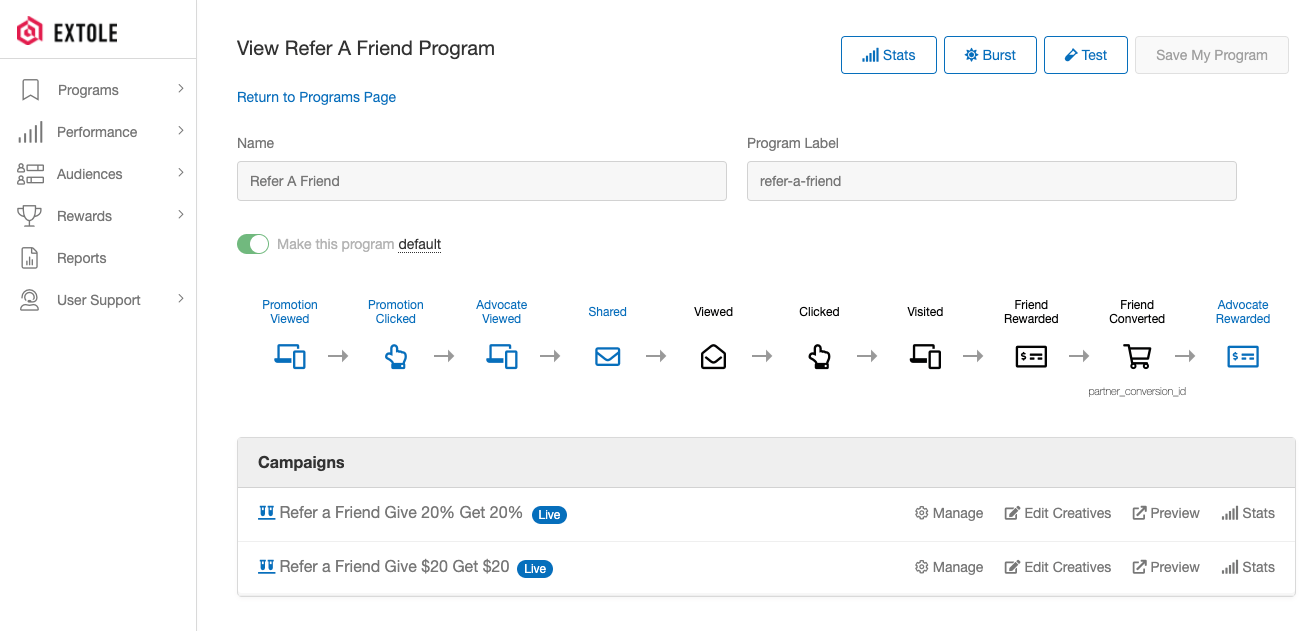
In the vast majority of cases, a program flow diagram and the flow diagrams for the campaigns in that program will be identical. A program flow diagram is a summation of all the steps that occur in any of the campaigns within a given program. A campaign flow diagram looks exclusively at the steps that occur in a given campaign. Your program flow diagram may look different from one or more of your campaign flow diagrams if you are A/B testing the presence or absence of a step. For example, if Campaign A has an email capture step and Campaign B does not, the program flow diagram will display the email capture step, and will thus look different from Campaign B’s flow diagram.View Program Page
Actions
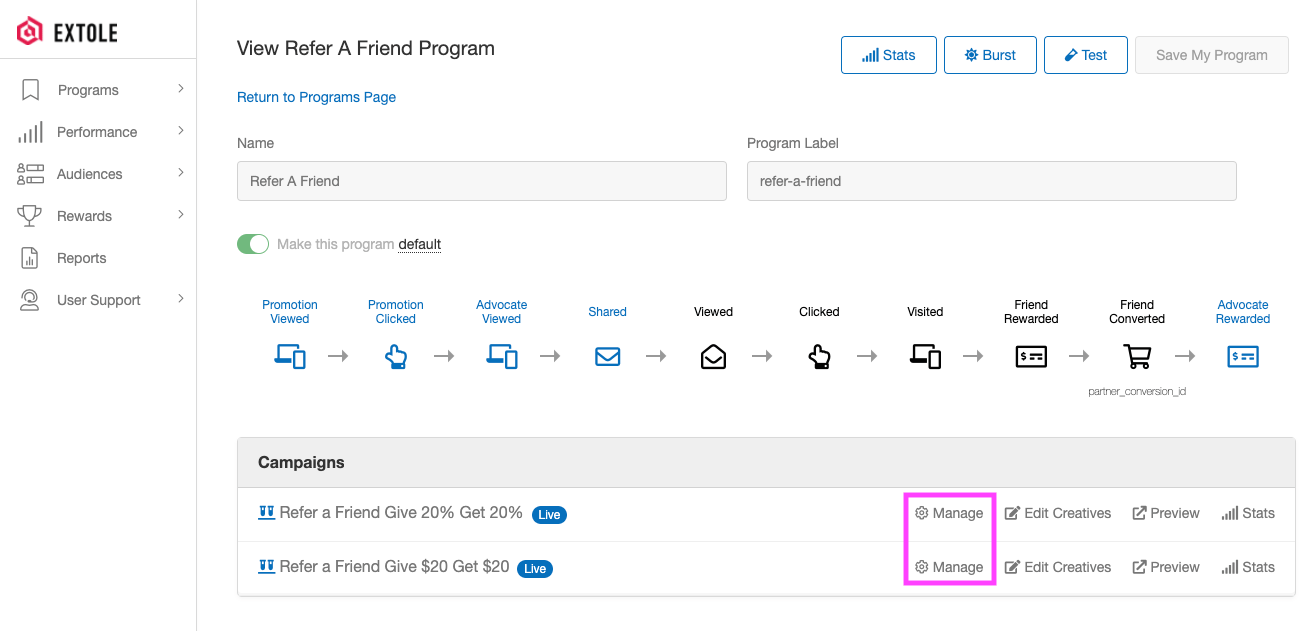
Your View Program page is a great place to navigate to program sub-pages and take action on your program itself. From your View Program page, you can:- Rename your program if you haven’t launched yet
- Make your program the default program
- Run a Burst or a Test within your program
- Go to your Program Dashboard by clicking Stats, or go to the Programs page by clicking Programs
- Manage your campaigns by clicking Manage in the Campaigns table
- Edit the creatives of your campaigns by clicking Edit Creatives in the Campaigns table
- Preview the assets of your campaigns by clicking Preview in the Campaigns table
- Go to your Campaign Dashboards by clicking Stats in the Campaigns table
Access
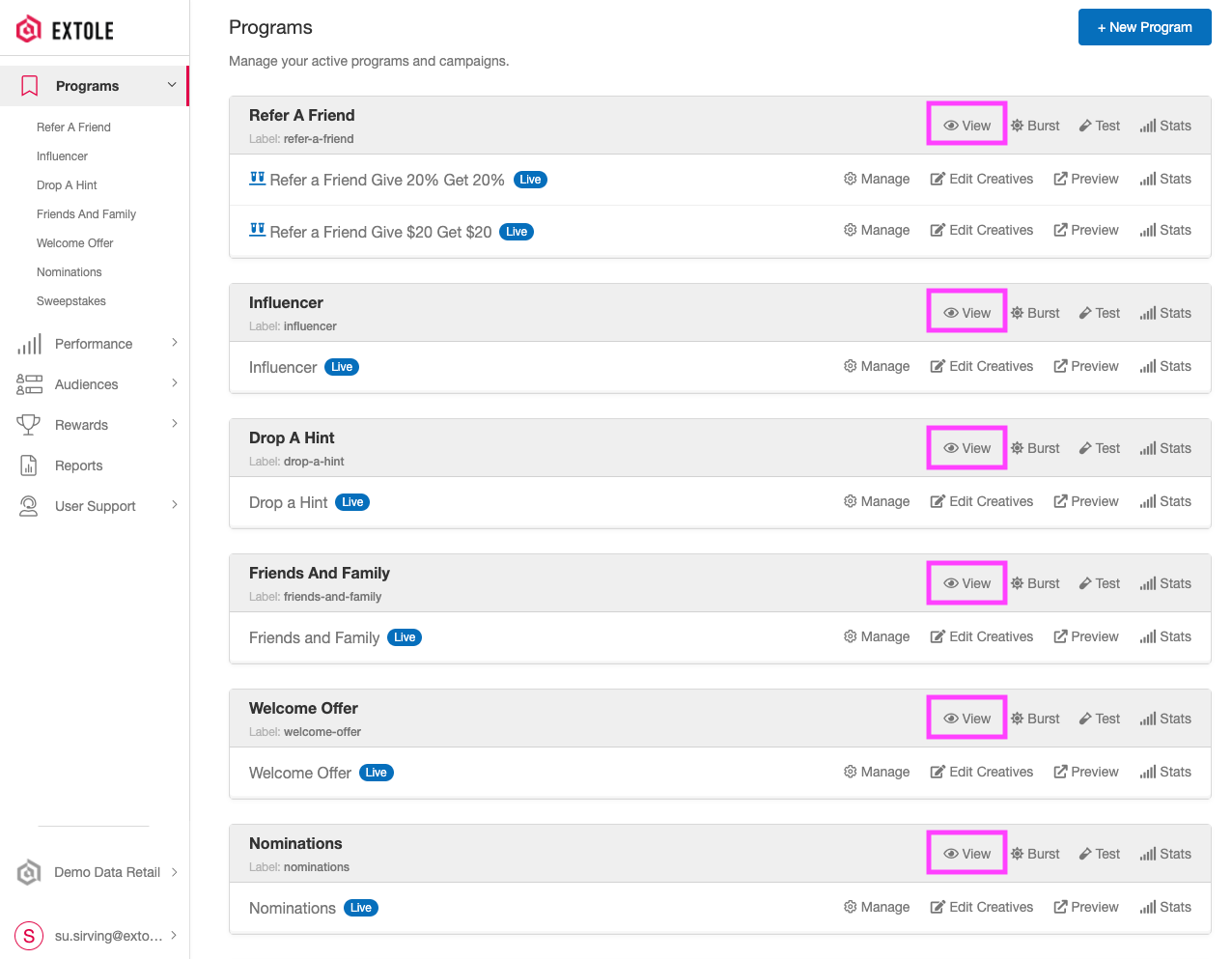
There are a couple different places you can access your View Program page:- From the Programs page (read more about the Programs page here)
- From your Program Dashboard (read more about your new Program Dashboard here)

Manage Campaign Page
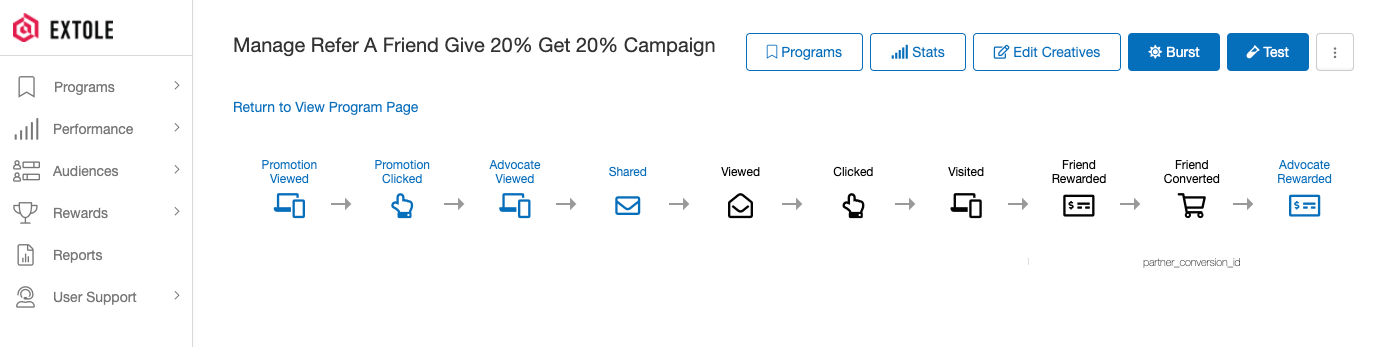
Actions
Your Manage Campaign page serves as a way to navigate other campaign-specific resources. From your Manage Campaign page, you can:- View the specific data associated with a given event (e.g. partner_conversion_id on the Friend Converted event)
- Run a Burst or a Test within your program
- Go to your Campaign Dashboard by clicking Stats, or go to the Programs page by clicking Programs
- Edit the creatives of your campaign by clicking Edit Creatives
-
Change the state of your campaign (Go Live, Stop, Pause) using the dropdown menu

- Duplicate your campaign using the dropdown menu
- Preview the assets of your campaign using the dropdown menu
Access
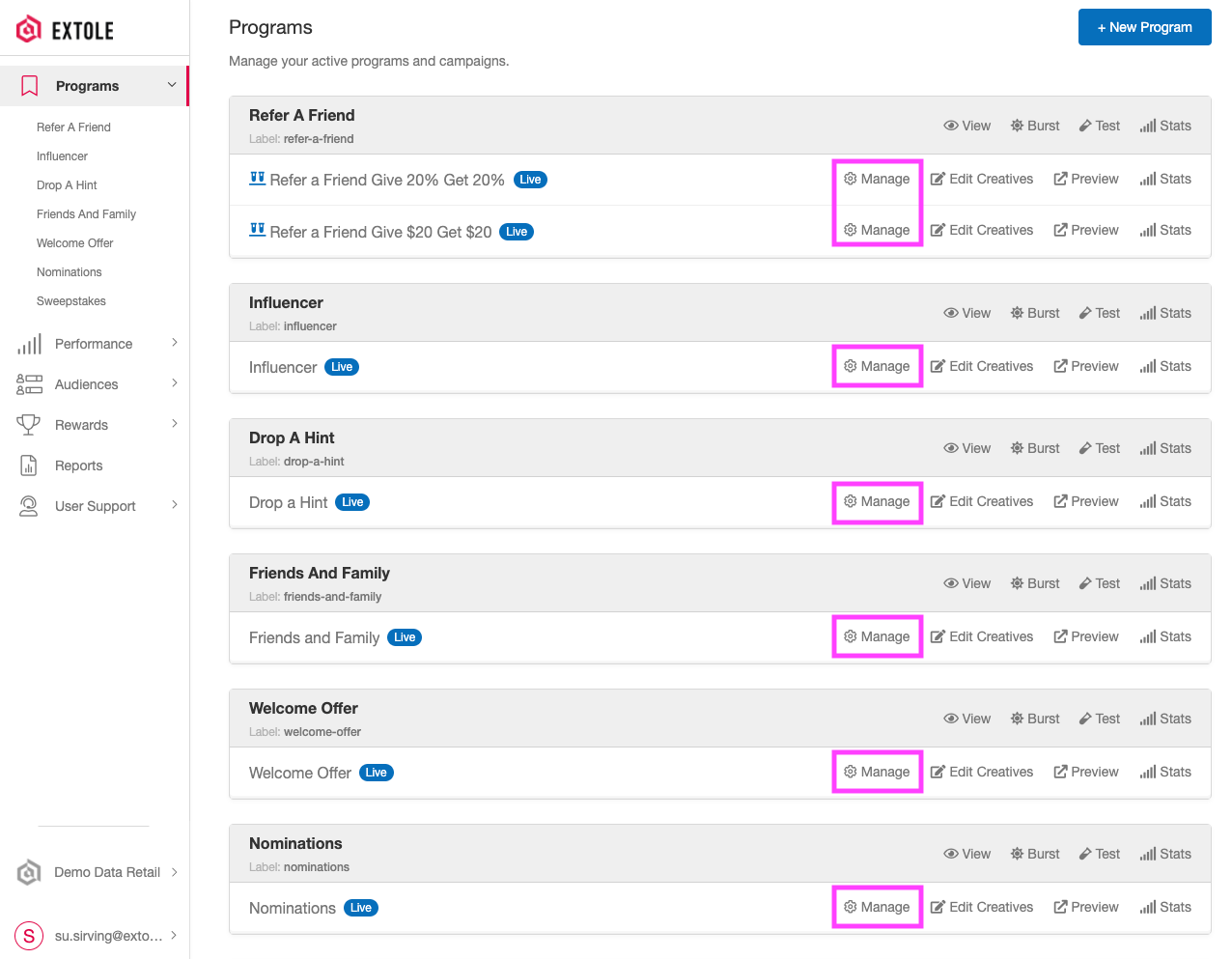
Your Manage Campaign page is accessible from the following areas of the app:- From the Programs page (read more about the Programs page here)
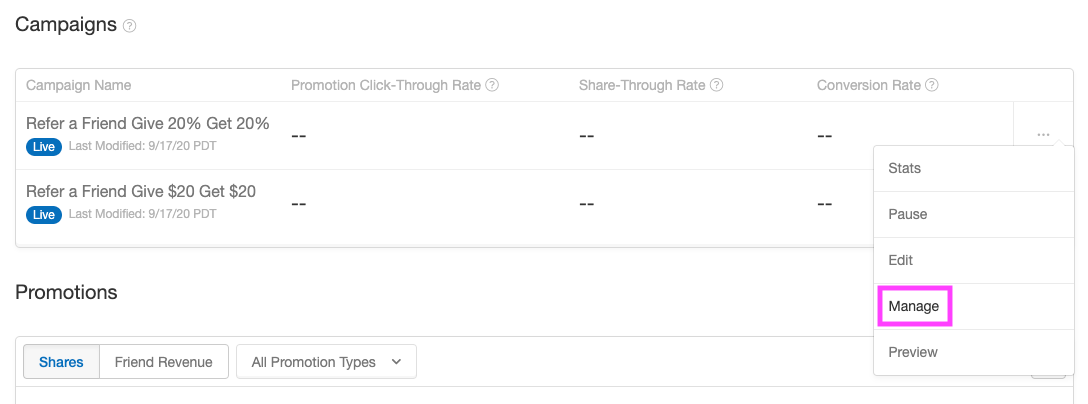
- From your Program Dashboard in the Campaigns table (read more about your new Program Dashboard here)
- From your View Program page in the Campaigns table
- From your Campaign Dashboard (read more about your new Campaign Dashboard here)
