
Overview
In your My Extole account, you can manage your subscription to in-app notifications. Just click on your account in the bottom left corner to open the menu and select Notifications. On this page, you will see all recent notifications or an empty table if you are not yet subscribed. Click on the Manage Notifications button in the top right to change your subscription. Jump ahead to the following sections:- Notification Levels
- Notification Categories and Example Notifications
- Channels
- Specific Notification Types
- Unsubscribing
Notification Levels
My Extole notifications include four categories: Business Operations, Reports, Technical, and Configuration Changes. Each category has four subscription levels.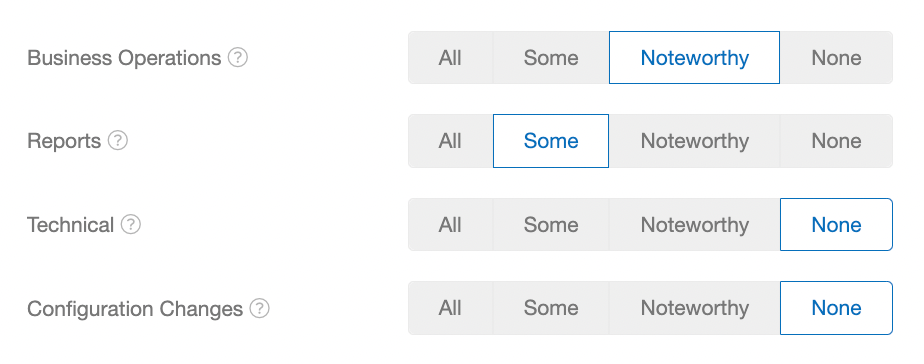
Notification Categories and Example Notifications
Below are the types of notifications that you will receive for each category of notification at each subscription level. To learn more about what each notification means, please see What To Do When You Get a Notification.Business Operations Notifications
Reports Notifications
Technical Notifications
Configuration Changes
Channels
You will receive all notifications within your My Extole account by default. Navigating to the Notifications Center, you can view the details of each notification and optionally snooze them for up to 30 days. If you’d like to additionally receive notifications via email, click on “Channels: in-app”, toggle on your email address, and click “Save”. You can also set up a webhook to post to Slack whenever you receive a notification of a specific category: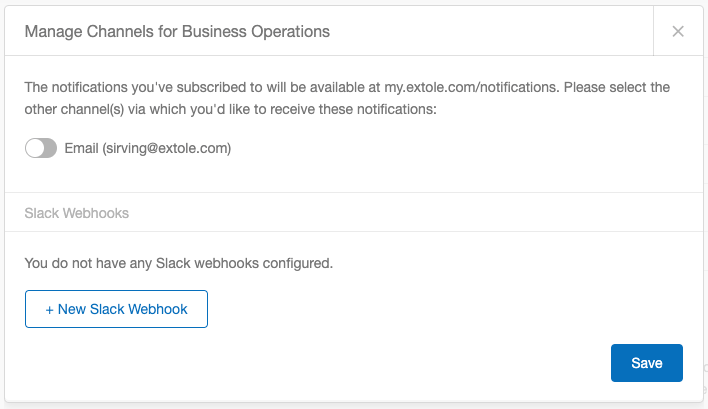
Levels and Channels Are Separate Settings
The level decides which notifications you receive and the channel decides where they are delivered. A category set to All with no email channel toggled on delivers every notification to your in-app Notifications page and none by email. When you did not receive an alert, check both: the category’s level, and whether the email channel is on for that category. An email you did receive for another category, such as a report completing, shows that the address itself is deliverable.Reading the Event Behind a Notification
The id in a notification’s link identifies the notification record, not the event that raised it. To look up the event in a report, open the notification’s details and use the event id shown there.Specific Notification Types
Reports Notifications
Outside of the Settings page, you can also subscribe to reports notifications on the Reports History page by clicking Subscribe at the top of the page:
Scheduled Reports Notifications
Outside of the Settings page, you can subscribe to scheduled report notifications by going to the Reports > Scheduled Reports page.- Find the desired report schedule
- On the righthand side of the row, open the menu and select Edit.
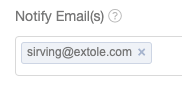
- Add your email to the Notify Email(s) field and click Save & Run.
Reward Low Balance Alerts
Outside the Settings page, you can subscribe to reward low balance alerts from the Rewards center by clicking on the “add me” link at the top of the page.