Whether or not your program is successful depends on how well you promote it. With Extole’s Email Audience functionality, you no longer need to rely on fitting a promotional email into your existing marketing schedule—you can do it right fr…
Whether or not your program is successful depends on how well you promote it. With Extole’s Email Audience functionality, you no longer need to rely on fitting a promotional email into your existing marketing schedule—you can do it right from within the Extole platform with just a few clicks!
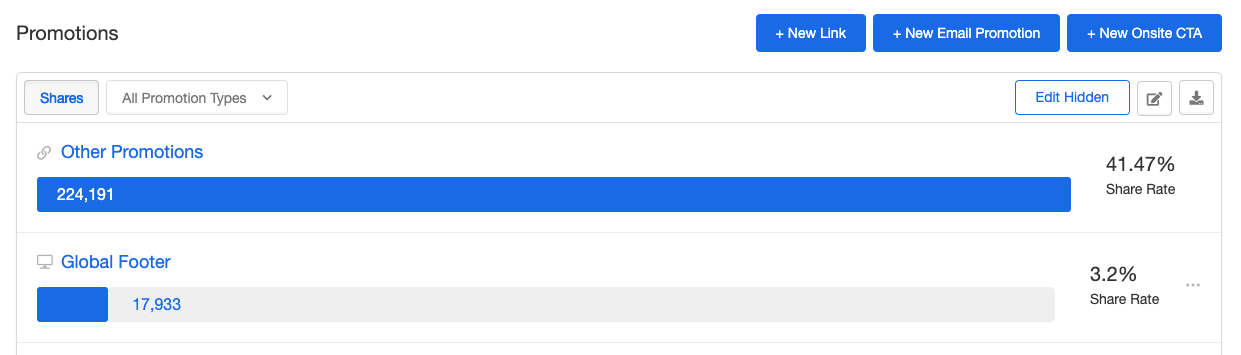
For legacy campaigns, you can add a promotional email from your Campaign Dashboard.Scroll down to the Promotions section and click the blue + New Email Promotion button:
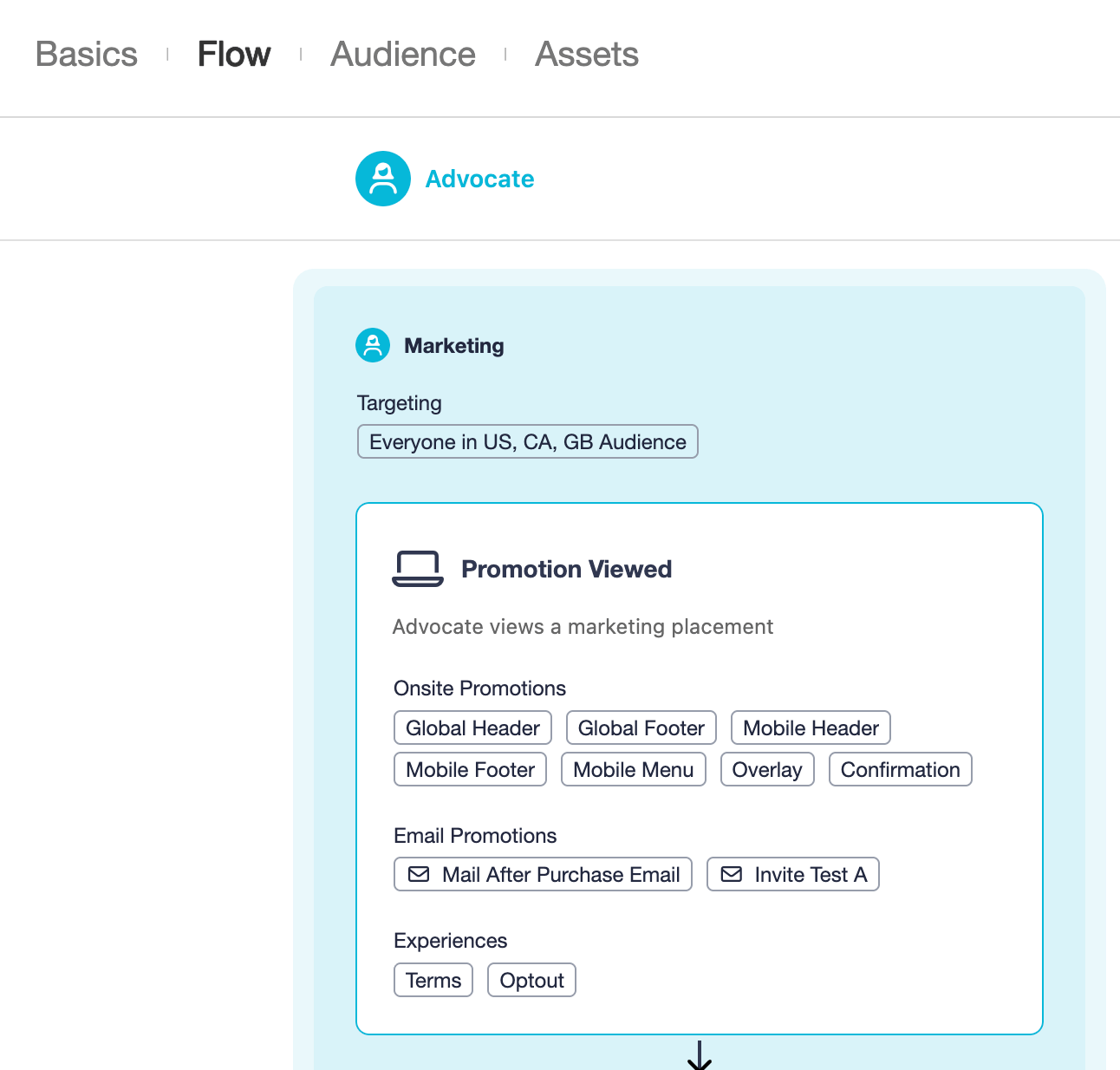
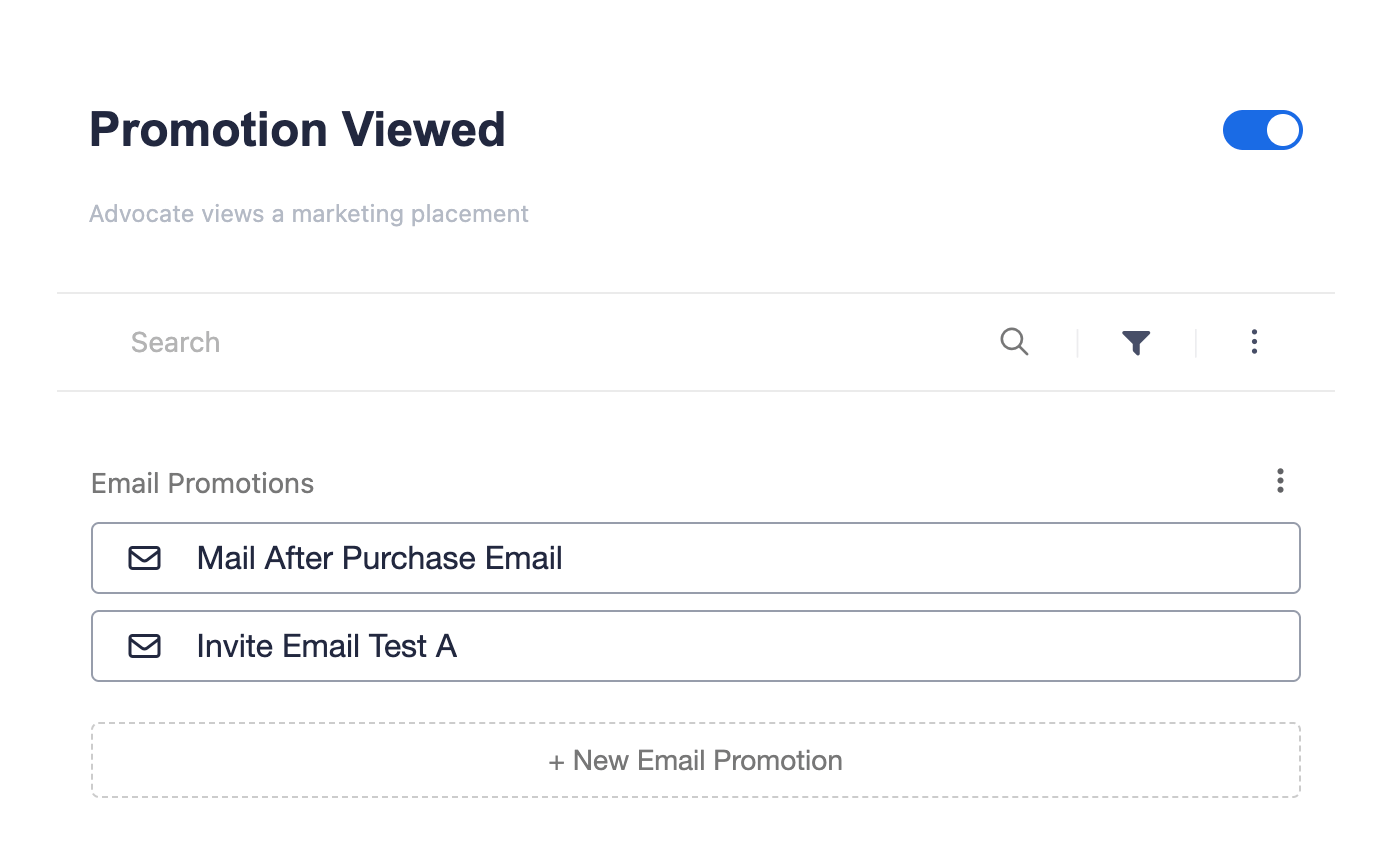
For Flow Builder campaigns, you can add a promotional email directly on your flow.Open the Promotion Viewed business event and scroll to the Email Promotions section, where you can hits + New Email Promotion.
For legacy campaigns, the new email will appear in one of the tabs of the Campaign Editor for that campaign (e.g., the Advocate tab, Marketing tab, etc.). Here you can preview the email and update the copy, styling, and images accordingly. Remember to publish your changes!
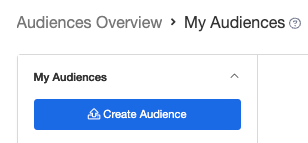
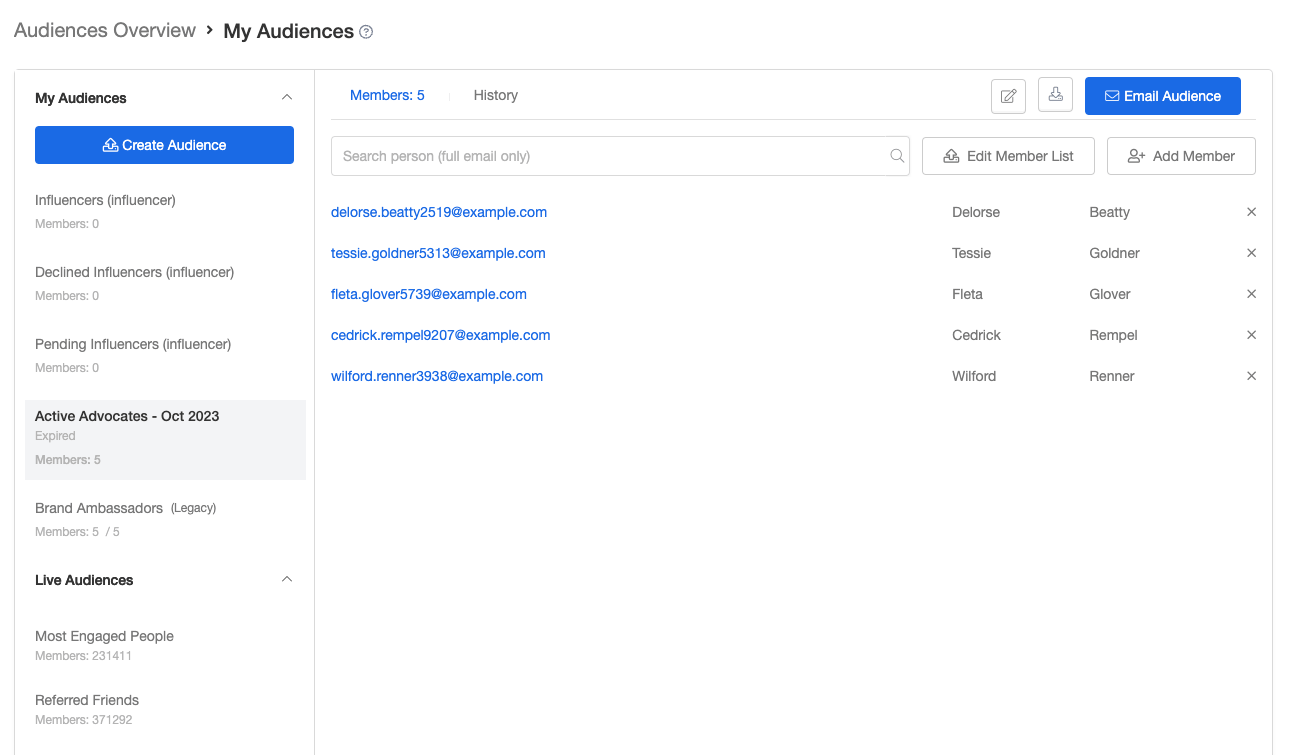
If you have a file containing the people you’d like to email, you can use that file to create an audience on the My Audiences page. You can also select an existing audience that Extole has created for you, using data from your existing programs. Learn more about My Audiences.
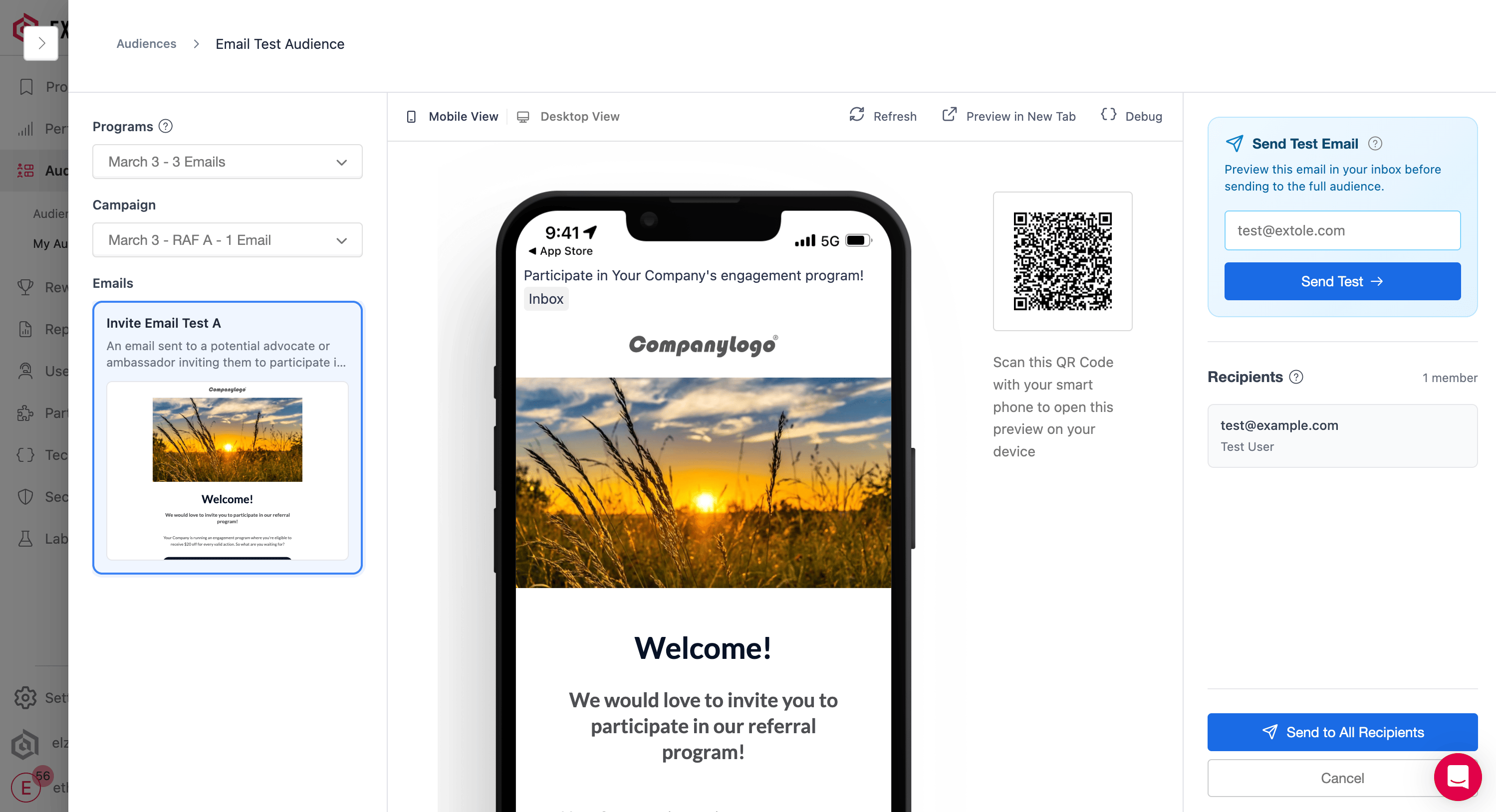
After clicking the Email Audience button, you will see a list of emails in all live campaigns. Select the correct program and campaign (if applicable) from the dropdown, then select the email you created for this audience.
Use the Send Test Email feature to ensure everything about your email looks as expected.
Stop if the test arrives as more than one email. Do not click Send to All Recipients. Those emails share Trigger Event Namespromotion_viewed, so this send delivers every promotional email that still has that value.
Give the email you selected its own trigger, then test again:
Open that email in Flow Builder. Do not open the Promotion Viewed business event.
On the email, open the settings filter and turn on Show Expert. Use the filter on the email. The filter at the top of Flow Builder does not show this field.
Change Trigger Event Names from promotion_viewed to a name only this email uses, such as spring_sale_promo_triggered.
If other promotional emails should send separately, give each one a different Trigger Event Names value. Leave a reminder email that already has a different value unchanged.
If Promotion Viewed shows Triggered By, leave that setting as it is. It does not choose which email goes out.
Publish the campaign, then send the test again. Only the email you selected should arrive.
Once you’ve tested your email, go ahead and initiate your email promotion by hitting the Send to All Recipients button in the bottom right. Once you’ve hit the button, you’ll see a status next to the audience as we safely send your email.