
Overview
The promotions section on your program dashboard shows all the shares for each promotion source within a given time range.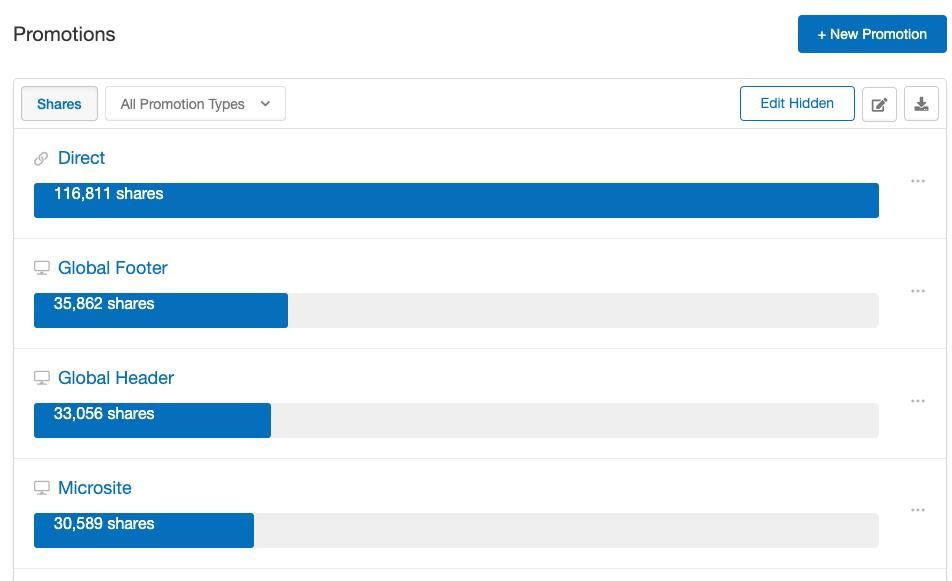
Report Configuration
Filters
- Time Range: The range of data that will be in the report
-
Period: The way that your data will be grouped
- If you set your time range to “Last Month” and your period to “Week”, this will count the data from the last month, grouped by week.
-
Count By: Whether you want to count the metrics that your source has contributed to in terms of unique people or in terms of total events
- If you set the “Count By” to people, you’ll get a count of unique advocates, unique signups, unique account fundings, etc. If you set the “Count By” to events, you’ll get a count of all shares, all signups, all account fundings, etc.
- Steps: The event(s) in your program that you want data on. This will default to the metrics that are defined in your programs.
-
Program: The program that you want to analyze promo sources for
- If you don’t specify a program, you’ll get data on all programs
-
Campaign: The campaign that you want to analyze promo sources for
- If you don’t specify a campaign, you’ll get data on all campaigns within the program you specify (or within all programs if you don’t specify a program)
-
Sources: The specific promotional source you want to analyze
- If you don’t specify a source, you’ll get data on the top 10 performing sources
Sorting
-
Sort Order: How you want the promotion data sorted
- You can choose to sort the report by any of the events you’ve specified in the Steps field. Each metric can be sorted ascending or descending.
Advanced
- Formats: Available file formats for download purposes
-
Container: The place(s) you want to see data from
- This defaults to your production container, but you can choose to include data from test containers or bot containers as well
- Dimensions: another way to group the output of the report
- Top Sources Count: the number of sources (up to 10) that you want to analyze
-
Visit Type: the type of visits to the events outlined above (e.g. promotion viewed, promotion clicked, shared, converted, etc.)
- For a count of the people who have clicked on a share, converted, etc., and who are New to File, select “New To Client”
- For a count of the people who have clicked on a share, converted, etc., and who are new to the program, select “New to Program”
- For a count of the people who have clicked on a share, converted, etc., and who are new to the campaign, select “New to Campaign”
-
Quality: the quality of the steps outlined above (e.g. promotion viewed, promotion clicked, shared, converted, etc.)
- For a count of the people who have clicked on a share, converted, etc., and the click, conversion, etc. was high quality, select “High”
- For a count of the people who have clicked on a share link, converted, etc., and the click, conversion, etc. was low quality, select “Low”
- For a count of the people who have viewed a promotion, clicked a promotion, etc., and the view, click, etc. did not have a quality, select “None”
Report Output
For a given promotion source, you’ll see the period you configured (e.g., month), the start and end time of that period (e.g., 1/1/2023 – 2/1/2023), the program label (e.g., Refer A Friend), and the campaign (e.g., January Refer A Friend Campaign). Depending on how your report is configured, you may get counts of the following:- Promotion Viewers: Unique people viewing the in-app or onsite promotion (not applicable for links posted on social channels or untracked sources)
- Promotion Views: Total views of the in-app or onsite promotion (not applicable for links posted on social channels or untracked sources)
- Promotion Clickers: Unique people clicking on the promotion (applicable for in-app promotions, onsite promotions, email promotions, or promotion links posted on social channels)
- Promotion Clicks: Total clicks on the promotion (applicable for in-app promotions, onsite promotions, email promotions, or promotion links posted on social channels)
- Advocate Viewers: Unique advocates who loaded the share experience after clicking on the promotion
- Advocate Views: Total advocates who loaded the share experience after clicking on the promotion
- Advocates: Unique people who shared after clicking on the promotion
- Shares: Total shares attributed to the promotional source
- Friend Viewers: Unique friends who have opened the share email
- Friend Views: Total number of opens of the share email
- Friend Clickers: Unique people who clicked on a share as a result of the promotion
- Friend Clicks: Total clicks on a share as a result of the promotion
- Registrants: Unique people who registered or signed up as a result of the promotion
- Registrations: Total registrations as a result of the promotion
- Registered Revenue: Total revenue from the customers who registered or signed up as a result of the promotion (applicable if you have a default value for a registration step)
- Converters/Customers: Unique customers who purchased as a result of the promotion
- Conversions: Total conversions as a result of the promotion
- Converted Revenue: Total revenue from the customers who purchased as a result of the promotion
-
Step Visitors: Unique people who did the step you’ve specified
- This can be any step in your program — loan_applied, account_opened, account_funded, etc.
-
Step Visits: Total instances of the step you’ve specified
- This can be any step in your program — loan_applied, account_opened, account_funded, etc.
-
Step Revenue: Total revenue from the people who did the step you’ve specified
- This is applicable if you have a default value for aoan_applied, account_opened, account_funded, etc. step