
Overview
SFTP encrypts every file while it travels between your systems and Extole. PGP adds a second layer: the file itself is encrypted, so it stays unreadable on the server until someone with the matching private key decrypts it. You can use PGP in either direction, or in both:
PGP is optional. A file without it still travels encrypted over SFTP.
You can do every My Extole step on this page yourself, in the Tech Center of your own account. Extole Support can also add your public key to a server for you. Send them the public key only, never the private key.
Send Encrypted Files to Extole
Get Extole’s Public Key
Extole creates one PGP key pair for your account. Extole keeps the private key and gives you the public key, and every server in your account uses the same pair. You can copy the public key from either of these places:- Tech Center > SFTP Servers: click + New Extole Server, or the edit icon on an existing server, then click Advanced and Download Extole’s Public PGP Key.
- Security Center: under Keys, click Download Extole’s Public PGP Key.
PGP-Extole-client-<your client ID>. Click Copy, paste the key into a text file, and save it, for example as extole-public-key.asc. Keep every line, including -----BEGIN PGP PUBLIC KEY BLOCK----- and -----END PGP PUBLIC KEY BLOCK-----.
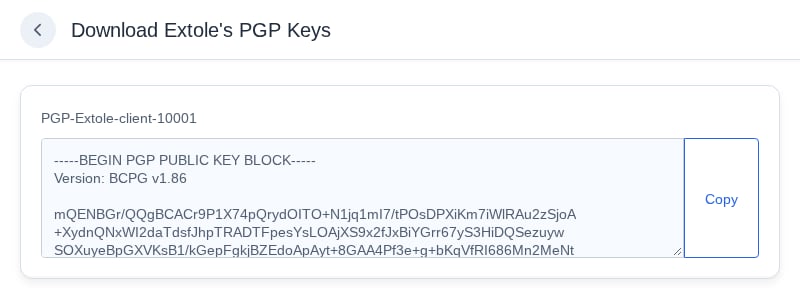
Download Extole's PGP Keys in My Extole. Your account shows its own key.
Encrypt Each File
Encrypt the file to Extole’s public key before you upload it. With GnuPG, for example:- The file name ends in
.gpg,.pgp, or.asc. Extole decrypts only files with one of these extensions and reads every other file as plain text. - It’s encrypted to Extole’s public key. Extole doesn’t accept a file encrypted with a passphrase alone, such as the output of
gpg --symmetric. - It carries an integrity check. GnuPG adds one by default.
- It isn’t marked for your eyes only. Leave out
gpg --for-your-eyes-only.
gpg --armor) both work. Signing the file is optional, because Extole doesn’t check signatures.
Upload the File
Upload the encrypted file to your Extole SFTP server the same way as any other file. When Extole processes it, Extole decrypts it and drops the encryption extension, soevents-20261119.csv.gpg is processed as events-20261119.csv. Name the file the way you would name the unencrypted file, then add the extension. For naming and format conventions, see Extole SFTP Server.
When Extole can’t decrypt a file, it doesn’t process the file and sends an error notification in the Business Operations category that names the file and the server.
Receive Encrypted Reports from Extole
Export Your Public Key
Give Extole the public half of your own PGP key pair, as an armored (text) block. With GnuPG, run the following command, replacing the email address with the one on your key:-----BEGIN PGP PUBLIC KEY BLOCK----- and ends with -----END PGP PUBLIC KEY BLOCK-----. Copy all of it, including those two lines. Your key must include an encryption key, which is how Extole finds the key it encrypts with.
Never paste or send your private key. It’s the half you keep to decrypt the files Extole sends you.
Add Your Key to the Server
- In My Extole, navigate to Tech Center > SFTP Servers. Click the edit icon on the server Extole delivers your reports to, or click + New Client Server to add your server.
- Below the Login Key, click Advanced.
- Click Create PGP Encryption Key. The Create New PGP Key panel opens.
- Fill out the panel:
- Key Name: How the key appears in My Extole, such as
Acme reports key. - Email: The email address on your key. Each PGP key in your account needs its own email address.
- Algorithm: Always RSA. You can’t change it.
- Password: Paste your whole public key block here. The box is labeled Password, but it holds your public key.
- Description: Optional. Up to 2,048 characters.
- Key Name: How the key appears in My Extole, such as
- Click Save Key. The panel closes, and your key is selected in the PGP Encryption Key list.
- Click Save to save the server.
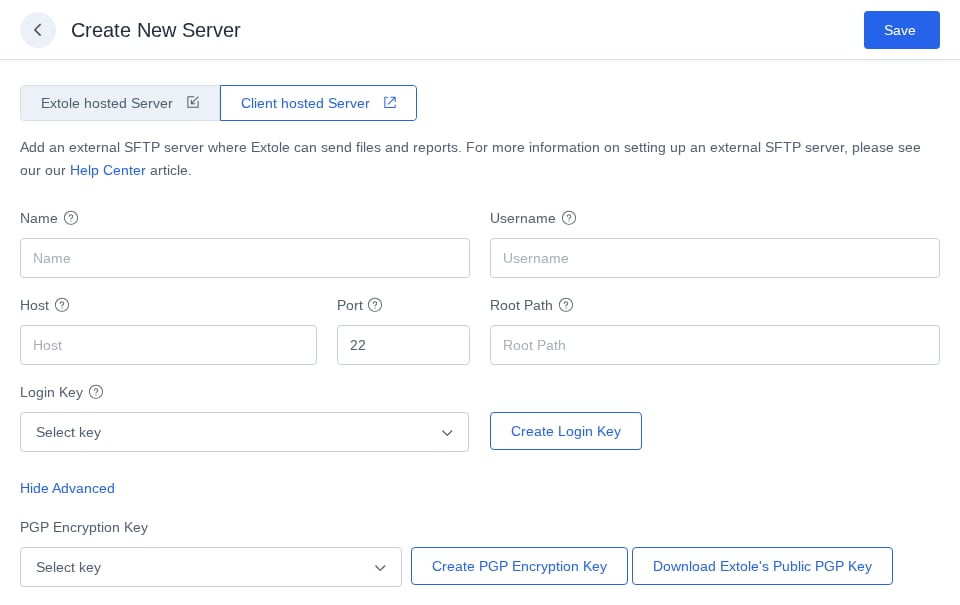
The Advanced section of a client hosted server.
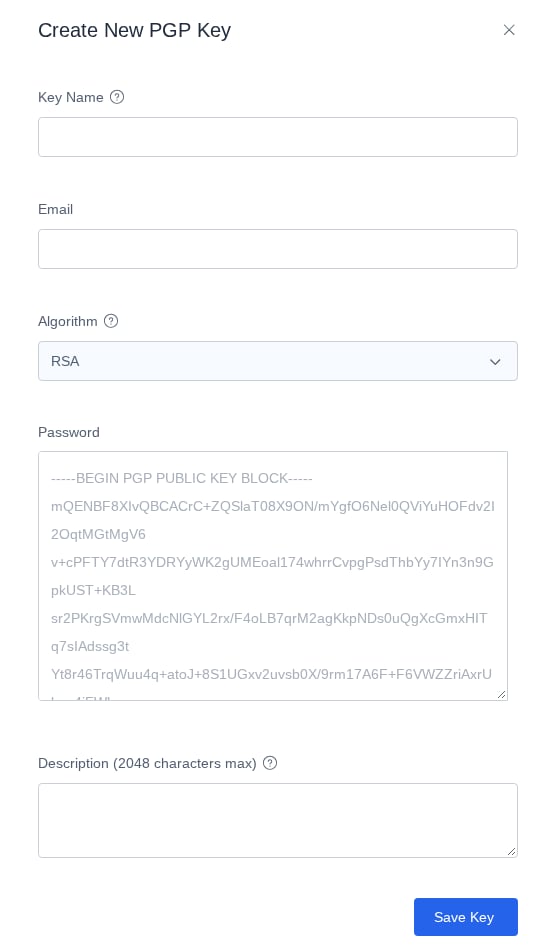
The Create New PGP Key panel. Paste your public key into the box labeled Password.
What Extole Delivers
Encryption is set per server. A server holds one PGP encryption key, and once it has one:- Extole encrypts every report it delivers to that server. A report delivered to a server with no key arrives unencrypted. To encrypt some reports and not others, deliver them to two different servers.
- Each file arrives with
.gpgadded to its name. A report file namedreferrals.csvarrives asreferrals.csv.gpg. - The file is binary PGP, encrypted to your public key only, with AES-256 and an integrity check. Extole doesn’t sign the files it sends.
Replace Your Key
- Export your new public key as described in Export Your Public Key.
- Open the server in Tech Center > SFTP Servers, click Advanced, and create the new key with Create PGP Encryption Key. Give it an email address that differs from the old key’s.
- Make sure the new key is selected in the PGP Encryption Key list, then click Save.