
Overview
Our Batch Jobs page, located in the My Extole Tech Center, offers a powerful self-service experience for your file upload needs. This page allows you to quickly and reliably upload file-based events and automate jobs of large files without needing to coordinate with our Support team. For a recurring inbound file pipeline that should detect, validate, and process files as they arrive, install File Integration instead.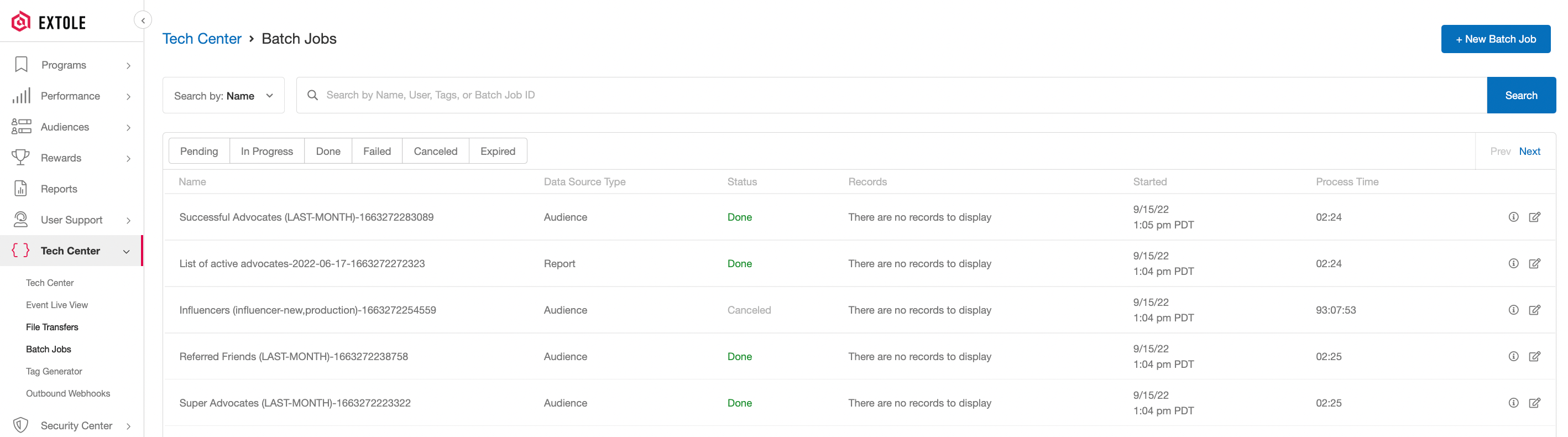
Creating a New Job
Click on the + New Batch Job button to start the job creation process. A drawer-style window will slide out from the right-hand side of your screen with all of the necessary fields to fill in for your job.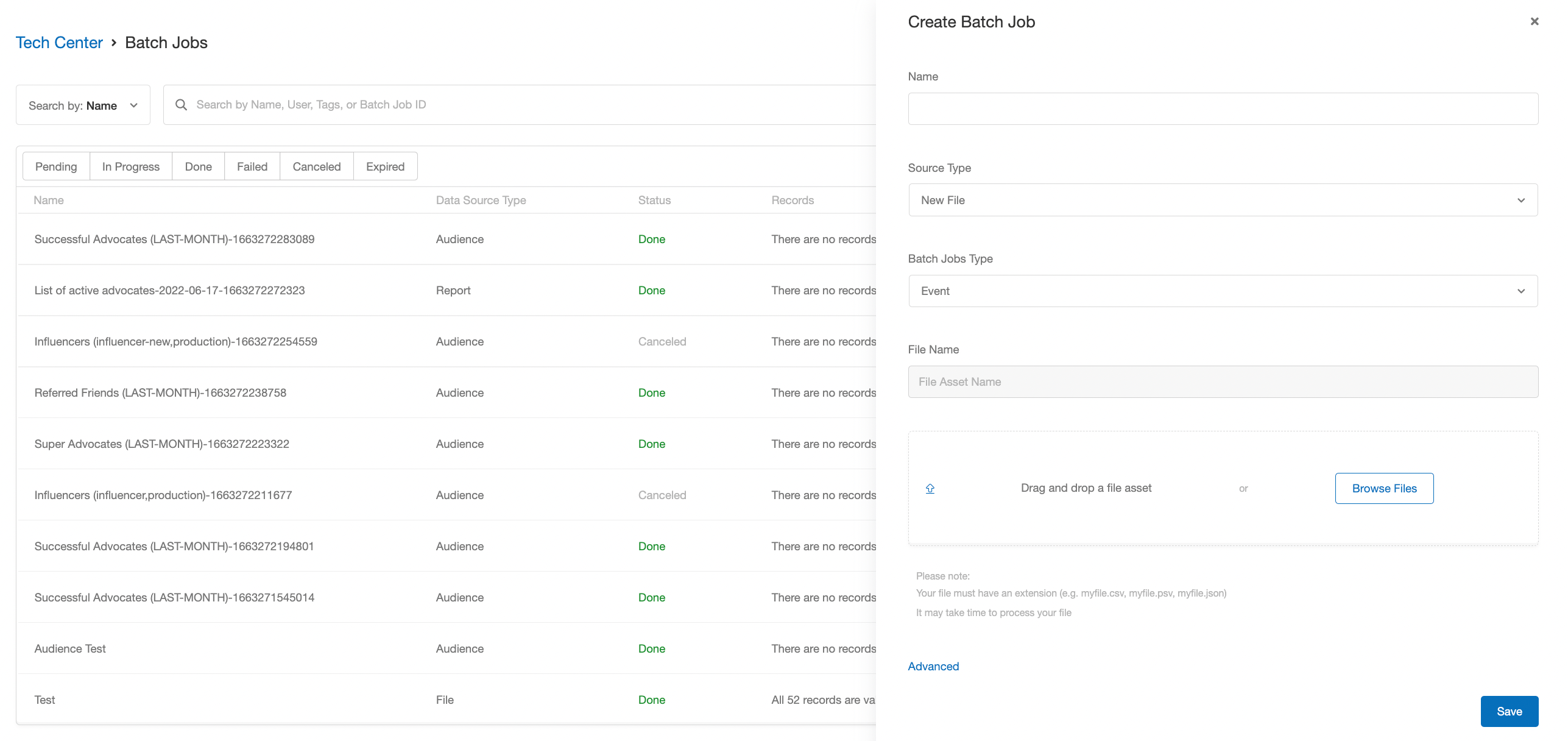
Required Fields
The required fields include the name of your job, the source type, and the file itself.| Field | Description |
|---|---|
| Name | A unique name that describes the content of your file (e.g., Evergreen Refer A Friend Conversions 01072022-01082022). |
| File | You can either drag and drop or browse for the file you want to upload. Your file must have an extension of CSV, PSV, or JSON. |
| Source Type | The type of file you are uploading. The dropdown includes the following options: Audience Existing File Report New File (default) |
| Batch Jobs Type | The type of data included in the file you are uploading. The dropdown includes the following options: Event (default) Optout Approve |
Advanced Fields
Click Advanced in the drawer to open the optional fields.How Extole Names Each Event
Extole chooses the event name for each row in this order:- Event Name, when Override event names in the source file is on. Every row creates this event, and any
event_namecolumn in the file is ignored. - The row’s own
event_namevalue, when your file has anevent_namecolumn. - Event Name, when the override is off. These rows carry no
event_namevalue of their own. unknown, when you left Event Name empty and the row carries noevent_namevalue.
Searching for a Job
You can now search for your jobs by typing keywords into the search bar and applying search filters.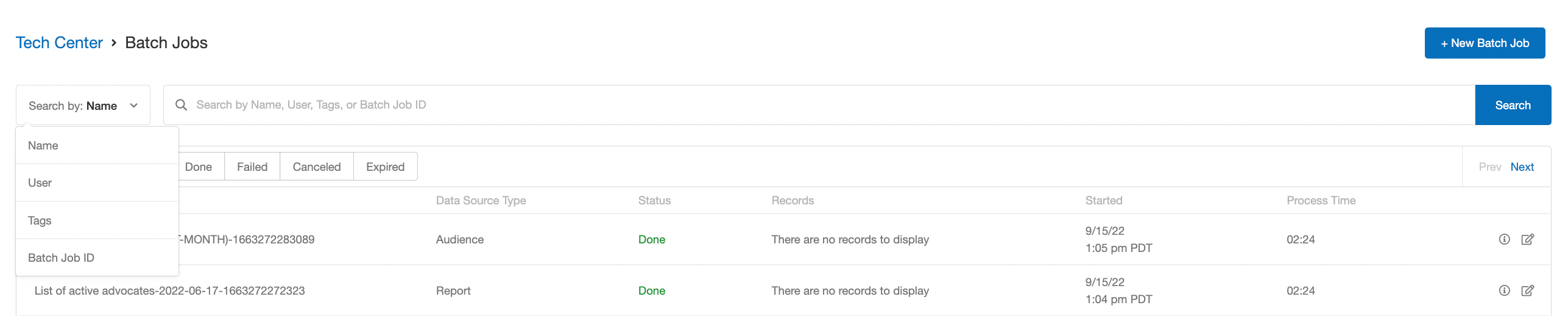
Sorting Jobs by Status
In the jobs table, you have the option to sort your jobs based on status. You can select any number of statuses.
Job Statuses
The job statuses include pending, in progress, done, failed, canceled, and expired.
A file is rejected as a duplicate when its name matches a file already uploaded to your account, including a file that has since expired. A naming scheme that repeats, such as a month and day with no year, therefore fails on the anniversary of an earlier upload, and the feed for that day is lost. Include the year, or another value that never repeats, in every file name.
| Canceled | The job was canceled by you before it was completed. |
| Expired | The job was uploaded more than 90 days ago. These files are removed from our system, but we do retain history that the job ran. |
Viewing Job Details
Each job in the table has a detailed view. Clicking on a job will open a drawer-type window from the right-hand side of your screen that lists more in-depth information about the job.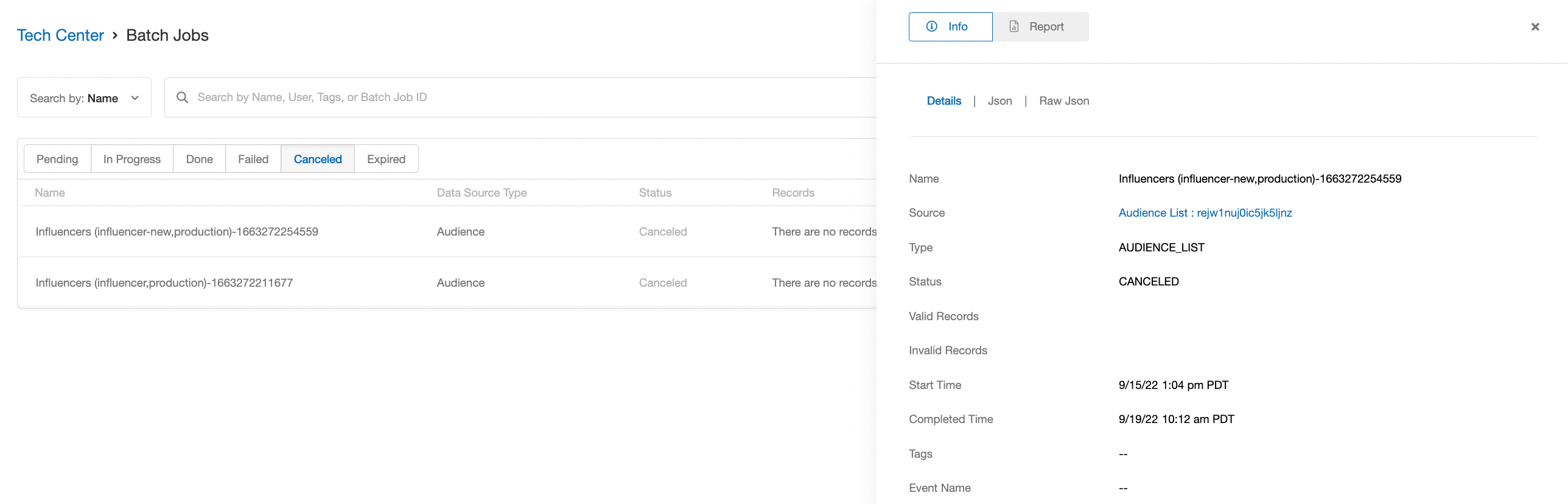
Detailed View
Information displayed the detailed view of a job includes the following:- Name
- Source (clicking this link will download the file)
- Type
- Status
- Valid/Invalid Rows
- Start/Completed Time
- Tags
- Event Names (if all events in your file are the same type)