Overview
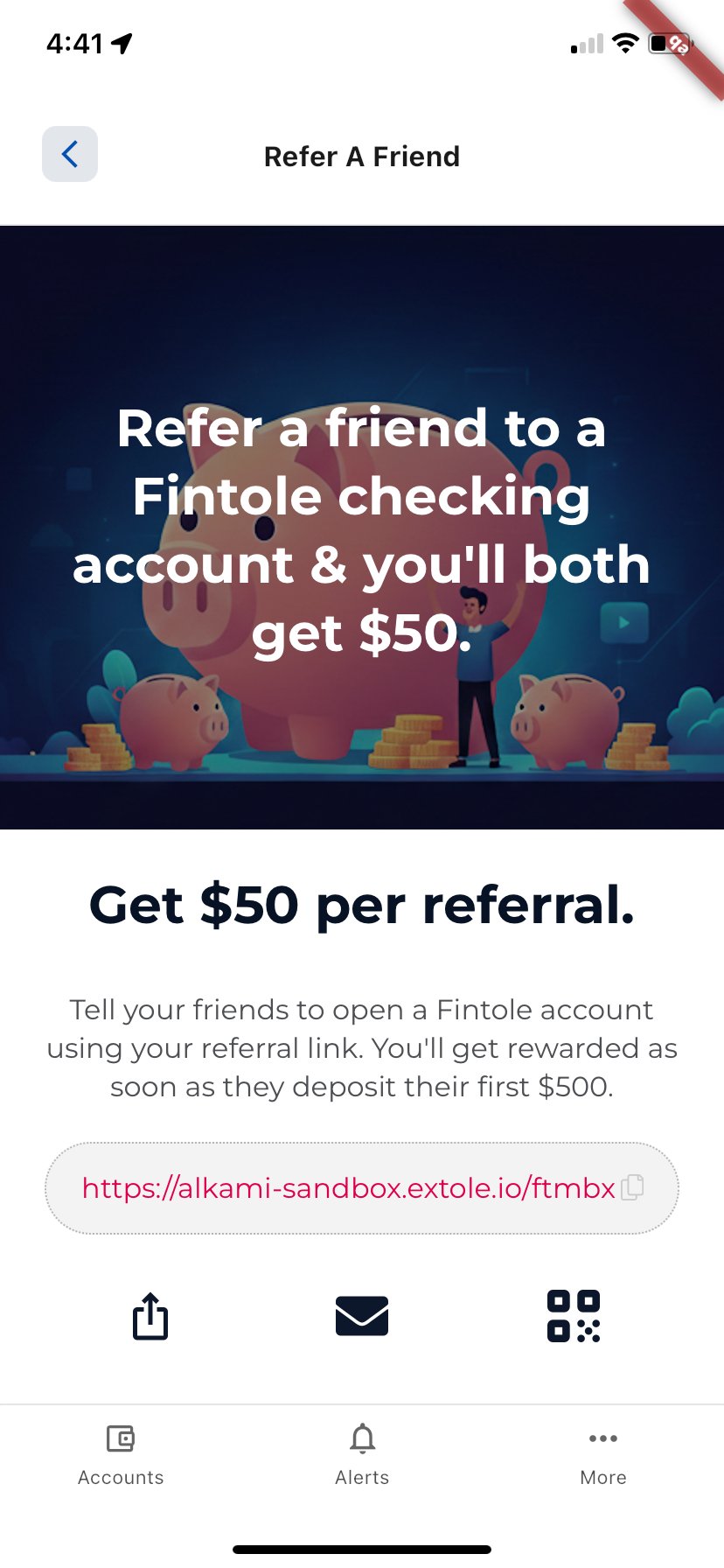
This integration is easy to install, requires no custom coding, and includes the following features:- Fully integrated in-app sharing: When members tap on a CTA, they can access their pre-generated referral link and refer friends via email, SMS, social, or QR code without ever leaving digital banking.
- Secure authentication with SSO: Securely verify and share member identity with Extole using JWT (JSON Web Tokens.)
Prerequisites
Before you Start
Add your Extole team to your digital banking staging and production sites
Add your Extole team to both environments so that they can assist with testing and troubleshooting.Whitelist your digital banking staging and production domains for your Extole Program
Go to Tech Center > Domains > Branded Program Domain and click the Edit icon.- Under Production Sites Extole Should Support Requests From - add the URL of your production digital banking site. Select “This domain and any subdomains” as the type.
- Repeat the same process for Testing Sites Extole Should Support Requests From but with URL of your staging digital banking site.
Integration Set Up
Step 1: Set-up referral microsite
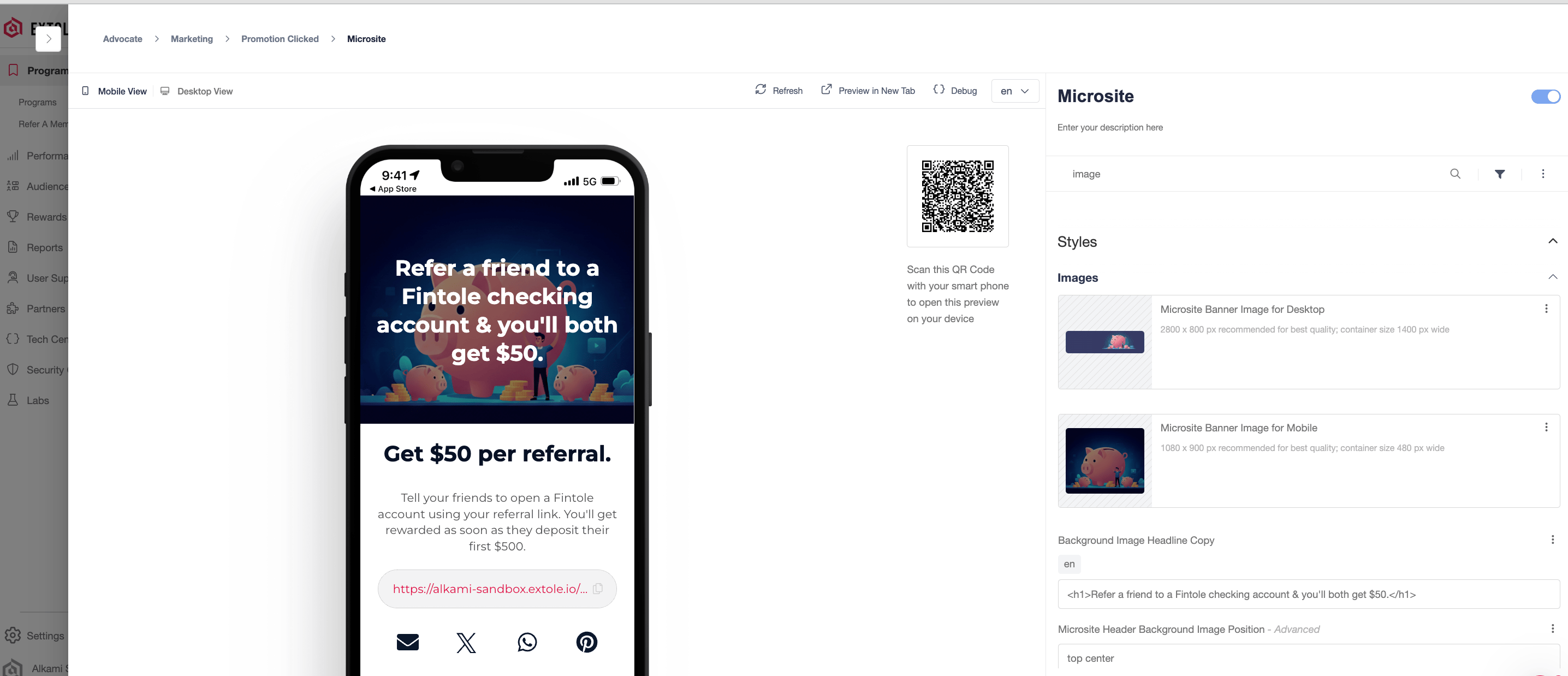
To configure your referral page, go the Extole campaign editor for your referral campaign, select theMicrosite creative experience, and edit the copy and creative.
Step 2: Set up the Alkami integration in the Extole platform
- Go to your Program dashboard and create a promo link. Name it so you can track it in My Extole, for example
Alkami Embedded. - Go to Security Center and click + New Access Token. Copy the token and store it in a safe place; you will not be able to view it again.
- Go to Partners > Alkami and install the Alkami integration. Update the promotion URL with the promo link you created above and click Apply Changes.
Step 3: Set up a Standard SSO in the Alkami Platform
Complete the prerequisites before this step.- In your Staging Admin Alkami account, go to Set-Up > Standard SSO > Create Default SSO.
- In the Default SSO configuration, set Name to ExtoleReferrals and Description to Extole Referrals and Rewards SSO. Copy the Bank Identifier from that default configuration and keep it somewhere you can paste it in the next item.
- Delete the default SSO configuration and paste the following configuration. Replace
MY_IDwith the Bank Identifier from the previous item, andMY_TOKENwith the access token from Step 2.JSON
Step 4: Create your navigation menu item and banners in Alkami staging
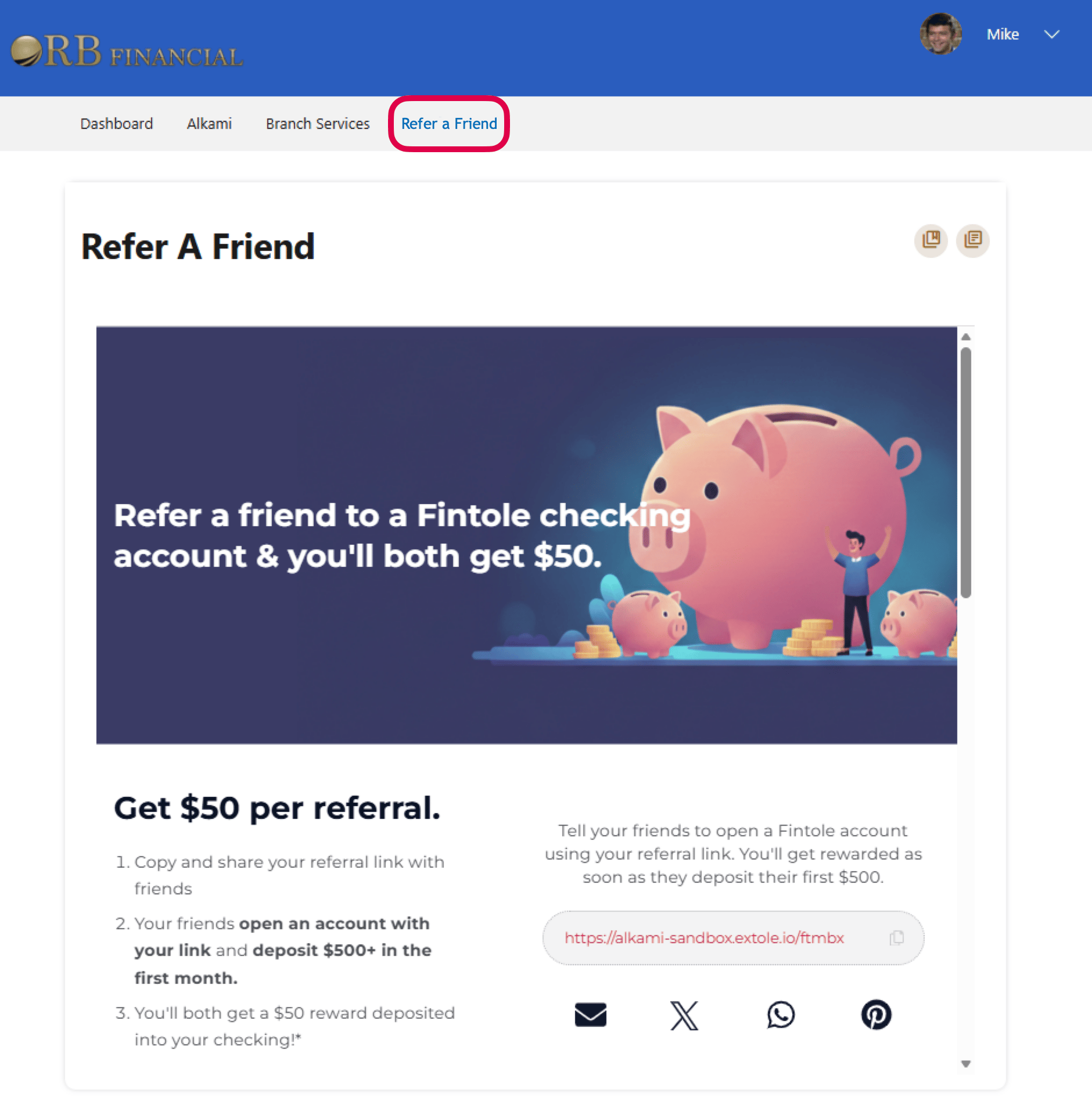
In the Alkami admin, create a new menu item and name it Refer a Friend. You can also place banner ads on your Alkami Dashboard. Connect the menu item.
Step 5: QA and push to production
QA the experience in staging to ensure that everything performs flawlessly for your members. After successful QA, repeat steps 3 and 4 in your production environment.FAQs
How does this integration work?
When a member logs into online banking and taps on a Refer a Friend CTA, Alkami will send a real-time request to Extole’s API to federate the members identity and fetch the promote link.Is this integration available for our mobile banking app?
Yes, in addition to desktop, the Extole and Alkami integration is fully supported and optimized for your mobile banking app. The referral microsite is mobile-responsive and is embedded directly within your mobile banking experience. On mobile devices, members can also share via SMS, QR code, or their favorite app.