Overview
Your referral domains are integral to your program’s success. Every time your advocates interact with your program your brand is reinforced by the exposure it receives via the advocate share links generated for your advocates. That is why it is important to ensure your advocate’s cybersecurity. Extole will automatically generate a SSL certificates for your program and manage all security aspects of your program by default; however, if your company’s policy does not allow others to generate SSL certificates on behalf of your domains, Extole has two options to generate certificates on your end.Option 1: Use an Extole-generated CSR
The general process for this is:- Extole generates the CSR and provides it to your team.
- You sign the CSR with your Certificate Authority.
- You provide the Certificate Chain and Public Key back to Extole.
- Extole installs the certificates.
Option 2: Generate and sign a CSR then upload into Extole
Alternatively, you can manage the entire process on your end. This looks as follows:Generate a CSR Locally Using OpenSSL
Please NoteIf you don’t already have OpenSSL installed, you will need install Homebrew before installing OpenSSL.
Example
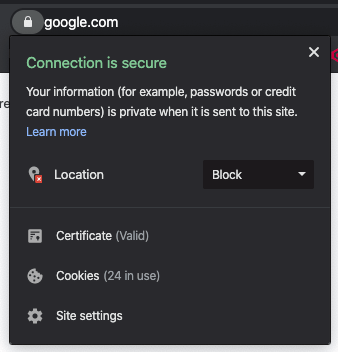
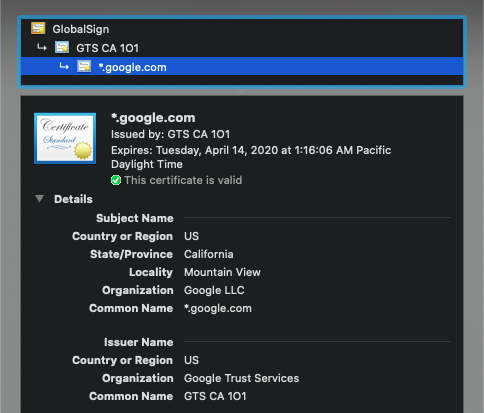
To get the information listed in the table above, you can go to your company’s website and click the lock icon in your browser’s address bar. The following example usesgoogle.com.
Submit the CSR to a Certificate Authority
Once you have completed the step above, you are ready to submit your CSR (the file named yourdomain.csr) to a Certificate Authority (i.e., Digicert, Thawte, Verisign, Comodo, etc). The CA will return to you a public certificate along with the certificate chain. While you wait for the CA to return the signed certificate, make sure to save the RSA key we created in the previous step in a secure place (the file namedyourdomain.key) as you will need this key in the next step.
Convert the Private Key to PCKS#8 Format
Once we have received the signed certificate, we are ready to convert our RSA key to PCKS#8 format. To do so, enter the command below:
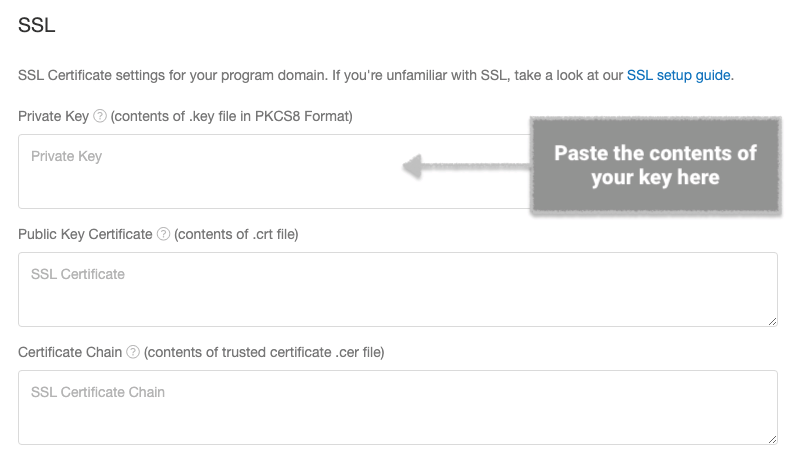
Important NoteAs a security mechanism, the contents of the newly pasted key will not be shown after saving. Instead, the contents of the key will be replaced by the string
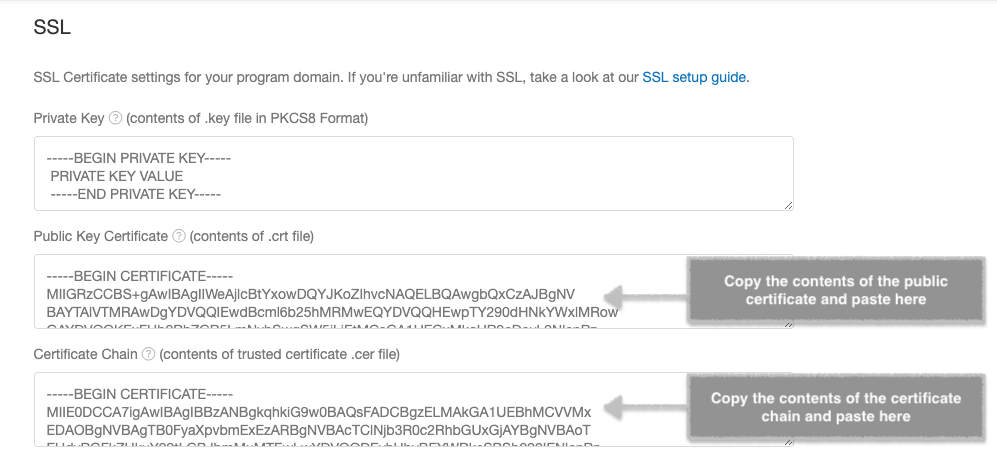
PRIVATE KEY VALUE.-----BEGIN PRIVATE KEY-----PRIVATE KEY VALUE-----END PRIVATE KEY-----Upload the Chain Certificate to Your My Extole Account
The CA should have sent you a public key certificate as well as the certificate chain. The certificate chain contains the SSL Certificate and Certificate Authority (CA) Certificates, that enable the receiver to verify that the sender and all CA’s are trustworthy. Paste those in the corresponding sections and click Save.