
Overview
Use this guide to set up a membership and loyalty referral program that tracks signups and purchases, then rewards advocates and friends.- Brand your Program
- Tag your Website
- Reward your Customers
- Design your Experience (done by your creative team)
- Add to your Mobile App
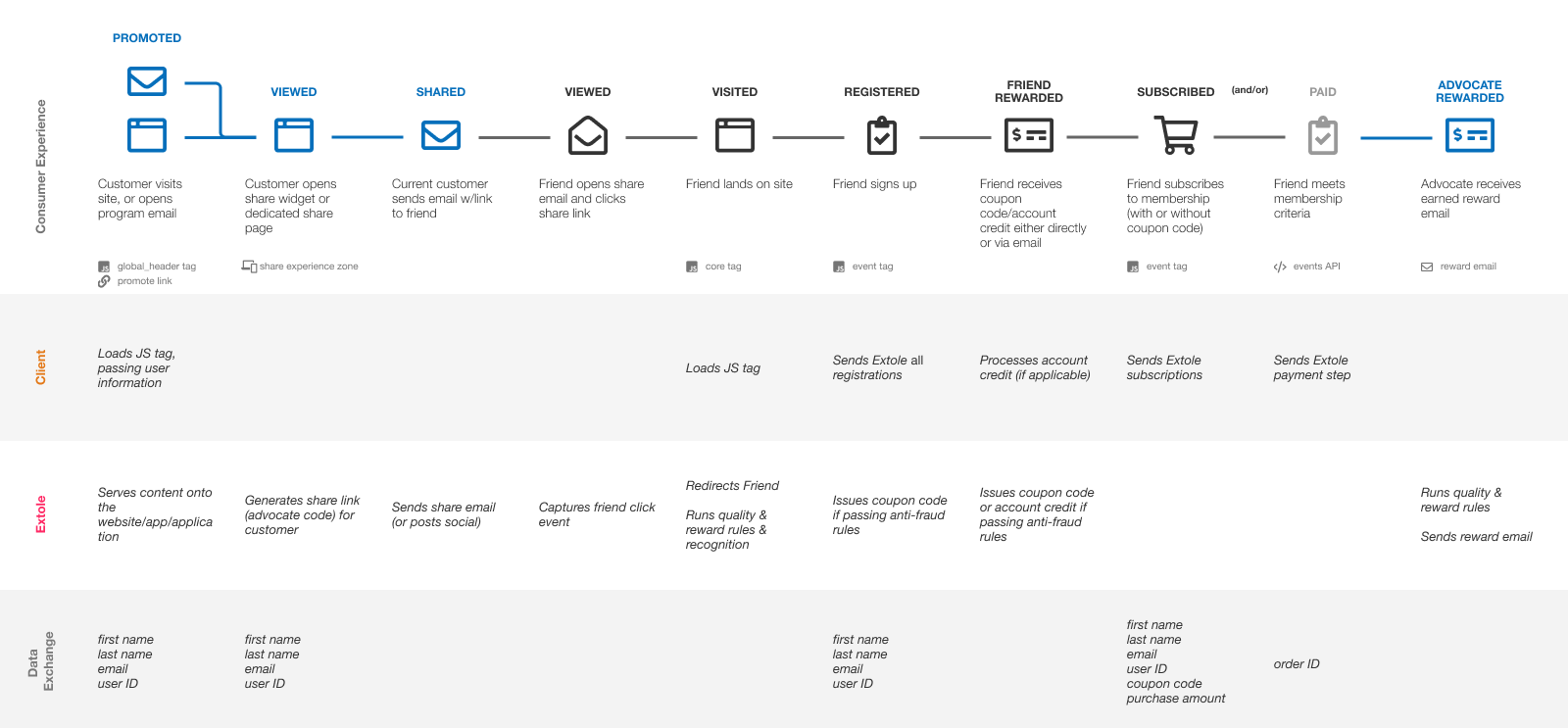
Membership Referral Steps
Brand your Program
Create a CNAME for your Domain
Task DurationThis task will typically take an IT/Ops engineering team 10–15 minutes to complete.
Send from Your Branded Email
The referral program will send program emails from you to your customers:- Welcome Email
- Advocate Stats Email
- Earned Reward Email
do-not-reply@mycompany.com. Once this email has been identified, Extole can check if it is configured to allow Extole to send emails from this address.
For details on how to update your SPF (Sender Policy Framework) DNS records and install Extole DKIM (DomainKeys Identified Mail) keys, reference Extole DNS Requirements.
Tag your Website
Extole works with your site using lightweight JavaScript tags. The core tag must be included on every page of your site and contains Extole’s JavaScript Library. Extole tags can go anywhere in the HTML of the page and do not need to be loaded in any specific order. They are asynchronous to ensure fast page loading. Marketing tags display CTAs (calls to action) inline on your page. These tags reference a specificspan tag by id and should be placed in the HTML where they will appear.
Add the Core Tag (Extole’s JavaScript Library)
Extole’s JavaScript library must be placed on all of your pages using the core tag. This tag is used to activate the Extole system and ensures that any other Extole tags on your page work properly. The core tag can be found under your program’s branded domain (refer.brand.com). If you haven’t set up your branded domain yet, you can load the tag from the Extole unbranded domain. Find your active referral domain and use that for your core tag. It will look likebrand.extole.io (unbranded) or refer.brand.com (branded).
Extole Core Tag
Add Marketing Tags
Extole displays CTAs that promote the program. For example, aglobal_header CTA can add a banner at the top of the screen that says “Refer a friend.” When a customer selects the banner, it opens the Share Experience.
Marketing tags tell Extole where to show CTAs on your website. These tags also enable tracking so you can see which placements drive participation.
Extole recommends emailing advocates a promotion code they can use to apply credits to their account. If your membership program applies account credits automatically instead, restrict sharing to logged-in advocates and include advocate information in the marketing tags.
An Extole campaign comes with these standard marketing tag names:
global_headerglobal_footerproductconfirmationoverlay
Marketing Tag Placement
Add aspan element to the page where the content should appear. You typically add this element through your CMS or site code. Inline tags require this element; overlay and confirmation tags do not.
Span ID
script tag that loads the targeted content from the program and inserts it onto the page in the span tag.
Below is an example of a global_header tag:
Global Header CTA
| Field | Description |
|---|---|
first_name
recommended | This should be passed to a marketing tag if the advocate is logged in and their first name is known. |
last_namerecommended | This should be passed to a marketing tag if the advocate is logged in and their last name is known. |
emailrecommended | This should be passed to a marketing tag if the advocate is logged in and their email is known. |
partner_user_idrecommended | This should be passed to a marketing tag if the advocate is logged in. This is your unique identifier for this person such as an account id or member ID. |
Track Signups and Purchases
Track Signups with Registration Tags
Because your business model requires the friend to create an account, track new account creation with a registration tag on your post-signup page. This tag captures that the friend signed up and is eligible for their reward. The registration tag passes information about the new customer so Extole can attribute the account to a referral when possible, run quality rules, and run reward rules. This supports accurate tracking when the lead completes a purchase. Fire this tag only when the created account is new. This keeps rewards focused on new customer memberships.Registration Tag
| Field | Description |
|---|---|
first_name | The first name of the person signing up. |
last_name | The last name of the person signing up. |
emailrequired | The email address of the person signing up. |
partner_user_idrequired | Your unique identifier for this person signing up such as an account ID or member ID. |
advocate_coderecommended | On the registration tag, this is the advocate code that the friend enters to track back to the original advocate. Must be used on advocate code programs. |
Track Purchase Events with Conversion Tags
Reward the advocate after their friend purchases, not after signup. To do this, add the conversion tag to your order thank-you page so Extole receives the purchase event. The conversion tag passes information about the purchase to allow Extole to attribute the conversion to a referral when possible, run quality rules, and run reward rules. Extole will discard the conversions that are not attributed to a referral after processing rules.Conversion Tag
| Field | Description |
|---|---|
first_name | The first name of the person making the purchase. |
last_name | The last name of the person making the purchase. |
emailrequired | The email address of the person making the purchase. |
partner_user_id | Your unique identifier for this person making the purchase such as an account ID or member ID. |
partner_conversion_idrequired | Your order number that uniquely identifies this transaction. Used for customer support tools. |
cart_valuerequired | On the conversion tag, this is the value of the purchase. Ideally this is the gross cart value before coupons have been applied. |
coupon_code | The coupon code that used to make the purchase. |
Track Purchases In Store / Offline
After registration, your new customer’s first purchase might be made in store or after a home setup. The conversion, therefore, will need to be sent via an API call that occurs after the offline purchase or via a file delivered through an SFTP connection.Create Extole API Keys
Extole requires API calls from account systems to authenticate with an API identifier in the request header (OAuth key). Your keys are managed through the My Extole Security Center. Create your first key via the “Create New Access Token” button. My Extole will temporarily display the newly created random key for you.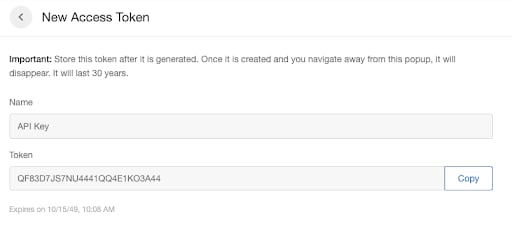
Event API Call
Send an API request to Extole for each purchase that occurs in store. You can send the same order by tag and API because Extole automatically deduplicates events based on the order ID.Event API Call
Response
| Field | Description |
|---|---|
first_name
recommended | The first name of the person who made the conversion.E.g. Julio |
last_namerecommended | The last name of the person who made the conversion.E.g. Jones |
emailrequired | The email address of the person who made the conversion.E.g. julio@friend.com |
partner_user_idrecommended (can be renamed to your id, such as member_id or user_id) | Your unique identifier for this person who made the conversion, such as the member ID. This value should match the value sent in the registration tag.E.g. 00O4000099PDZ1AA |
order_idrequired | On the purchased event, this is your order number that uniquely identifies the purchase event.E.g. 122948302lala |
cart_valuerecommended | On the purchased event, this indicates the value that will be shown in the Extole dashboard.E.g. 10000.00 |
Additional FieldsIn addition to the fields above, you can add fields to any event.Additional fields added on can be used for:
- Reward Tiering
- Customer Segmentation
- Reporting
Reward your Customers
Deliver the advocate reward directly into their account after the friend purchase is approved. Deliver the friend code through an overlay or email after the friend signs up to become a customer. Extole’s quality rules automatically approve or decline friend purchases.Reward Friends
The friend coupon codes are uploaded into My Extole by your marketing team. You may need to create an easy process for them to generate batches of one-time-use or multi-use coupon codes. Extole can be configured to pass these coupon codes into your friend landing URL using your parameter to display the coupon code to the friend. You will then go into My Extole > Rewards to create and upload rewards.Reward using Webhooks
Issue Account Credits via Webhook
When an approved conversion occurs, Extole tracks an issued account credit to the account. Configure Extole to make a real-time API call to your system when a reward needs to be issued. In My Extole, provide a web service name, URL, and shared secret. After each reward is earned, Extole makes an outbound API call to the service name you provided. Never publish a real shared secret or bearer token in documentation or client-side code.Account Credits via Webhook
| Input Field | Description |
|---|---|
type | This is the type of event triggering the webhook. When you configure your webhook, select which events to send. The most common event is reward_earned. |
event_id | Extole’s unique identifier for the webhook event. |
event_time | The time stamp of when Extole created the webhook event. |
reward_id | The Extole unique identifier for the reward that has been issued. |
reward_supplier_name | The friend name for the reward configured in My Extole. This name can be changed by the Marketer. |
reward_supplier_id | Extole’s unique identifier for the reward supplier. This will not change, but Extole recommends using the partner reward supplier ID. |
partner_reward_supplier_id | This is defined by you and can be any string that helps you identify the reward that you are delivering in your system. Since you are trying to apply account credits to advocate accounts, you might want to make this something like ‘extole_account_credit’. If this is not passed, all reward types will be returned. |
reward_supplier_type | This is the type of reward going out which will be:CUSTOM_REWARD - account creditsMANUAL_COUPON - coupon codeTANGO_V2 - gift card |
person_id | The Extole ID associated with the person who the reward should be delivered to. This can be used to look up more information about that person. |
partner_user_id | A unique identifier providing the reward to the recipient. It is important that all marketing tags include the partner_user_id. |
| face_value | The face value of the reward. |
face_value_type | The face value type, which could be: 3-digit currency symbol (USD, GBP, EUR, etc.) PERCENT_OFF (indicates the reward is a percentage off coupon)CREDITS (indicates the reward is account credits) |
data.recipient_email | The email address of the reward recipient. The data object can contain other configurable data about the person or event that caused the reward. |
Reward using APIs
Issue Account Credits via API
Extole can make rewards available through an API. Schedule a process on your side to call the Extole Rewards API regularly, retrieve rewards earned by each consumer, and apply those rewards to each account.Example: Rewards API Call
Response
| Input Fields | Description |
|---|---|
state
recommended | This allows you to filter to all of the rewards that you should be fulfilling. |
reward_supplier_typerecommended | This selects the type of reward Extole will return. Since you are trying to apply account credits to advocate accounts, make sure to specify custom-reward to avoid getting back any friend coupon codes that might be issued. |
| Output Fields | Description |
|---|---|
reward_id | The Extole unique identifier for the reward that has been issued. |
partner_reward_supplier_id | This is defined by you and can be any string that helps you identify the reward that you are delivering in your system. Since you are trying to apply account credits to advocate accounts, you might want to make this something like ‘extole_account_credit’. If this is not passed, all reward types will be returned. |
person_id | The ID associated with the person who the reward should be delivered to. This can be used to look up more information about that person. |
email | The email address of the intended recipient. |
partner_user_id | A unique identifier that tells you which recipient should receive the reward. Include partner_user_id in all marketing tags. |
state | This is the state the reward is in. If no state is specified in the API call, all states will return: redeemed, fulfilled, sent, earned, failed, canceled. You should pass “earned” as a parameter in the call to filter by all rewards that need to be fulfilled. |
face_value | The face value of the reward. |
face_value_type | The face value type, which could be:
|
partner_reward_id | This is a reward id that can be specified by you when the reward is created. For account credits, this will likely always be null. |
Fulfill Events via API
Let Extole know that rewards have been fulfilled via an API. Schedule a process on your side that will call into the Extole Events API on a regular basis to share the rewards that have been fulfilled.Example: Events API Call
Response
| Input Field | Description |
|---|---|
event_name | reward_fulfilledreward_canceled |
reward_id | The Extole unique identifier for the reward that has been issued. |
partner_reward_id | If you have a unique tracking or fulfillment identifier. |
message | A reward fulfillment message that appears in customer support. |
Reward using Files (SFTP)
Issue Account Credits via File
When an approved conversion occurs, Extole will track an issued account credit to the account. The earned rewards report will be automatically made available in your account on the Extole SFTP server on a daily basis. The conversion file can be downloaded from the Extole SFTP system or pushed to your SFTP system.SFTP ResourcesUsing Extole’s SFTP Server
earned-reward-report-YYYY-MM-DDTHHMMSS.csv
| CSV Column | Description |
|---|---|
reward_id | The Extole unique identifier for the reward. This will be used in the fulfillment file to indicate this reward has been fulfilled. |
reward_state_transition_time | When the reward transitioned into this state (usually earned) as an ISO time format: e.g. 2021-04-12T10:14:10.163-07:00. |
face_value_type | Indicates the face value type such as “USD” or “GBP” or “Points” |
face_value | Indicates the value of the reward for example a $50 reward would have a “face_value_type” of “USD” and a face value of “50”e.g. 50 |
campaign_idoptional | The Extole Campaign Identifier. |
campaign_nameoptional | The Marketing Name for the campaign. |
reward_supplier_type | The reward supplier type. Most likely this will be CUSTOM_REWARD to indicate an account credit. |
reward_supplier_idoptional | The Extole internal unique identifier for the reward supplier |
partner_reward_supplier_id | The reward identifier configured in My Extole. This can be set to any string desired, for example:E.g. QA-FRIEND-REWARD |
passed_through_reward_state | This indicates the reward passed through this state, but typically the report is set to only return EARNED rewards. |
current_reward_state | The reward’s current state. Typically the report is set to only return rewards currently in the EARNED state. |
reward_name | The marketer-friendly name of the reward.E.g. Friend $50 Reward |
person_id | The Extole unique identifier for the person. |
email | The email address of the recipient of this reward. |
partner_user_id | The partner_user_id of the recipient of this reward. This is your ID for the person, and this ID would have been passed into the program on a tag or event. |
first_name | The first name of the person earning the reward. |
last_name | The last name of the person earning the reward. |
Fulfill Rewards via File
After the rewards have been fulfilled, you can upload a response file back to the Extole SFTP to transition the reward to fulfilled.Design your Experience
Your entire referral consumer experience can be configured in the My Extole Campaign Editor. This part of setting up the solution can be done entirely by your marketing and creative team and doesn’t require technical involvement. Each template is a comprehensive guide for your designer or marketer to customize.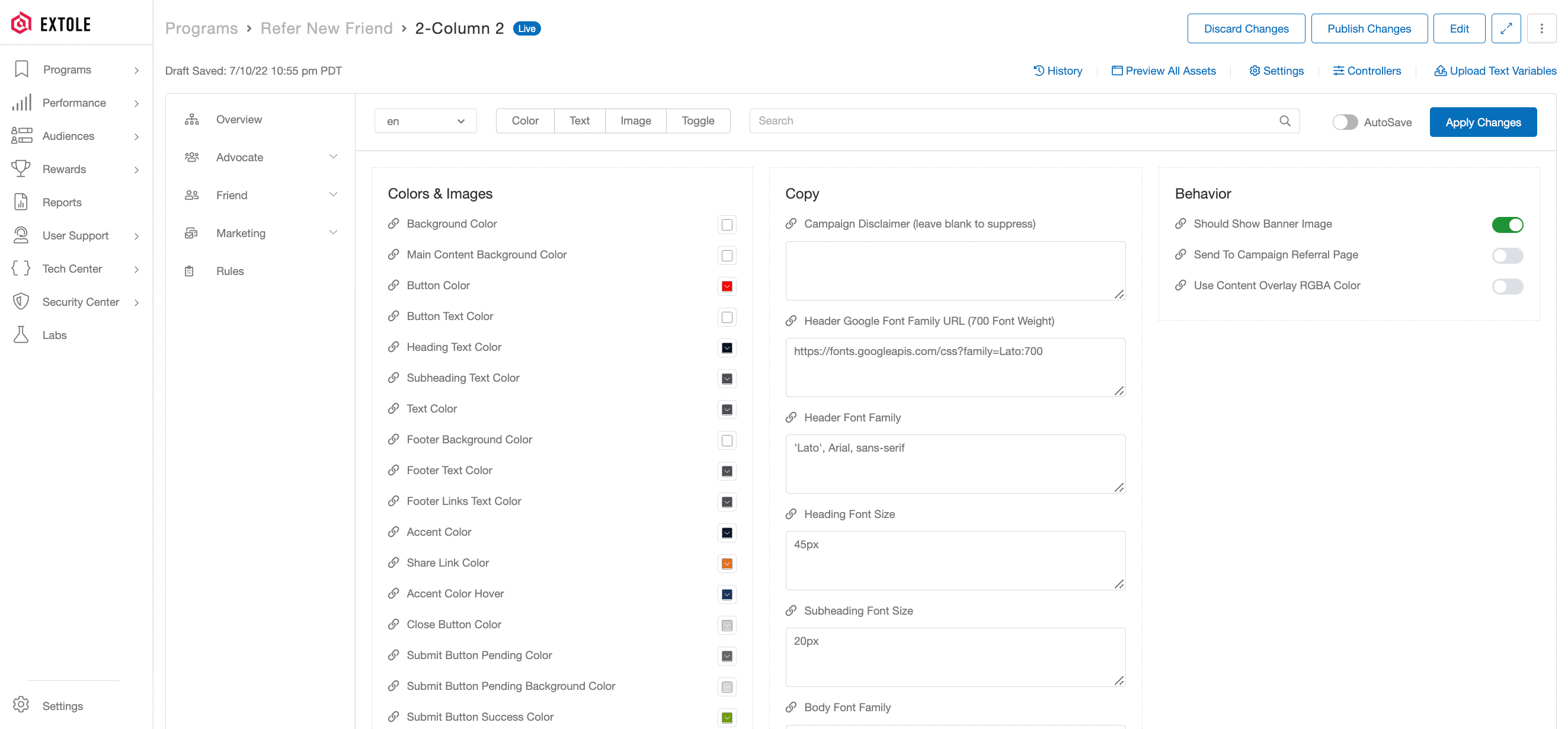
Marketer Control Editing
Integrate with your Mobile App
If you have a mobile app, connect it to Extole’s API so that:- Clicks on shared links from mobile devices open the right landing experience for new customer registration.
- Extole receives mobile registrations and conversions so advocates can be rewarded.
- Mobile menu items and account screens include the right CTAs.
- Customers can share from the app or through native mobile sharing dialogs.
Optional: Recommended Additional Steps
Add Web Analytics Tracking Parameters
You can set up Extole to send web tracking information to web and email analytics tools with URL parameters, such as UTMs (tracking parameters used by analytics tools). URL parameters for Google Analytics, Adobe Analytics, etc. can typically be added directly by your marketing or IT team within Extole’s Campaign Editor. Within Campaign Edit, configure two URLs: one for the Advocate and one for the Friend.Promote Destination
You can find this under the Advocate tab in Campaign Edit. This controls the behavior of your Promotion Links. When advocates click a promotion link, you can choose to send them to:- An Extole-hosted zone (such as the advocate Microsite)
- An external URL that you host
| Parameter | Type | Description | Default Value |
|---|---|---|---|
utm_campaign | dynamic | The specific marketing campaign | The label of your Extole programExample: refer-a-friend |
utm_medium | dynamic | Type of traffic | The channel where the promotion was clickedExamples: EMAIL, WEB |
utm_source | static | Where the traffic is coming from | extole_advocate |
utm_content | dynamic | The specific promotion | The name of the on-site or email promotion that sourced the click |
Share Destination
You can find this under the Friend tab in Campaign Edit. This controls the behavior of your Share Links. When friends click a share link, you can choose to send them to:- An Extole-hosted zone (such as the Friend Landing Experience Microsite)
- An external URL that you host
| Parameter | Type | Description | Default Value |
|---|---|---|---|
utm_campaign | dynamic | The specific marketing campaign | The label of your Extole programExample: refer-a-friend |
utm_medium | dynamic | Type of traffic | The share channel usedExamples: EMAIL, SHARE_LINK, FACEBOOK |
utm_source | static | Where the traffic is coming from | extole_friend |
utm_content | dynamic | Type of product | The product ID |
Embed the Advocate Stats Dashboard Directly onto a Page
To show an advocate stats dashboard on a page after the user is logged in, such as the My Account page, verify the user and tell Extole who they are. Complete these two steps:- Add an advocate_stats_embedded tag, which looks exactly like a marketing tag, to the page where you want to serve the creative.
- Verify consumers so that their data displays: Verifying Consumers
Embed a Share Experience Directly onto a Page
To embed a sharing experience on a dedicated referral page or account page, use the same structure as a marketing tag and set the zone toreferral_page or account_page.
Enable Product Sharing
If you want to enable your advocates to share specific products, then the product marketing tag may be placed on your category and product pages to allow advocates to share specific categories or products. Extole will read the Facebook OpenGraph meta tags off of the page and incorporate the product name, description, and image into the share message.Optional: Additional Steps
These steps are not required for most retail experiences, but they may apply to your program.Creating your own Advocate Code or Link
Extole automatically creates a unique code for every advocate who joins the program. If you want to create your own customer codes, take these steps:- Create an API access token in My Extole Security Center.
- Identify the advocate by creating or updating their person profile with
POST /v5/personsorPUT /v5/persons/{person_id}. - Check whether the advocate already has a share code with
GET /v5/persons/{person_id}/shareables. - Create a share code with
POST /v5/persons/{person_id}/shareables.
Use your Opt-out List
All emails sent by Extole are CAN-SPAM compliant and honor customer preferences. Referral programs are typically treated as their own email segment, separate from the normal marketing opt-out list, making this step optional. Each email sent to an advocate or friend includes an unsubscribe link, managed by Extole, that opts the customer out of the referral program. If you need to do a more complex opt-out synchronization, Extole can check your opt-out list with a webhook API or you can upload a list of opt-outs to Extole’s SFTP server.- Extole Opt-out Check: Opt Out API
- File-based Opt-Out List Management: Opt Out Files
Upload an SSL Certificate for your Branded Domain
When you create your branded domain at Extole and notify your CSM, Extole automatically procures a certificate from Let’s Encrypt for your domain.Verify Advocate Codes
When a potential customer becomes a member of your business, they may go directly to your site and enter an advocate code they received from a friend instead of clicking a referral link. A valid advocate code tells Extole to capture the signup and run quality rules for the friend reward. If you want your implementation to give customers immediate feedback when they apply a code, call Extole from the code capture field to check whether the code is a valid referral code.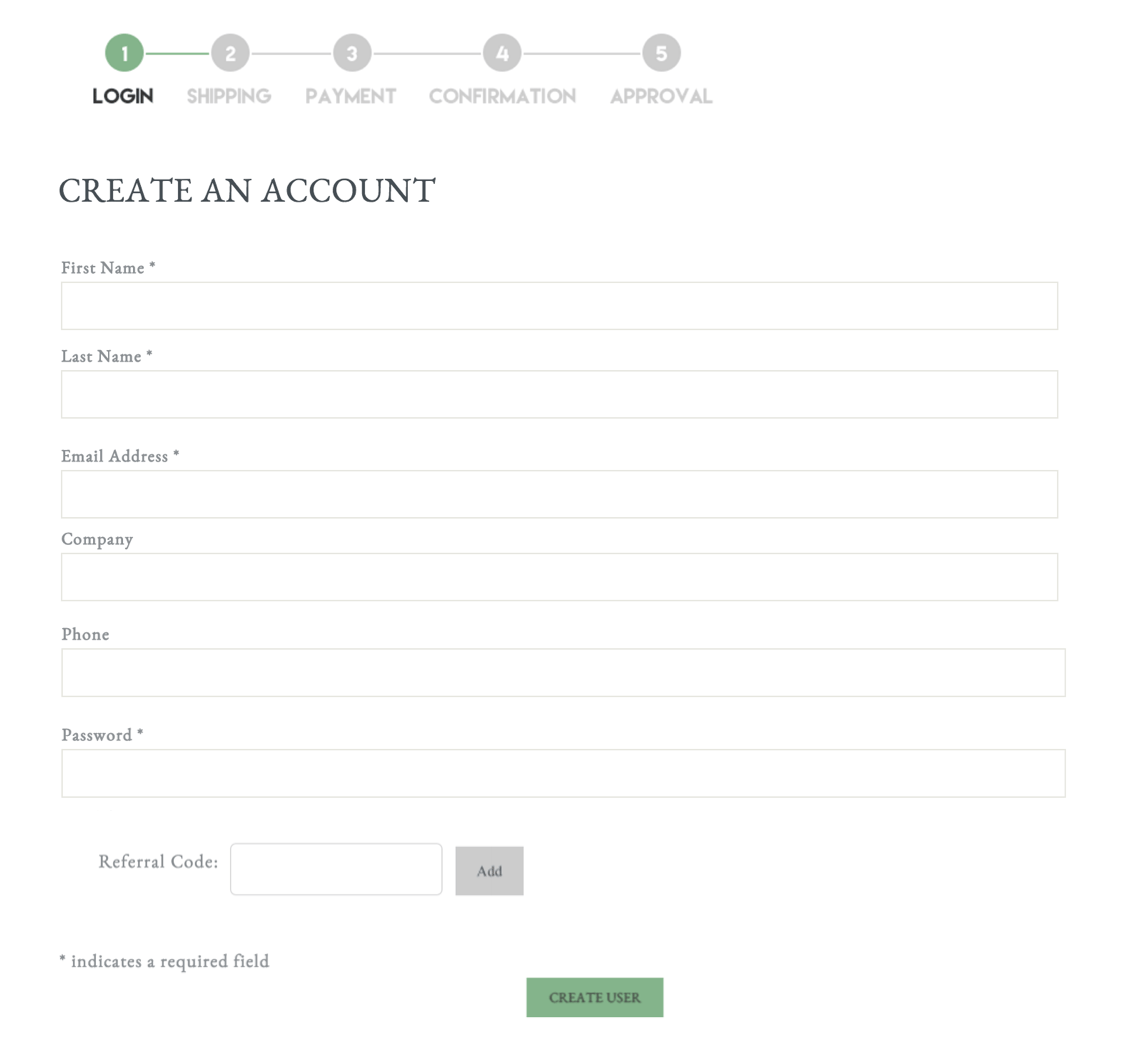
Advocate Code Capture Tag