 ## Creating a New Job
[//]: # "How do I create a batch job to upload files to Extole?"
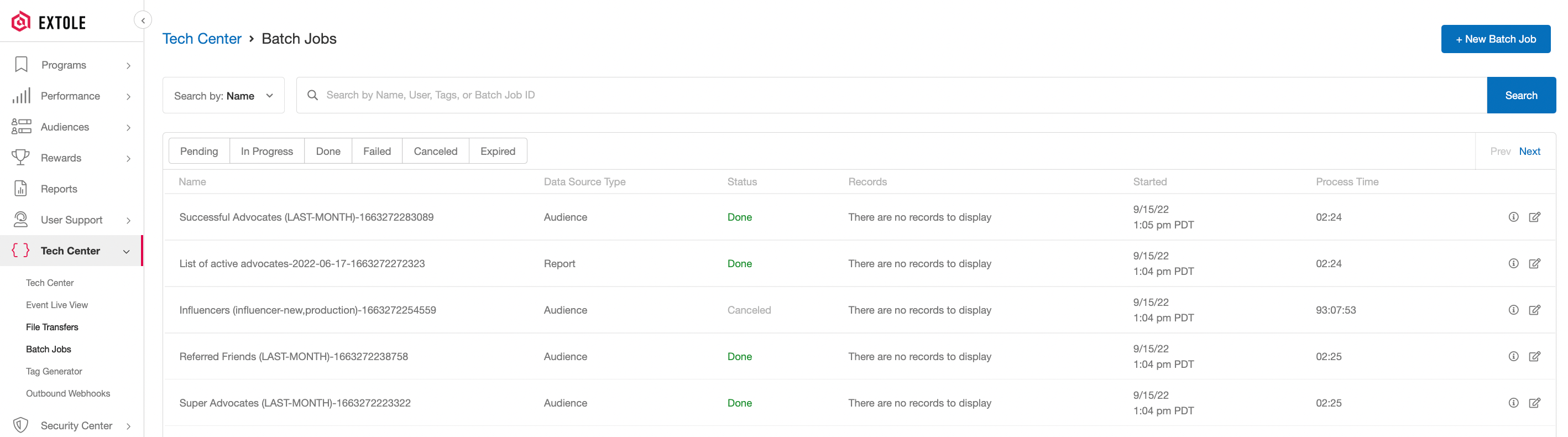
Click on the + New Batch Job button to start the job creation process. A drawer-style window will slide out from the right-hand side of your screen with all of the necessary fields to fill in for your job.
## Creating a New Job
[//]: # "How do I create a batch job to upload files to Extole?"
Click on the + New Batch Job button to start the job creation process. A drawer-style window will slide out from the right-hand side of your screen with all of the necessary fields to fill in for your job.
 ### Required Fields
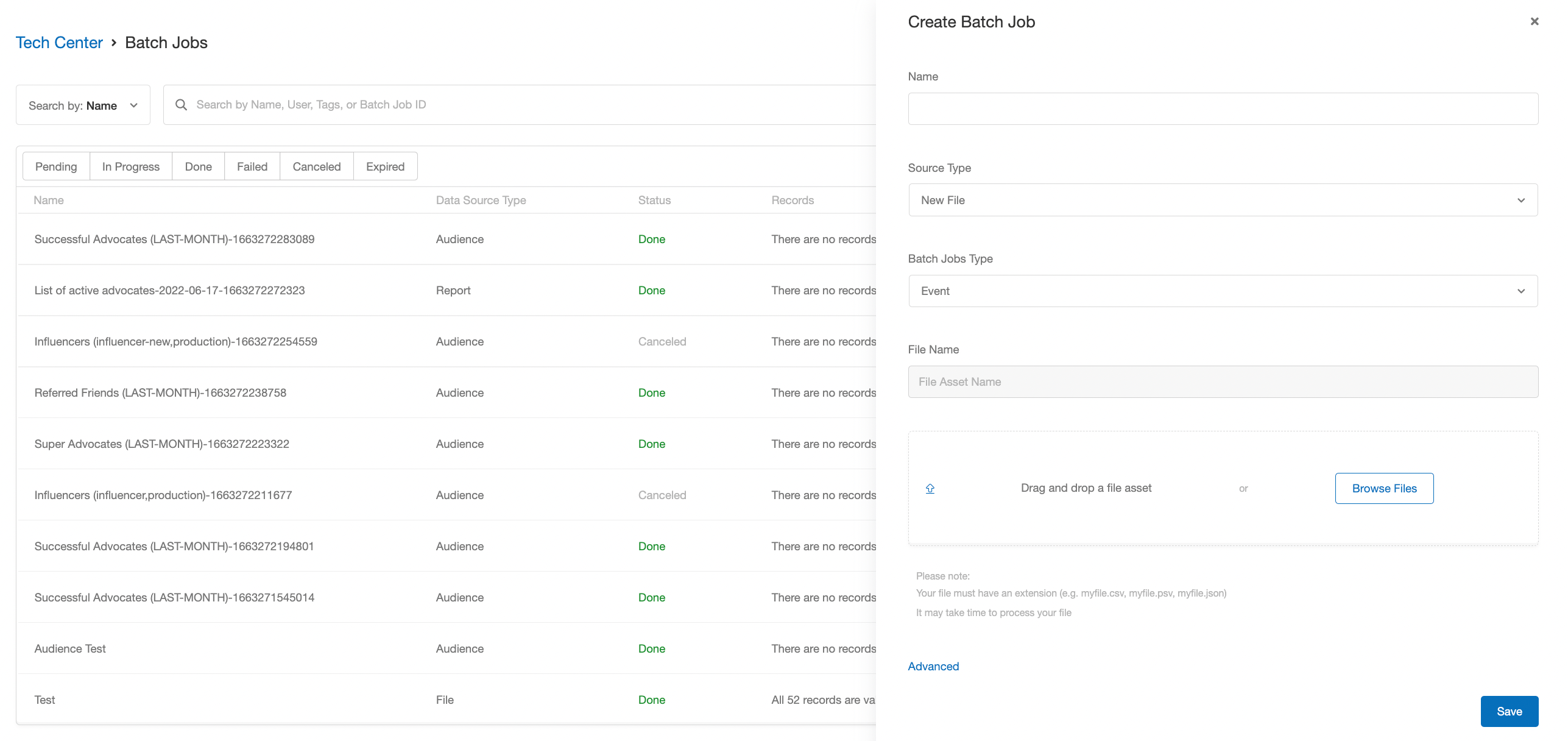
The required fields include the name of your job, the source type, and the file itself.
### Required Fields
The required fields include the name of your job, the source type, and the file itself.
| Field | Description |
|---|---|
| Name | A unique name that describes the content of your file (e.g., Evergreen Refer A Friend Conversions 01072022-01082022). |
| File | You can either drag and drop or browse for the file you want to upload. Your file must have an extension of CSV, PSV, or JSON. |
| Source Type | The type of file you are uploading. The dropdown includes the following options:\ Audience\ Existing File\ Report\ New File (default) |
| Batch Jobs Type | The type of data included in the file you are uploading. The dropdown includes the following options:\ Event (default)\ Optout\ Approve |
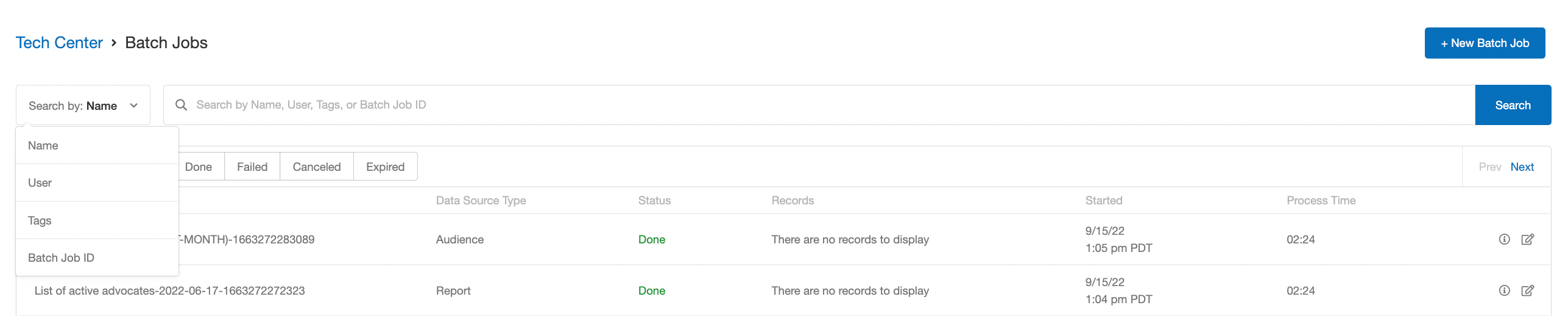 Apply filters to your search by changing the “Search by:” dropdown criteria. For example, if you select Search by: User and click on the bar, it will generate a list of users for you to browse. Selecting a user will show you all of the jobs that user has created.
[//]: ___
## Sorting Jobs by Status
[//]: # "How do I search for a file based on its upload status?"
In the jobs table, you have the option to sort your jobs based on status. You can select any number of statuses.
Apply filters to your search by changing the “Search by:” dropdown criteria. For example, if you select Search by: User and click on the bar, it will generate a list of users for you to browse. Selecting a user will show you all of the jobs that user has created.
[//]: ___
## Sorting Jobs by Status
[//]: # "How do I search for a file based on its upload status?"
In the jobs table, you have the option to sort your jobs based on status. You can select any number of statuses.
 ### Job Statuses
The job statuses include pending, in progress, done, failed, canceled, and expired.
| Status | Description |
| :---------- | :------------------------------------------------------------------------------------------------------------------------------ |
| Pending | The job is in our system and getting ready to process. This preparation phase can take up to a couple of minutes. |
| In Progress | The job is actively being processed by our system. The duration of the processing period is dependent on the size of the file. |
| Done | The job has been successfully completed. |
| Failed | The job was unable to be processed. This is most likely due to issues with your file format or duplicated files. |
| Canceled | The job was canceled by you before it was completed. |
| Expired | The job was uploaded more than 90 days ago. These files are removed from our system, but we do retain history that the job ran. |
[//]: ___
## Viewing Job Details
[//]: # "How do I details about an uploaded file in Extole?"
Each job in the table has a detailed view. Clicking on a job will open a drawer-type window from the right-hand side of your screen that lists more in-depth information about the job.
### Job Statuses
The job statuses include pending, in progress, done, failed, canceled, and expired.
| Status | Description |
| :---------- | :------------------------------------------------------------------------------------------------------------------------------ |
| Pending | The job is in our system and getting ready to process. This preparation phase can take up to a couple of minutes. |
| In Progress | The job is actively being processed by our system. The duration of the processing period is dependent on the size of the file. |
| Done | The job has been successfully completed. |
| Failed | The job was unable to be processed. This is most likely due to issues with your file format or duplicated files. |
| Canceled | The job was canceled by you before it was completed. |
| Expired | The job was uploaded more than 90 days ago. These files are removed from our system, but we do retain history that the job ran. |
[//]: ___
## Viewing Job Details
[//]: # "How do I details about an uploaded file in Extole?"
Each job in the table has a detailed view. Clicking on a job will open a drawer-type window from the right-hand side of your screen that lists more in-depth information about the job.
 ### Detailed View
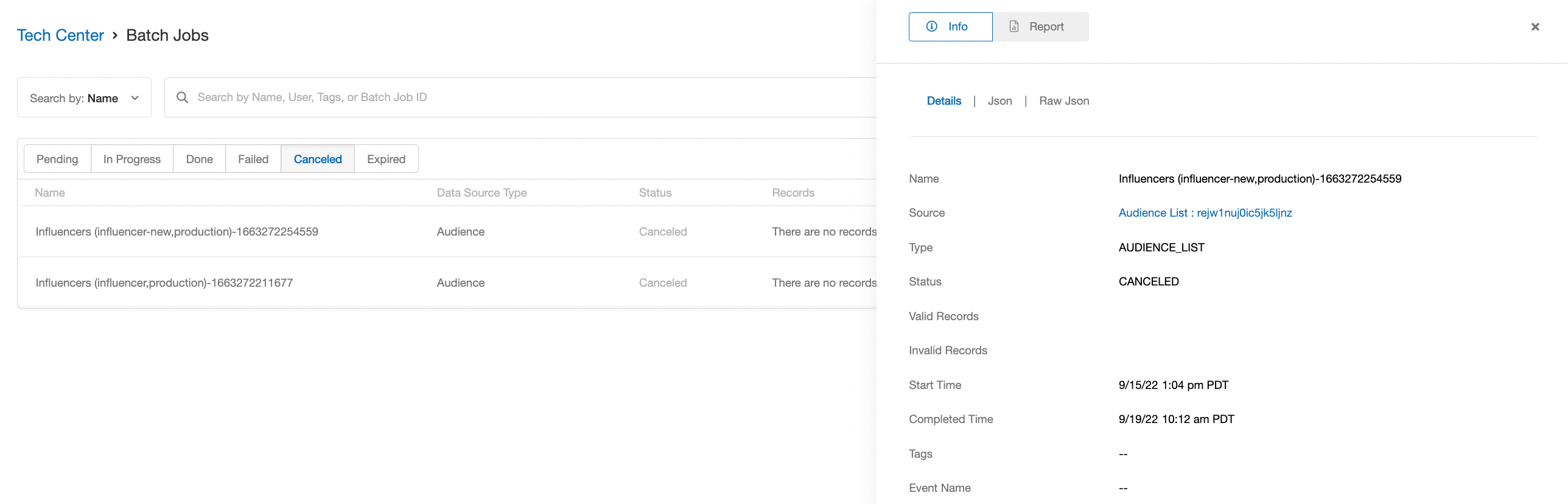
Information displayed the detailed view of a job includes the following:
* Name
* Source (clicking this link will download the file)
* Type
* Status
* Valid/Invalid Rows
* Start/Completed Time
* Tags
* Event Names (if all events in your file are the same type)
[//]: ___
### Detailed View
Information displayed the detailed view of a job includes the following:
* Name
* Source (clicking this link will download the file)
* Type
* Status
* Valid/Invalid Rows
* Start/Completed Time
* Tags
* Event Names (if all events in your file are the same type)
[//]: ___