> ## Documentation Index
> Fetch the complete documentation index at: https://docs.extole.com/llms.txt
> Use this file to discover all available pages before exploring further.
# Q2
> Q2 offers digital banking solutions to grow with your business, your account holders, and the communities you serve.
## Overview
With Extole's integration with Q2, you can turn your digital banking channel into a powerful source of new members through personalized referral and engagement programs.
This integration is easy to install with your Q2 team, requires no custom coding, and includes the following key features:
**Fully Integrated In-App Sharing**
* Upon authentication, Members can immediately access their pre-generated share link (`share.yourcreditunion.com/jsmith`) and start referring their friends directly from the sharing experience, all without having to leave digital banking.
* Members can share with friends via variety of channels, including email, SMS, social media, native sharing (iOS devices only), and even QR codes. Learn more about [Extole's experiences](https://docs.extole.com/docs/experiences#examples).
**Secure Authentication with SSO**
* When a member taps on a CTA for the referral program in digital banking, the Extole and Q2 integration will automatically verify the members identity through JWT (JSON web tokens, a method of Single-Sign-On.)
* Members won't have to provide additional information or leave digital banking to begin referring.
## Prerequisites
| Requirement | Description |
| :------------- | :------------------------------------------------------------------------------------------- |
| Q2 Account | A Q2 Digital Banking account with permissions to request new apps in the Q2 Developer Portal |
| Extole Account | An Extole account is required for this integration |
## Integration Set Up
### Step 1: Add your Extole team to your Q2 Production Environment
First, add your Extole team to your Q2 environments so that they can assist with testing and troubleshooting.
### Step 2: Request the Extole app from the Q2 App Marketplace
Then, request the Extole app from the [Q2 Marketplace](https://www.q2developer.com/marketplace/apps/extole/marketing). In your request, specify the experience type(s) (`SSO + Content Block`, `SSO`, or `widget`) you'd like to enable. See more information below on experience types.
#### Content Block + SSO
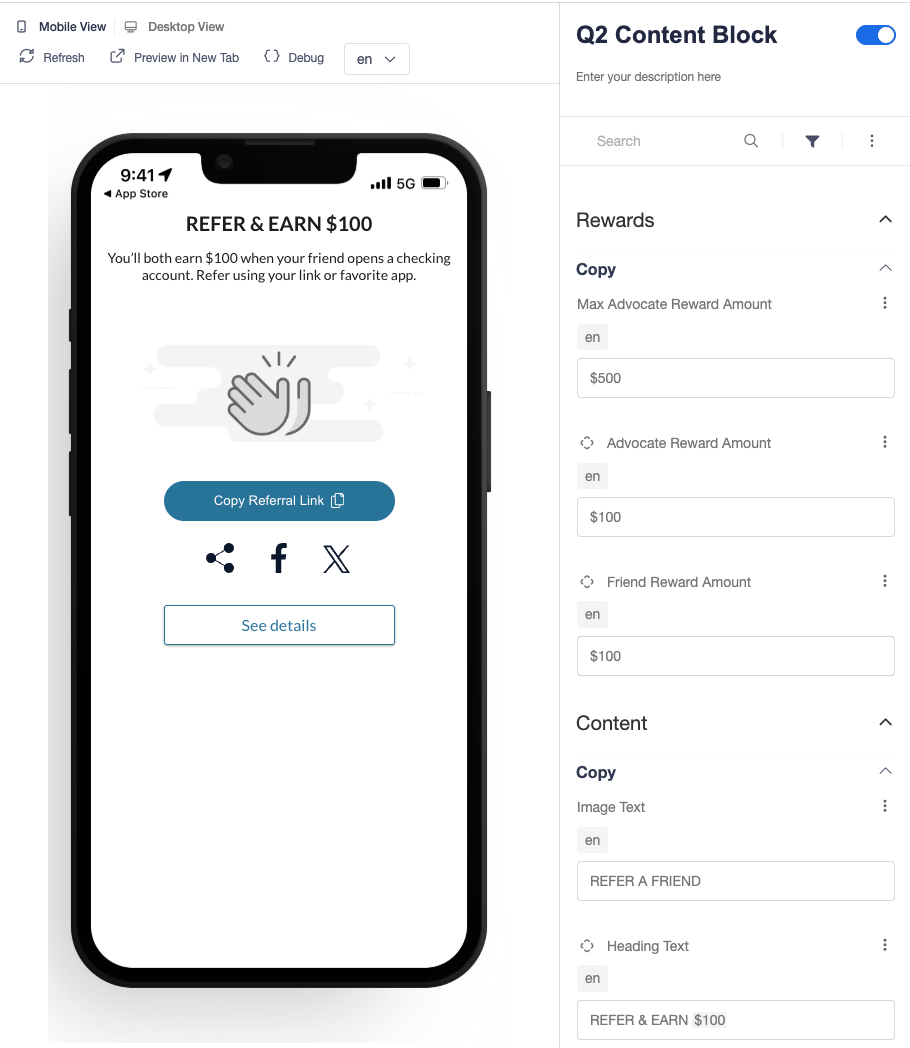
If you are on Q2's Composable Dashboard, you can embed a sharing widget on your main dashboard page using Extole's content block. Users can natively refer using their favorite apps directly from the content block without leaving the page. For additional information, users can click on "see details" to be taken to the the referral microsite (hosted by Extole, embedded via SSO.)
In your request to Q2, make sure sure to specify where you'd like your content block to appear. Extole recommends the following places:
* Home Dashboard
* Accounts Page
* Payments & Transfers
* Benefits / Rewards page (if applicable)
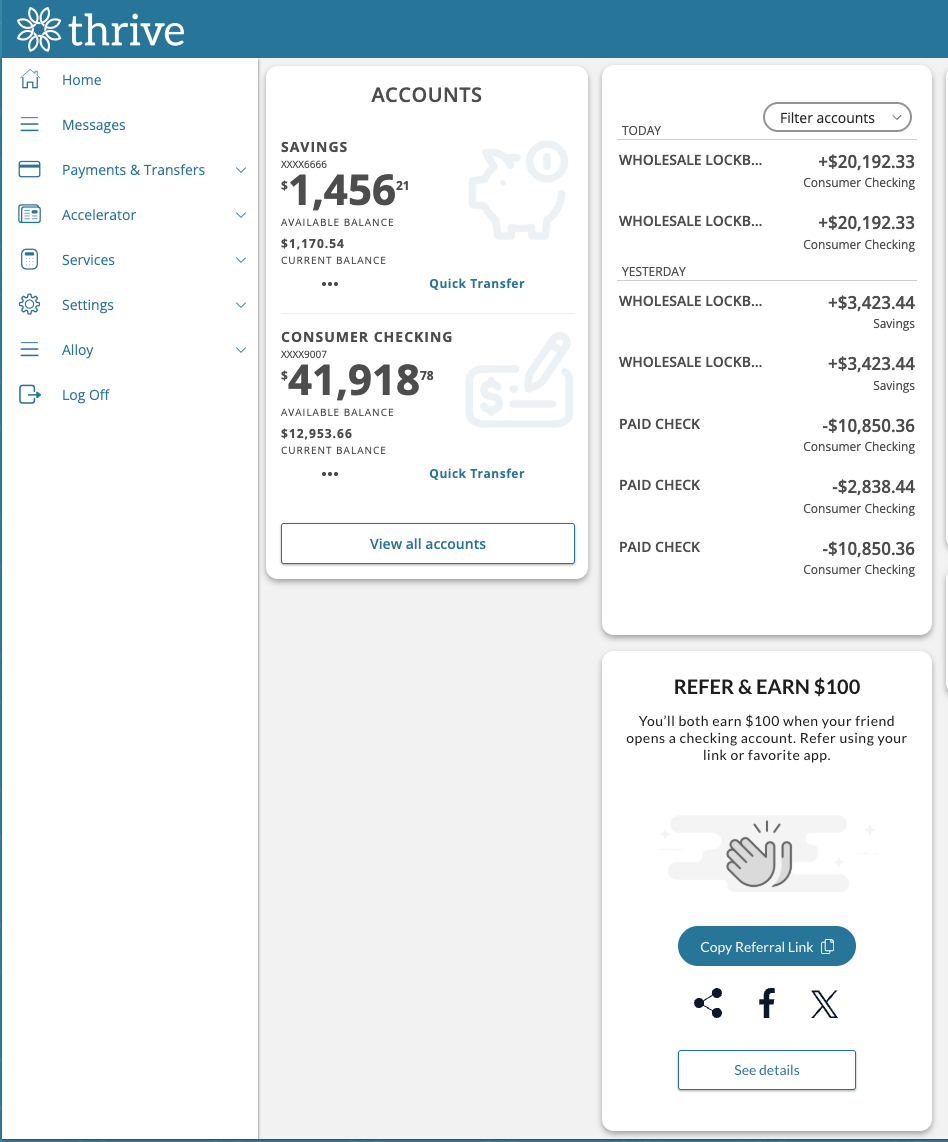 The content block includes several native sharing options. Clicking on "See details" takes the user to a referral microsite that's embedded into digital banking via SSO (see below.)
#### SSO Standalone
You can use the SSO integration on its own if you want to add CTA for your referral program to your navigation menu. You'll need to work with the Q2 team to create the CTA, so that when a user taps on it, they'll be taken to a referral microsite (hosted by Extole) within digital banking.
The content block includes several native sharing options. Clicking on "See details" takes the user to a referral microsite that's embedded into digital banking via SSO (see below.)
#### SSO Standalone
You can use the SSO integration on its own if you want to add CTA for your referral program to your navigation menu. You'll need to work with the Q2 team to create the CTA, so that when a user taps on it, they'll be taken to a referral microsite (hosted by Extole) within digital banking.
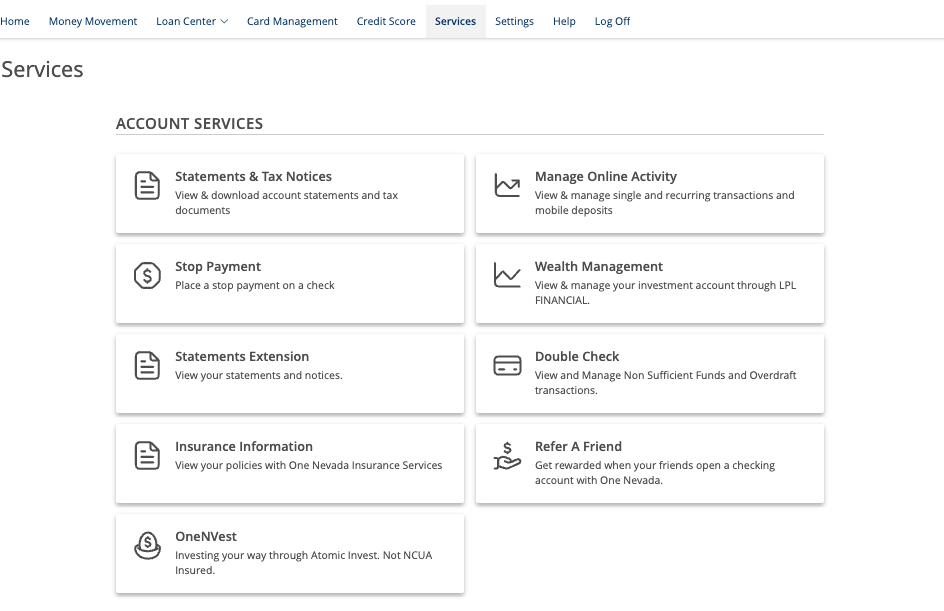
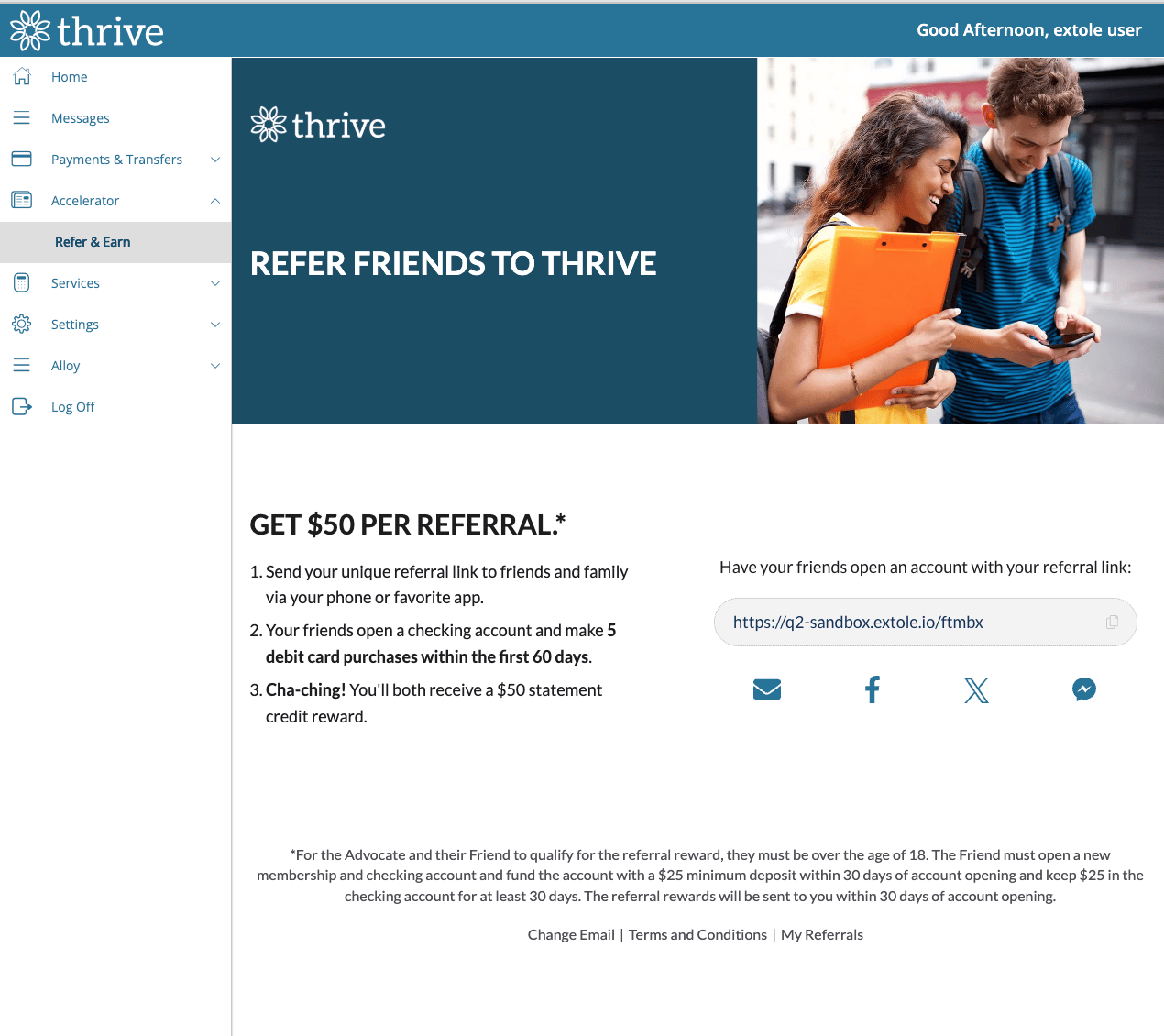 Referral microsite (hosted by Extole) embedded via SSO
**If you are using the SSO experience standalone, make sure to provide copy and placement for the CTA to the Q2 team in your request. The CTA copy will be used for link/button that members will click on in digital banking to view the SSO experience.**
For example:
-Add menu tile to 'Services'
-Name: Refer a Friend
-Description: Earn rewards for referring friends to join \{\{companyName}}
-Icon: hand-with-coins
#### Widget
If you are on Q2's legacy dashboard, you can embed a sharing widget to the right hand panel in digital banking.
Referral microsite (hosted by Extole) embedded via SSO
**If you are using the SSO experience standalone, make sure to provide copy and placement for the CTA to the Q2 team in your request. The CTA copy will be used for link/button that members will click on in digital banking to view the SSO experience.**
For example:
-Add menu tile to 'Services'
-Name: Refer a Friend
-Description: Earn rewards for referring friends to join \{\{companyName}}
-Icon: hand-with-coins
#### Widget
If you are on Q2's legacy dashboard, you can embed a sharing widget to the right hand panel in digital banking.
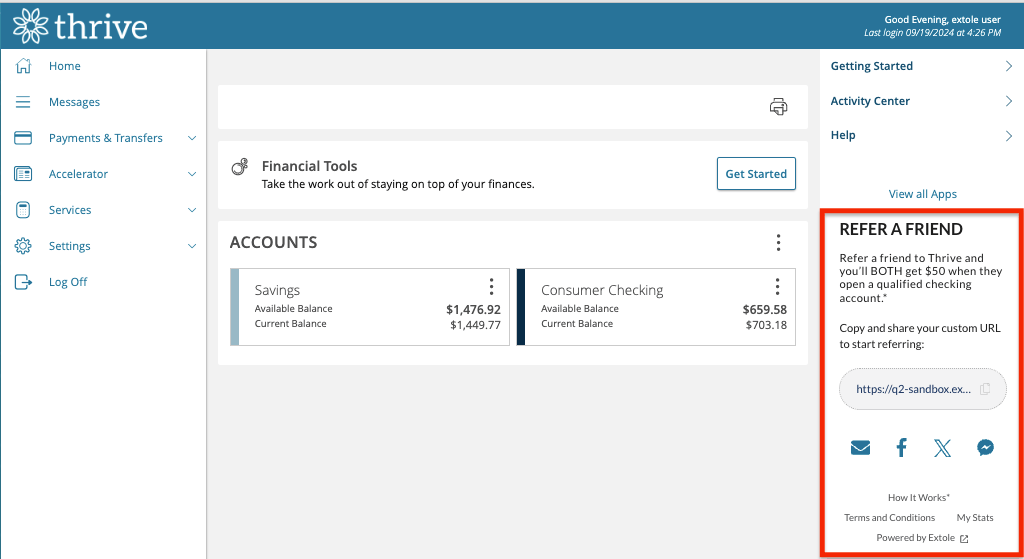 The desktop view of the widget
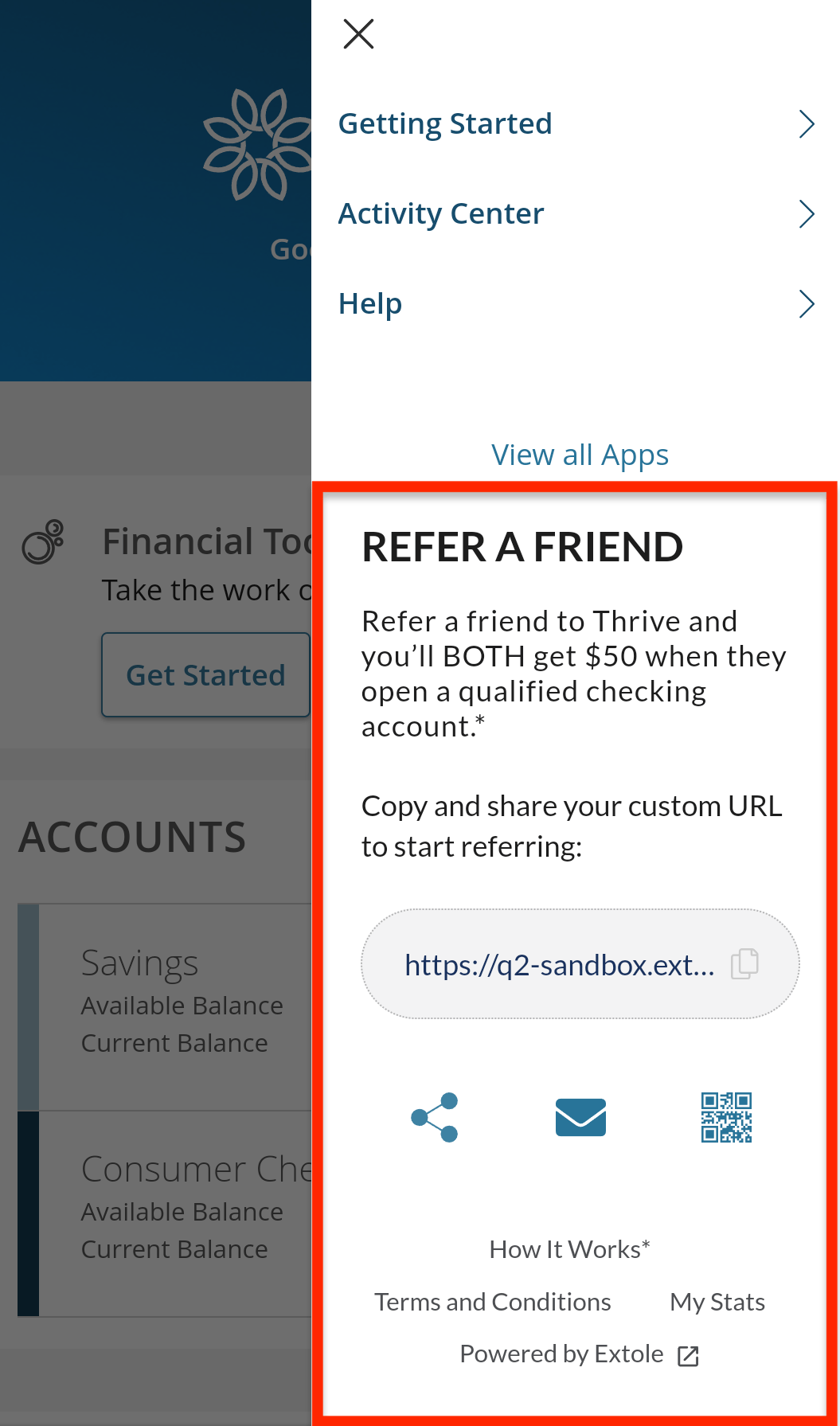 The mobile view of the widget.
### Step 3: Extole provides inputs for Q2 to deploy extension to production
Once you've requested the Extole app, the Q2 team will create a production deploy ticket in the Q2 Developer Center with all parties subscribed (Extole, Q2, and your team.) All collaboration will happen in Q2s Developer Center under the production ticket.
**Extole will provide Q2 with your Branded Program Domain**
Once the production deploy ticket has been opened by Q2, your Extole team will provide Q2 with your branded program domain. This can be found in your Extole account under the Program Domains section of the [Tech Center](https://my.extole.com/tech-center).
The mobile view of the widget.
### Step 3: Extole provides inputs for Q2 to deploy extension to production
Once you've requested the Extole app, the Q2 team will create a production deploy ticket in the Q2 Developer Center with all parties subscribed (Extole, Q2, and your team.) All collaboration will happen in Q2s Developer Center under the production ticket.
**Extole will provide Q2 with your Branded Program Domain**
Once the production deploy ticket has been opened by Q2, your Extole team will provide Q2 with your branded program domain. This can be found in your Extole account under the Program Domains section of the [Tech Center](https://my.extole.com/tech-center).
 **Extole will provide Q2 with JWT Key Credentials**
Your Extole team will also set up a JWT key in your Extole account and provide Q2 with the necessary details to ensure a secure connection between the two platforms. When you log in to your account and navigate to the [Security Center](https://my.extole.com/security-center), you'll be able to see your JWT under the Keys section.
**Extole will provide Q2 with JWT Key Credentials**
Your Extole team will also set up a JWT key in your Extole account and provide Q2 with the necessary details to ensure a secure connection between the two platforms. When you log in to your account and navigate to the [Security Center](https://my.extole.com/security-center), you'll be able to see your JWT under the Keys section.
 **Timeline**
Once Extole has provided Q2 with all of the above information, your Q2 team will then install the integration for you within a 10 day SLA.
### Step 4: Configure your Extole campaign creatives
Your Extole team will configure the creative "zones" in your Extole campaign that map to the Q2 experiences (content block, widget, SSO, etc.) The zone names are what will show up in the Extole campaign editor under the `Advocate Share / Participation Rules` section and performance reporting. See the mappings below.
* The `content block`experience maps to the `q2_content_block` creative zone in your campaign. See example below.
**Timeline**
Once Extole has provided Q2 with all of the above information, your Q2 team will then install the integration for you within a 10 day SLA.
### Step 4: Configure your Extole campaign creatives
Your Extole team will configure the creative "zones" in your Extole campaign that map to the Q2 experiences (content block, widget, SSO, etc.) The zone names are what will show up in the Extole campaign editor under the `Advocate Share / Participation Rules` section and performance reporting. See the mappings below.
* The `content block`experience maps to the `q2_content_block` creative zone in your campaign. See example below.
 * The `SSO` experience maps to the` microsite_embedded` zone in your campaign.
* The `widget` experiences maps to the `embedded_vertical_banner` creative zone in your campaign.
### Step 5: QA and go live
Once the Q2 team has deployed the extension in production and you've finalized your creatives in your Extole campaign, you'll want to test to make sure extension performs flawlessly for your members. After successful QA, both you and your Extole team will approve for go live in the Q2 deployment ticket.
## Data exchanged between Extole and Q2
Member data will be securely transmitted from Q2 to Extole via JWT (SSO method.) By default, Extole will collect the following data parameters in the JWT request, however If you'd like to remove any of the default data parameters, you can submit a request with to your Q2 team.
| Key | Description | Example Value |
| :----------------------------- | :-------------------------------- | :-------------------- |
| `user_id` required | Unique ID for the user | 246810 |
| `customer_id`required | Unique ID for the customer | 210864 |
| `customer_primary_cif`required | Primary CIF of the customer | 07212010 |
| `email`required | User's email address | `janedoe@example.com` |
| `phone` | User's phone number | 5125551234 |
| `first_name` | User's first name | Jane |
| `last_name` | User's last name | Doe |
| `customer_name` | Customer's name | |
| `address_line1` | First line of the user's address | 1234 Example Rd |
| `address_line2` | Second line of the user's address | Apt 150 |
| `address_country` | User's country | US |
| `address_city` | User's city | Austin |
| `address_postal_code` | User's postal code | 94730 |
| `address_region` | User's region/state | TX |
* The `SSO` experience maps to the` microsite_embedded` zone in your campaign.
* The `widget` experiences maps to the `embedded_vertical_banner` creative zone in your campaign.
### Step 5: QA and go live
Once the Q2 team has deployed the extension in production and you've finalized your creatives in your Extole campaign, you'll want to test to make sure extension performs flawlessly for your members. After successful QA, both you and your Extole team will approve for go live in the Q2 deployment ticket.
## Data exchanged between Extole and Q2
Member data will be securely transmitted from Q2 to Extole via JWT (SSO method.) By default, Extole will collect the following data parameters in the JWT request, however If you'd like to remove any of the default data parameters, you can submit a request with to your Q2 team.
| Key | Description | Example Value |
| :----------------------------- | :-------------------------------- | :-------------------- |
| `user_id` required | Unique ID for the user | 246810 |
| `customer_id`required | Unique ID for the customer | 210864 |
| `customer_primary_cif`required | Primary CIF of the customer | 07212010 |
| `email`required | User's email address | `janedoe@example.com` |
| `phone` | User's phone number | 5125551234 |
| `first_name` | User's first name | Jane |
| `last_name` | User's last name | Doe |
| `customer_name` | Customer's name | |
| `address_line1` | First line of the user's address | 1234 Example Rd |
| `address_line2` | Second line of the user's address | Apt 150 |
| `address_country` | User's country | US |
| `address_city` | User's city | Austin |
| `address_postal_code` | User's postal code | 94730 |
| `address_region` | User's region/state | TX |