> ## Documentation Index
> Fetch the complete documentation index at: https://docs.extole.com/llms.txt
> Use this file to discover all available pages before exploring further.
# How to Configure Reward Expiration
> Set a reward to expire after a delay or on a date, and manage expiration on an issued reward from View Reward.
# Overview
Reward expiration is the date and time after which a reward can no longer be redeemed. You can set expiration when you configure a reward, and you can set, change, or clear it on an issued reward from **View Reward**.
When a reward expires, it moves to **Expired** and cannot be redeemed. Expired Reward Bank collectibles are hidden from the Redemption Center.
Expiration you set on a reward in Flow Builder is used instead of expiration set on the reward supplier, or on the Reward Bank Collectible Reward.
Changing reward expiration related settings does not update rewards that have already been earned.
To change the date on an issued reward, use **View Reward**.
# Configure Expiration on a Reward Supplier
Use this when the supplier is not part of a component. Any standalone supplier in **Rewards** can have a **Reward Expiration**.
1. Navigate to **Rewards**.
2. Open the reward supplier.
3. Under **Reward Details**, set **Reward Expiration** with the date picker.
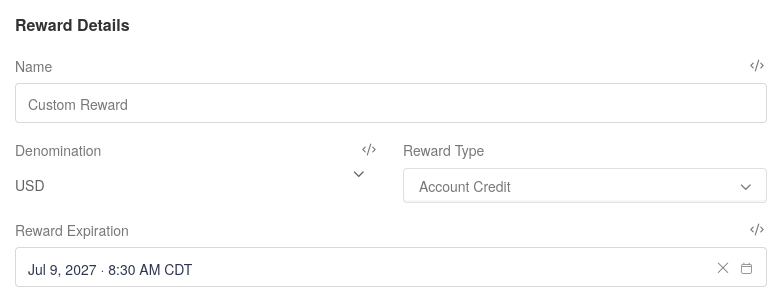 4. Save the supplier.
Every reward earned from this supplier uses that date, unless the campaign reward sets its own expiration.
# Configure Expiration on a Reward Bank Collectible Reward
They use **Expires After** and **Expiration Date** instead of **Reward Expiration**.
1. Navigate to **Rewards**.
2. Open the Collectible Reward.
3. Set **Expires After** (click **Add Custom Delay**) or **Expiration Date**. Use one of these settings, not both.
4. Save the supplier.
Every reward earned from this supplier uses that date, unless the campaign reward sets its own expiration.
# Configure Expiration on a Reward Bank Collectible Reward
They use **Expires After** and **Expiration Date** instead of **Reward Expiration**.
1. Navigate to **Rewards**.
2. Open the Collectible Reward.
3. Set **Expires After** (click **Add Custom Delay**) or **Expiration Date**. Use one of these settings, not both.
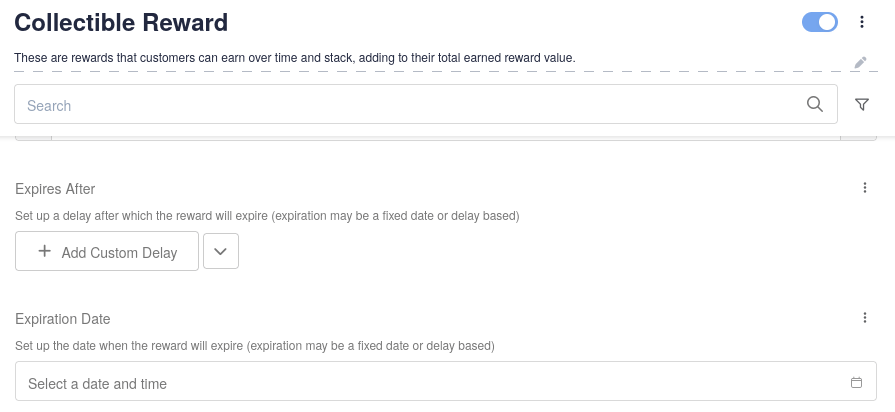 4. Save the Collectible Reward.
**Expires After** counts from when the participant earns the reward. **Expiration Date** is a specific date and time.
# Configure Expiration on a Reward in Flow Builder
Use this to expire rewards for one campaign reward. This setting is used instead of the supplier's **Reward Expiration**.
1. Go to the [Programs](https://my.extole.com/programs) page and click **Manage Flow** for the campaign, or from the **Campaign Editor** select the **Flow** tab.
2. Click the reward to open its settings.
3. Set **Expires After** (click **Add Custom Delay**) or **Expiration Date**. Use one of these settings, not both.
4. Save the Collectible Reward.
**Expires After** counts from when the participant earns the reward. **Expiration Date** is a specific date and time.
# Configure Expiration on a Reward in Flow Builder
Use this to expire rewards for one campaign reward. This setting is used instead of the supplier's **Reward Expiration**.
1. Go to the [Programs](https://my.extole.com/programs) page and click **Manage Flow** for the campaign, or from the **Campaign Editor** select the **Flow** tab.
2. Click the reward to open its settings.
3. Set **Expires After** (click **Add Custom Delay**) or **Expiration Date**. Use one of these settings, not both.
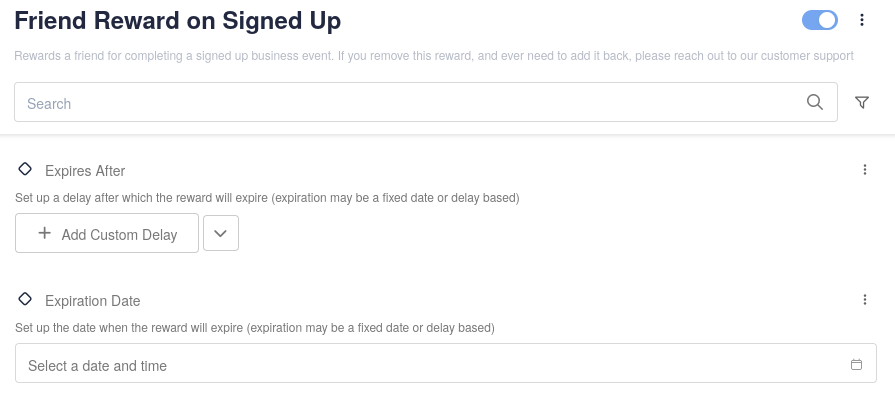 4. Click **Apply**.
5. Publish the campaign.
# View and Manage Expiration on a Reward
Open an issued reward to see whether it expires, change that date, or expire it now.
1. Click **User Support** in the sidebar and search for the person.
2. Open the person's profile and scroll to **Rewards**.
3. Click the reward to open **View Reward**.
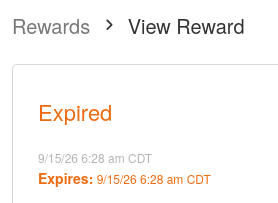
If the reward has an expiration date, **View Reward** shows it under the current state as **Expires:**.
4. Click **Apply**.
5. Publish the campaign.
# View and Manage Expiration on a Reward
Open an issued reward to see whether it expires, change that date, or expire it now.
1. Click **User Support** in the sidebar and search for the person.
2. Open the person's profile and scroll to **Rewards**.
3. Click the reward to open **View Reward**.
If the reward has an expiration date, **View Reward** shows it under the current state as **Expires:**.
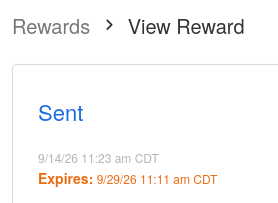 When the reward has expired, the state is **Expired**.
 The header actions **Set Expiration Date**, **Clear Expiration Date**, and **Mark as Expired** may be disabled when they are not available for the reward's current state.
## Set or Change the Expiration Date
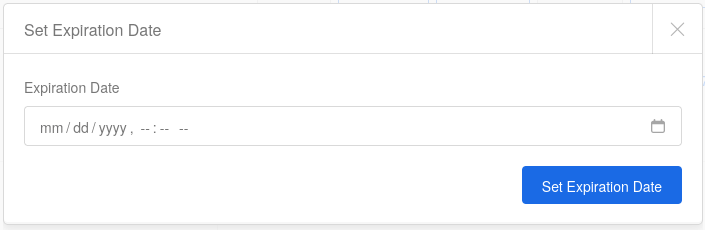
1. On **View Reward**, click **Set Expiration Date**.
2. Choose the **Expiration Date**.
3. Click **Set Expiration Date**.
The header actions **Set Expiration Date**, **Clear Expiration Date**, and **Mark as Expired** may be disabled when they are not available for the reward's current state.
## Set or Change the Expiration Date
1. On **View Reward**, click **Set Expiration Date**.
2. Choose the **Expiration Date**.
3. Click **Set Expiration Date**.
 ## Clear the Expiration Date
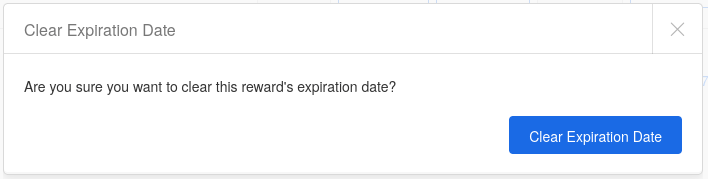
1. On **View Reward**, click **Clear Expiration Date**.
2. Confirm by clicking **Clear Expiration Date**.
## Clear the Expiration Date
1. On **View Reward**, click **Clear Expiration Date**.
2. Confirm by clicking **Clear Expiration Date**.
 ## Mark a Reward as Expired
1. On **View Reward**, click **Mark as Expired**.
2. Optionally enter a note describing why you are expiring the reward.
3. Click **Mark as Expired**.
## Mark a Reward as Expired
1. On **View Reward**, click **Mark as Expired**.
2. Optionally enter a note describing why you are expiring the reward.
3. Click **Mark as Expired**.
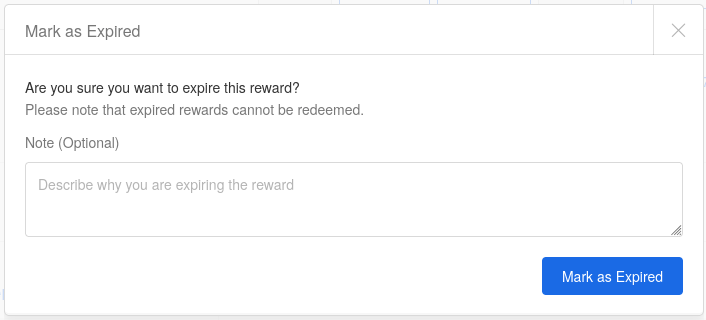 The reward moves to **Expired** and cannot be redeemed.