> ## Documentation Index
> Fetch the complete documentation index at: https://docs.extole.com/llms.txt
> Use this file to discover all available pages before exploring further.
# How to Set Up a Loyalty Program
> Configure a points-based loyalty program in My Extole — install the Reward Bank, create the rewards participants earn, set what points are worth, and publish.
# Overview
This guide walks through setting up a loyalty program in which participants earn points for the
actions you choose, accumulate them in a Reward Bank, and redeem them for rewards you configure.
Before you start, settle three decisions with your team:
* **Which actions earn**, and how many points each is worth.
* **What points buy**, and at what rate.
* **Where members see their balance** — embedded in a page you own, or on a standalone page.
For the concepts behind these decisions, see
[Loyalty](/product/product-overview/programs/loyalty). For the integration work of getting
earning events into Extole, see
[Where Events Come From](/technical/platform-integrations/extensions/reward-bank/loyalty-program-guide#where-events-come-from).
# Step 1: Create the Program
A loyalty program is built as a **Reward for Action** program, with one way to earn for each action
you reward.
1. On the **Programs** page, click **+ New Program**.
2. Choose the **Reward for Action** program. If it is not available, contact your CSM.
3. Add it as a new program and give it a name.
**Reward for Action** and **Offer** are two names for the same program type and template. You may
see either in My Extole and across this documentation.
# Step 2: Install the Reward Bank Extension
1. Navigate to **Partners** > **Extensions**.
2. Locate the **Reward Bank Extension** and install it.
If you install more than one Reward Bank, give each live bank a distinct name and **Zone Name** so
their Redemption Centers do not contend for the same request.
# Step 3: Create Your Redemption Options
Redemption Options are what a balance converts into, such as a gift card or an account credit.
1. Navigate to [Rewards](https://my.extole.com/account-rewards).
2. Create a reward supplier for each redemption option you want to offer, configured with a dynamic
value of 100 percent so the member's balance determines the amount.
3. Set the maximum to match the limit your reward provider enforces.
Create these before configuring the extension — you select them in Step 5.
# Step 4: Add Collectible Rewards
Collectible Rewards are the points members earn. Create one per way to earn.
1. Open the Reward Bank extension and click **+ New Collectible Reward**.
2. Give it a name that includes the value, so it is identifiable in a list. For example, `Collectible Reward 15 Points`.
3. Set the value and choose the denomination.
4. Toggle **Enable** on.
5. For a percentage-based reward, such as points per dollar spent, enable the dynamic toggle, set
the percentage, and set the minimum and maximum a member can earn per transaction.
The maximum is required for dynamic rewards, and it is the cap on what a single transaction can
cost you. Set it against your largest expected order, not an arbitrary high number.
Collectible Rewards are managed only within the Reward Bank extension. Removing a reward supplier
means rewards it issued are no longer available for members to redeem.
For each field on the form, see
[Add and Configure Collectible Rewards](/technical/platform-integrations/extensions/reward-bank/reward-bank-configuration-guide#add-and-configure-collectible-rewards).
# Step 5: Configure Redemption
Still in the extension:
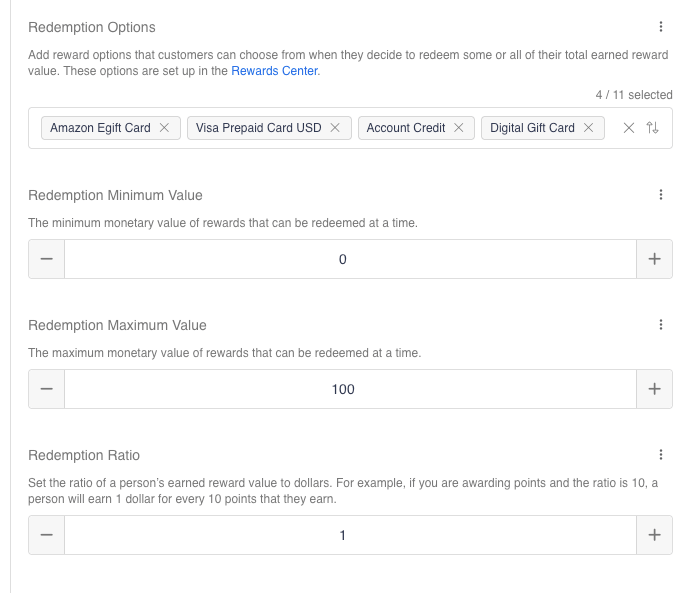
1. Under **Redemption Options**, select the dynamic rewards you created in Step 3. Choose the
dynamic reward, not a specific amount.
2. Under **Redemption Minimum Value** and **Redemption Maximum Value**, set the smallest and largest
monetary amount a member can redeem at one time. Setting either to `0` disables it.
3. Under **Redemption Ratio**, set how many points make one dollar. The default is `1`, so one
point is worth one dollar. Set it to `10` and ten points are worth one dollar.
4. Scroll to the top and save.
 For how to choose the ratio, see
[Choosing Your Point-to-Reward Ratio](/guides/strategy-and-best-practices/campaign-optimization/choosing-your-point-to-reward-ratio).
# Step 6: Attach Your Ways to Earn
Each way to earn is an event in your campaign with a Collectible Reward attached.
1. Open your program's **Flow** tab.
2. Select the event that represents the action, or add a new business event for it. See
[How to Add a New Business Event](/guides/flow-campaigns/how-to-add-a-new-business-event).
3. Confirm the **Event Name** matches the event being sent into Extole. If the incoming event name
differs, set the incoming name under **Triggered on Input Event** > **Trigger Event Names**.
4. Add the Collectible Reward for that action.
5. Set the **Reward Behavior**:
| Behavior | Use for |
| :- | :- |
| First Action | One-time actions — enrollment, app download, profile completion. |
| Every Action | Repeatable actions — purchases, ongoing engagement. |
| Every Unique Action | Actions that repeat but should earn once per item, such as one review per product. |
6. Review the **Reward Rules**. Keep the quality and limit rules that apply, and remove those that
do not. See [How to Set Up Reward Rules](/guides/flow-campaigns/how-to-set-up-reward-rules).
Repeat for each way to earn.
# Step 7: Set Up Member Access and Emails
Members reach their balance through the **Redemption Center**, which embeds into a page you own, or
the **Redemption Center Microsite**, a standalone page. It redirects to the Redemption Center
zone, so you only need to customize one.
Members must reach the Reward Bank as a verified consumer. Access from an email link is
authenticated with a JSON Web Token appended to the link.
Customize the redemption email, and point your earned reward emails at the Redemption Center so
members have a route back to their balance.
Configuring earned reward emails to direct members to the Reward Bank may need help from Support,
as may the email links when you run multiple Reward Banks. Contact Extole Support to set these
up.
# Step 8: Test and Publish
Before publishing, confirm each way to earn end to end:
1. Send a real event for the action.
2. Find the participant in **User Support** and confirm the reward appears on their profile.
3. Open the Redemption Center as that participant and confirm the balance and the redemption
options are right.
4. Complete a redemption and confirm the reward is fulfilled and the redemption email arrives.
Then publish the campaign.
# Related
* [Loyalty](/product/product-overview/programs/loyalty)
* [Reward Bank Configuration Guide](/technical/platform-integrations/extensions/reward-bank/reward-bank-configuration-guide)
* [Reward Bank Reports](/guides/dashboards-and-reporting/report-types/rewards-reports/reward-bank-reports)
* [Testing Your Loyalty Program](/guides/strategy-and-best-practices/campaign-optimization/testing-your-loyalty-program)
## Related topics
- [Loyalty](/product/product-overview/programs/loyalty/index.md)
- [Build a Loyalty Program](/technical/platform-integrations/extensions/reward-bank/loyalty-program-guide.md)
- [Ways to Earn](/product/product-overview/programs/loyalty/ways-to-earn.md)
- [Managing Member Points](/guides/rewards-management/reward-fulfillment/managing-member-points.md)
- [Choosing Your Point-to-Reward Ratio](/guides/strategy-and-best-practices/campaign-optimization/choosing-your-point-to-reward-ratio.md)
This documentation is built and hosted on [Mintlify](https://mintlify.com), a developer documentation platform.
For how to choose the ratio, see
[Choosing Your Point-to-Reward Ratio](/guides/strategy-and-best-practices/campaign-optimization/choosing-your-point-to-reward-ratio).
# Step 6: Attach Your Ways to Earn
Each way to earn is an event in your campaign with a Collectible Reward attached.
1. Open your program's **Flow** tab.
2. Select the event that represents the action, or add a new business event for it. See
[How to Add a New Business Event](/guides/flow-campaigns/how-to-add-a-new-business-event).
3. Confirm the **Event Name** matches the event being sent into Extole. If the incoming event name
differs, set the incoming name under **Triggered on Input Event** > **Trigger Event Names**.
4. Add the Collectible Reward for that action.
5. Set the **Reward Behavior**:
| Behavior | Use for |
| :- | :- |
| First Action | One-time actions — enrollment, app download, profile completion. |
| Every Action | Repeatable actions — purchases, ongoing engagement. |
| Every Unique Action | Actions that repeat but should earn once per item, such as one review per product. |
6. Review the **Reward Rules**. Keep the quality and limit rules that apply, and remove those that
do not. See [How to Set Up Reward Rules](/guides/flow-campaigns/how-to-set-up-reward-rules).
Repeat for each way to earn.
# Step 7: Set Up Member Access and Emails
Members reach their balance through the **Redemption Center**, which embeds into a page you own, or
the **Redemption Center Microsite**, a standalone page. It redirects to the Redemption Center
zone, so you only need to customize one.
Members must reach the Reward Bank as a verified consumer. Access from an email link is
authenticated with a JSON Web Token appended to the link.
Customize the redemption email, and point your earned reward emails at the Redemption Center so
members have a route back to their balance.
Configuring earned reward emails to direct members to the Reward Bank may need help from Support,
as may the email links when you run multiple Reward Banks. Contact Extole Support to set these
up.
# Step 8: Test and Publish
Before publishing, confirm each way to earn end to end:
1. Send a real event for the action.
2. Find the participant in **User Support** and confirm the reward appears on their profile.
3. Open the Redemption Center as that participant and confirm the balance and the redemption
options are right.
4. Complete a redemption and confirm the reward is fulfilled and the redemption email arrives.
Then publish the campaign.
# Related
* [Loyalty](/product/product-overview/programs/loyalty)
* [Reward Bank Configuration Guide](/technical/platform-integrations/extensions/reward-bank/reward-bank-configuration-guide)
* [Reward Bank Reports](/guides/dashboards-and-reporting/report-types/rewards-reports/reward-bank-reports)
* [Testing Your Loyalty Program](/guides/strategy-and-best-practices/campaign-optimization/testing-your-loyalty-program)
## Related topics
- [Loyalty](/product/product-overview/programs/loyalty/index.md)
- [Build a Loyalty Program](/technical/platform-integrations/extensions/reward-bank/loyalty-program-guide.md)
- [Ways to Earn](/product/product-overview/programs/loyalty/ways-to-earn.md)
- [Managing Member Points](/guides/rewards-management/reward-fulfillment/managing-member-points.md)
- [Choosing Your Point-to-Reward Ratio](/guides/strategy-and-best-practices/campaign-optimization/choosing-your-point-to-reward-ratio.md)
This documentation is built and hosted on [Mintlify](https://mintlify.com), a developer documentation platform.