> ## Documentation Index
> Fetch the complete documentation index at: https://docs.extole.com/llms.txt
> Use this file to discover all available pages before exploring further.
# How to Run a Report
> An essential part of a successful Extole program is your ability to quickly, accurately, and completely report on it. This article describes how to configure and run the various types of Extole reports that give you access to important data…
# Overview
An essential part of a successful Extole program is your ability to quickly, accurately, and completely report on it. This article describes how to configure and run the various types of Extole reports that give you access to important data generated by your programs.
 If you would like a more general introduction to our reports, please reference our [Reports Overview](/guides/platform-overview/exploring-the-reports-page).
# Standard Reports
## General Setup
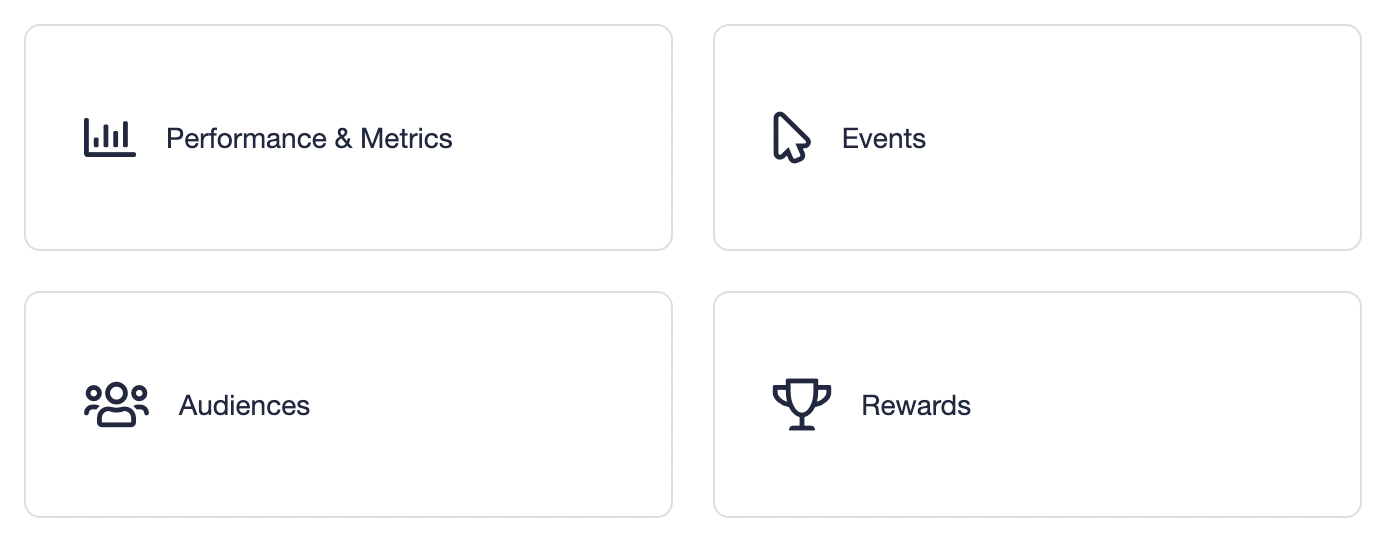
1. On the main Reports page, select your category or use the search bar to find the report you are looking for.
If you would like a more general introduction to our reports, please reference our [Reports Overview](/guides/platform-overview/exploring-the-reports-page).
# Standard Reports
## General Setup
1. On the main Reports page, select your category or use the search bar to find the report you are looking for.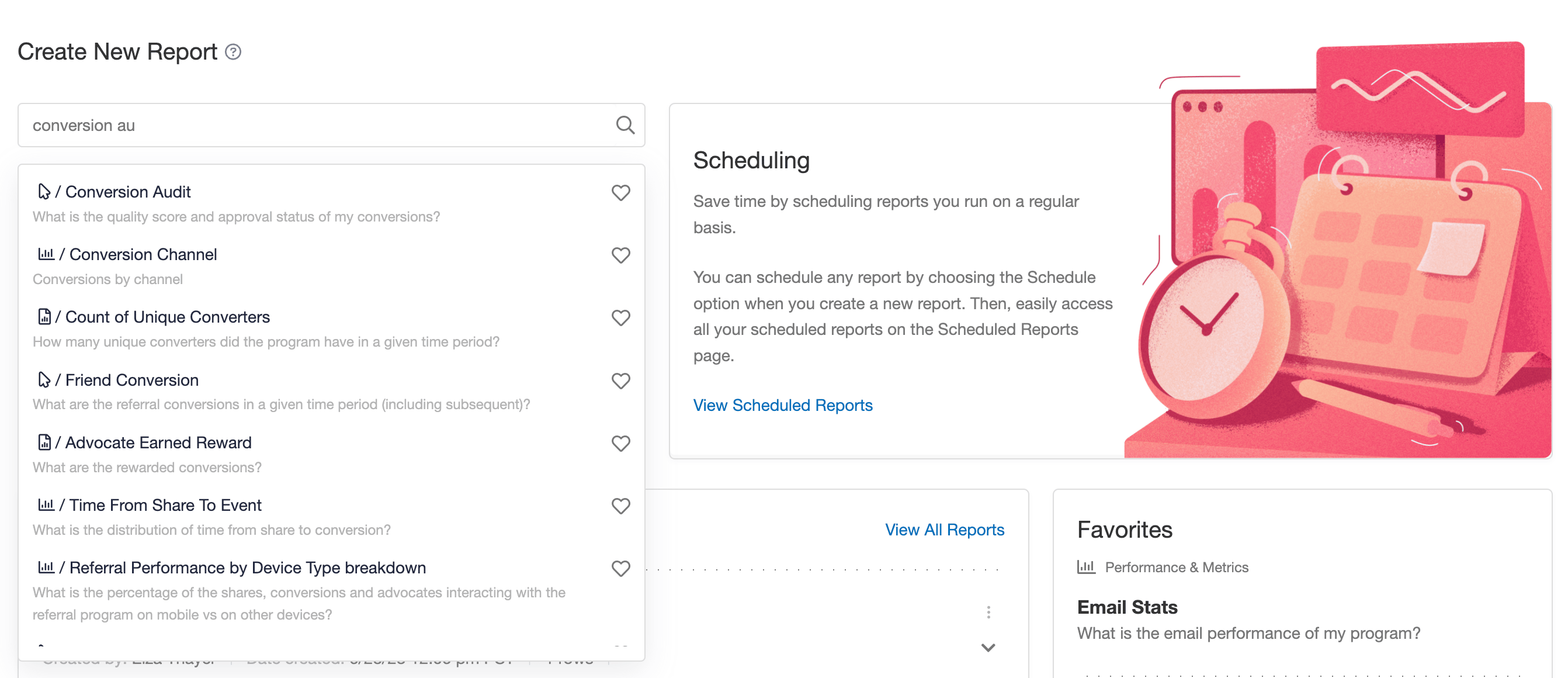 2. Click on the name of the report to open its configuration screen. Here you will see all of the necessary configuration fields you'll need to fill out to run the report.
3. In particular, we recommend editing the Display Name to make the report easier to reference.
4. You can also choose to run the report once, which is our default, or schedule the report so that it runs each week, month, etc.
2. Click on the name of the report to open its configuration screen. Here you will see all of the necessary configuration fields you'll need to fill out to run the report.
3. In particular, we recommend editing the Display Name to make the report easier to reference.
4. You can also choose to run the report once, which is our default, or schedule the report so that it runs each week, month, etc.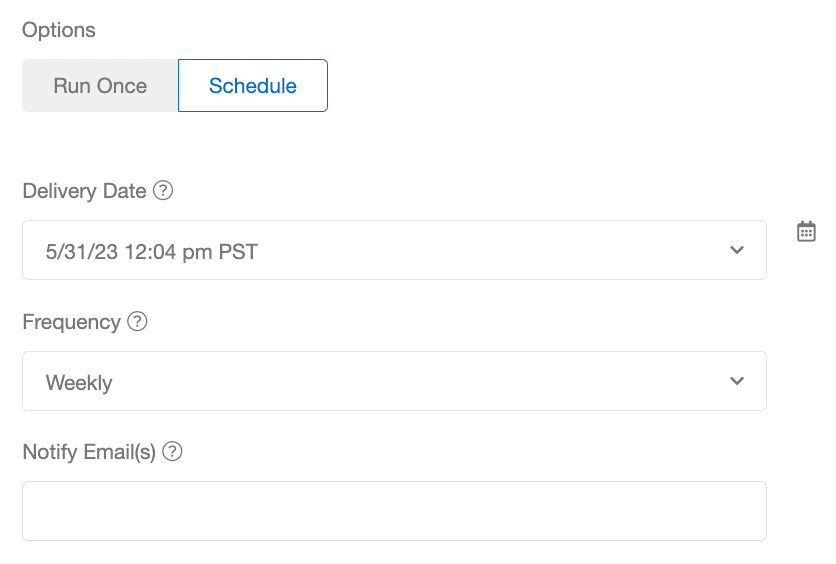 5. In the Filters section, you'll see a variety of fields depending on the type of report. Generally speaking, you'll be able to adjust the time range of data you want to be included in the report and select which programs or campaigns you want to look at.
* Learn about dates you may be interested in capturing in our article on [Using My Timeline Dates](/guides/dashboards-and-reporting/extole-dashboards-and-metrics/using-my-timeline-dates).
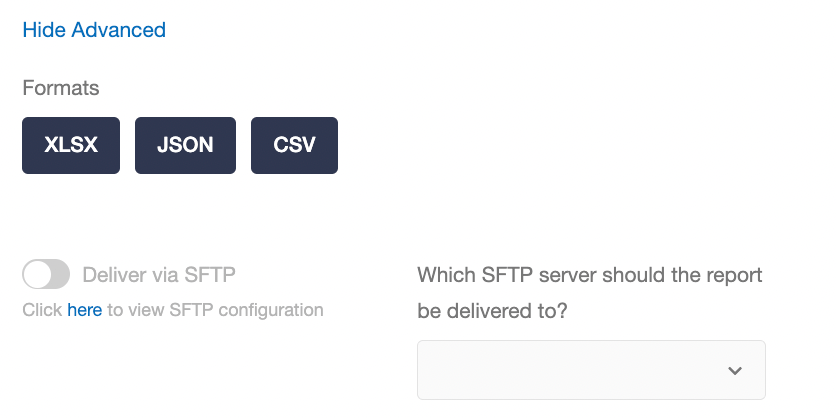
6. In the Advanced section, you can choose the file format of your report, define which columns it returns, and optionally have it delivered via SFTP if you have a server set up in your account. See [Advanced Report Configuration](/guides/dashboards-and-reporting/configuring-reports/advanced-report-configuration).\
5. In the Filters section, you'll see a variety of fields depending on the type of report. Generally speaking, you'll be able to adjust the time range of data you want to be included in the report and select which programs or campaigns you want to look at.
* Learn about dates you may be interested in capturing in our article on [Using My Timeline Dates](/guides/dashboards-and-reporting/extole-dashboards-and-metrics/using-my-timeline-dates).
6. In the Advanced section, you can choose the file format of your report, define which columns it returns, and optionally have it delivered via SFTP if you have a server set up in your account. See [Advanced Report Configuration](/guides/dashboards-and-reporting/configuring-reports/advanced-report-configuration).\
 7. Once you've finished your configuration, hit Save & Run to kick off your report.
## Download Options
Depending on the amount of data included in your report, it may take some time to run. Once it's completed, you can download the report by clicking on it and going to its details page.
If you'd like to create an automated pull on your side, the API call is also available on the details page or within the dot menu on the right-hand side of the reports table.
7. Once you've finished your configuration, hit Save & Run to kick off your report.
## Download Options
Depending on the amount of data included in your report, it may take some time to run. Once it's completed, you can download the report by clicking on it and going to its details page.
If you'd like to create an automated pull on your side, the API call is also available on the details page or within the dot menu on the right-hand side of the reports table.